Insight View
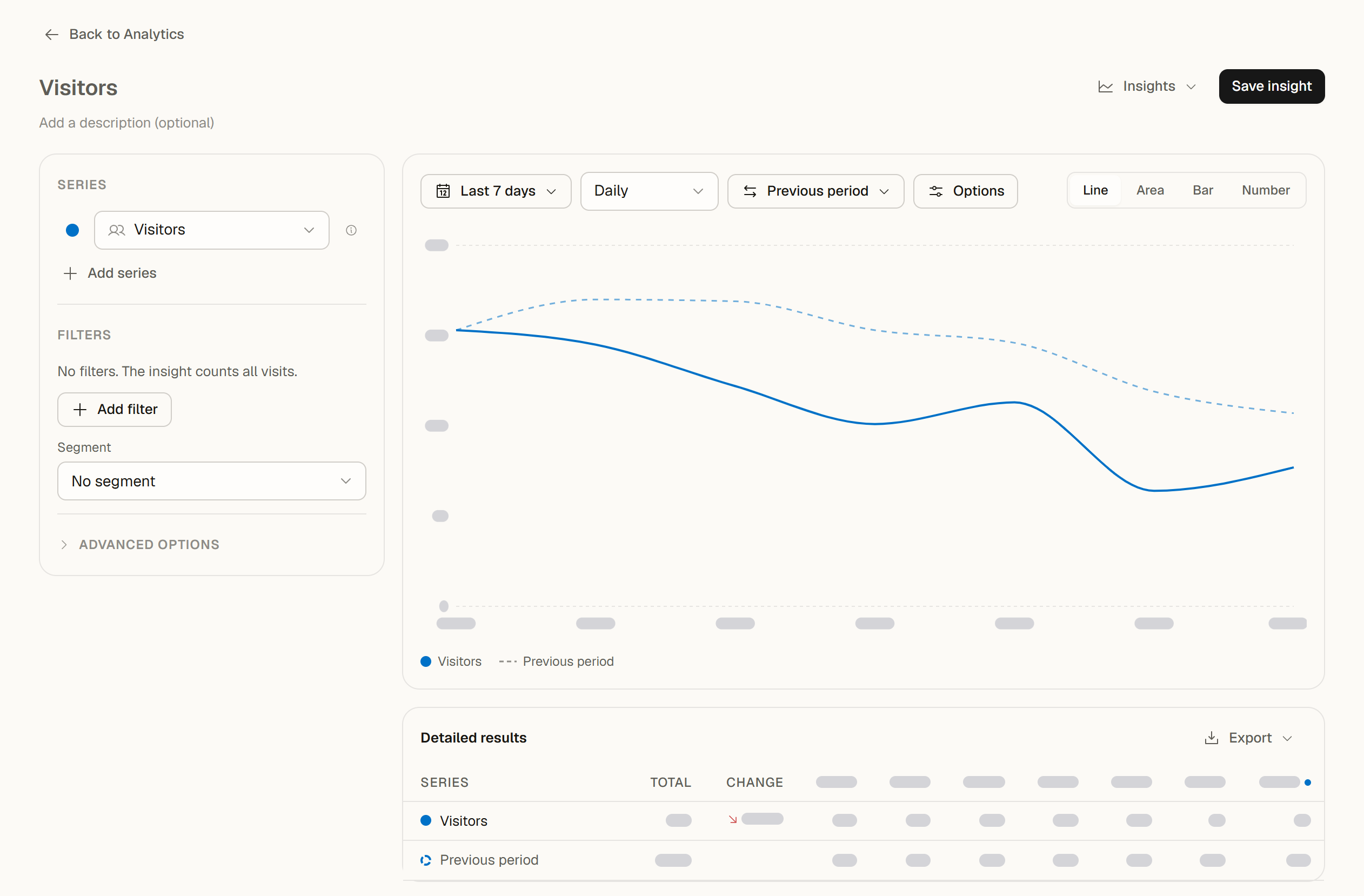
The Insight view takes the main chart further. Show several metrics side by side, give the view its own filters, choose a chart type, read every value in a table and save the result as an insight that your whole team can open again.
The Insight view and saved insights are available on Pro and above. On the Free plan, Open as insight and the Insights menu show a lock and Pro, and selecting them opens an upgrade prompt.
An insight in this view is a chart you build yourself. The AI insights tab in the sidebar is a separate feature: a short briefing on what changed on your website. See AI Insights.
Open an insight
- On the Analytics tab, click Open as insight in the chart header (on phones, it is in the chart menu). The insight starts with the chart's metric, period, comparison, filters and segment.
- Or open the Insights menu in the Analytics header: New insight starts from the current view, and the list below it holds the website's Saved insights, with a search field once there are seven or more.
Back to Analytics returns to the dashboard; the browser's back button works too. Every insight has its own address, so a saved insight opens directly from a link.
Build the view
On large screens the settings sit in a panel to the left of the chart; on smaller screens they sit above it.
Series
Under Series, add up to five metrics (Add series): Visitors, Visits, Page views, Bounce rate and Avg. visit duration, each once and each with its own color. Each kind of value has its own scale: counts (Visitors, Visits, Page views), Bounce rate and Avg. visit duration. Counts always use the left axis. The other kinds take the next free axis in the order you add them: the left axis if no count is shown, then the right axis (marked Right axis). A third kind is drawn on its own scale without an axis (marked Own scale). The metric definitions are the same as on the main chart.
Filters and segment
Under Filters, add up to 10 filters and choose a saved Segment. They belong to the insight: changing them leaves the filters of the Analytics tab as they are, and the Analytics tab's filters do not change the insight.
Date range, interval and comparison
The toolbar above the chart holds:
- Date range: a preset or a custom range.
- grouped by: the interval of the points (hourly, daily, weekly or monthly, depending on the range).
- Compare: No comparison, Previous period or An earlier period with a number of days, weeks, months or years. The same rules as on the main chart apply: the earlier period has to lie within your plan's report window (Pro 1 year, Scale 4 years, Enterprise all retained data), otherwise the option shows a lock with the plan that includes it.
- Options: Moving average (each point shows the average of the last 7 points), Cumulative (running totals of Visitors, Visits and Page views; rates and durations stay as they are) and Show comparison (draws the comparison period as a dashed line, or as lighter bars in the Bar view).
- Chart type: Line, Area, Bar or Number (one large figure per series).
- The point that is still running, such as today or this week, shows the value so far and looks the same as every other point in every chart type. Its tooltip says So far. Dashed lines, and lighter bars in the Bar view, always mean the comparison.
Changing the series, colors, chart type or options redraws the chart from the data already loaded. Changing the range, interval, comparison, filters or segment loads new data.
Goal lines
Advanced options → Goal lines lists the website's goal lines and lets owners, admins and editors add, change and delete them. They are the same goal lines as on the main chart: a change here shows on the Analytics chart too. A goal line appears when its metric is one of the series. Goal lines for Visitors, Visits and Page views belong to one interval and show only at that interval; while Cumulative is on, they are hidden.
Under the legend, Goal lines not on this chart names up to three goal lines the insight does not draw, with what each one needs; a link to the rest opens Advanced options. Show makes the change in one step: it adds the metric as a series, sets the interval and, where needed, the period, and turns Cumulative off. With five series already in the insight, the hint asks you to remove one first. In Advanced options → Goal lines, each goal line shows On this chart or what it needs. Details in Goal lines.
Detailed results
Under the chart, Detailed results lists every series with its value for each point, the Total for the whole range and the Change against the comparison period. While the period is still in progress, Change compares it with the same elapsed span of the comparison period, and a note shows up to which time. With a comparison, each series gets a second row with the comparison values.
- The totals are exact: Visitors are counted once per person over the range, and Bounce rate and Avg. visit duration are calculated over all visits of the range.
- The table shows measured values. Moving average and Cumulative change only the chart.
- On phones, each series is a card with its total and a compact list of points.
Export (Pro and above) downloads the results: Export as CSV writes the results table, Export as Excel (.xlsx) writes a Results sheet, a Totals sheet and an About sheet that records the website, the report and the period. Every member of the team can export.
Save and share insights
Give the insight a name (up to 80 characters) and, if you like, a description (up to 500 characters), then click Save insight. After that:
- Save stores your changes. While there are changes that are not saved yet, the header says Unsaved changes, and leaving with Back to Analytics or through the Insights menu asks whether to discard them.
- More actions offers Save as new insight, Copy link and Delete insight.
- If a teammate saved the same insight after you opened it, you choose between Keep my version and Load their version.
Who sees saved insights. Saved insights belong to the website and are shared with everyone in your team who can open it. Owners, admins and editors can save, change and delete insights; viewers can open and explore them, marked View only, without saving. Deleting an insight removes it for the whole team. A website can hold up to 200 saved insights.
Insights are part of your team's dashboard: public shared dashboards and client portals do not show them.
See also
- Main Chart: metrics, comparison, range measurement and goal lines
- Saved Segments: reusable visitor segments for insights and every report
- Data Export: every export, its format, plan and role
On this page