Retention
The Retention tab shows how many new visitors come back later. Visitors are grouped into cohorts by the day, week or month of their first visit, and each column shows the share of a cohort that visited again in a later period. Two more views sit in the same tab: LTV, the revenue new visitors bring in over time, and Bounce, the bounce rate by landing page.
Open it under Domains → your site → Retention.
Retention is available on Pro and above. On the Free plan, the tab shows what it offers and an upgrade button.
Every figure in the tab has an info icon that explains how it is counted.
Choose the view
- Retention, LTV or Bounce: the switch at the top of the tab.
- Period: Last 7, 14 or 30 days, Last 6 or 12 months, or All time, within your plan's report window. The default is the last 30 days.
- Cohorts by: Daily, Weekly or Monthly. Daily cohorts are available for periods of up to 90 days, weekly cohorts for periods of up to 12 months. Weeks run from Monday to Sunday.
Days, weeks and months follow your time zone. Your choice is part of the page address, so a copied link opens the same view. The numbers refresh every 10 minutes.
Who is counted
- New visitors only. A cohort holds the visitors whose first visit fell in that day, week or month. Visitors who had already visited in the 12 months before the selected period are left out, and the info icon on New visitors says how many.
- Returning means the same browser visited again. Zenovay recognizes a browser by a first-party cookie that is kept for 30 days after the last visit (or the duration set for your site). Some browsers, such as Safari, delete it after 7 days without a visit, so after a long break a returning visitor can look new.
- Visitors counted without cookies are recognized only until midnight (UTC), so they can never return in a later day, week or month. They are not part of the cohorts, and a note under the tiles shows their share of the period. On sites that count visitors without cookies until they accept cookies, the cohorts contain the visitors who accepted.
- Bots are left out.
Tiles
| Tile | What it shows |
|---|---|
| New visitors | New visitors in the period who can be recognized on a later visit |
| Back the next day (week, month) | The share of new visitors who visited again in the period right after their first visit |
| Back after 7 days (4 weeks, 3 months) | The share of new visitors who visited again that long after their first visit |
The two return rates are averages over every cohort that has completed that period, weighted by cohort size. When no cohort is complete yet, the tile says Not enough complete cohorts yet.
Retention curve
The Retention Curve shows the share of new visitors who came back, by time since the first visit. The bold line is All cohorts, the weighted average of all cohorts; the thin lines are the latest cohorts. The dashed end of a line is a period that is still running. The vertical axis is scaled to your values, so small return rates stay readable.
Cohort grid
Each row is a cohort, with its new visitors in the Visitors column. Each further column is the time since the first visit: Day 1, Week 1, Month 1 and so on.
- A cell shows the share of the cohort that came back in that period. Darker cells mean more returning visitors.
- A period that has passed without a return shows 0%; a period that has not happened yet stays empty.
- A cell in italics with a dot is still running and can still rise.
- The All cohorts row is the weighted average of all cohorts, counting only complete periods.
- Hover a cell to see, for example, 12 of 340 visitors. Click or tap it (or press Enter) to keep the details open, Esc closes them.
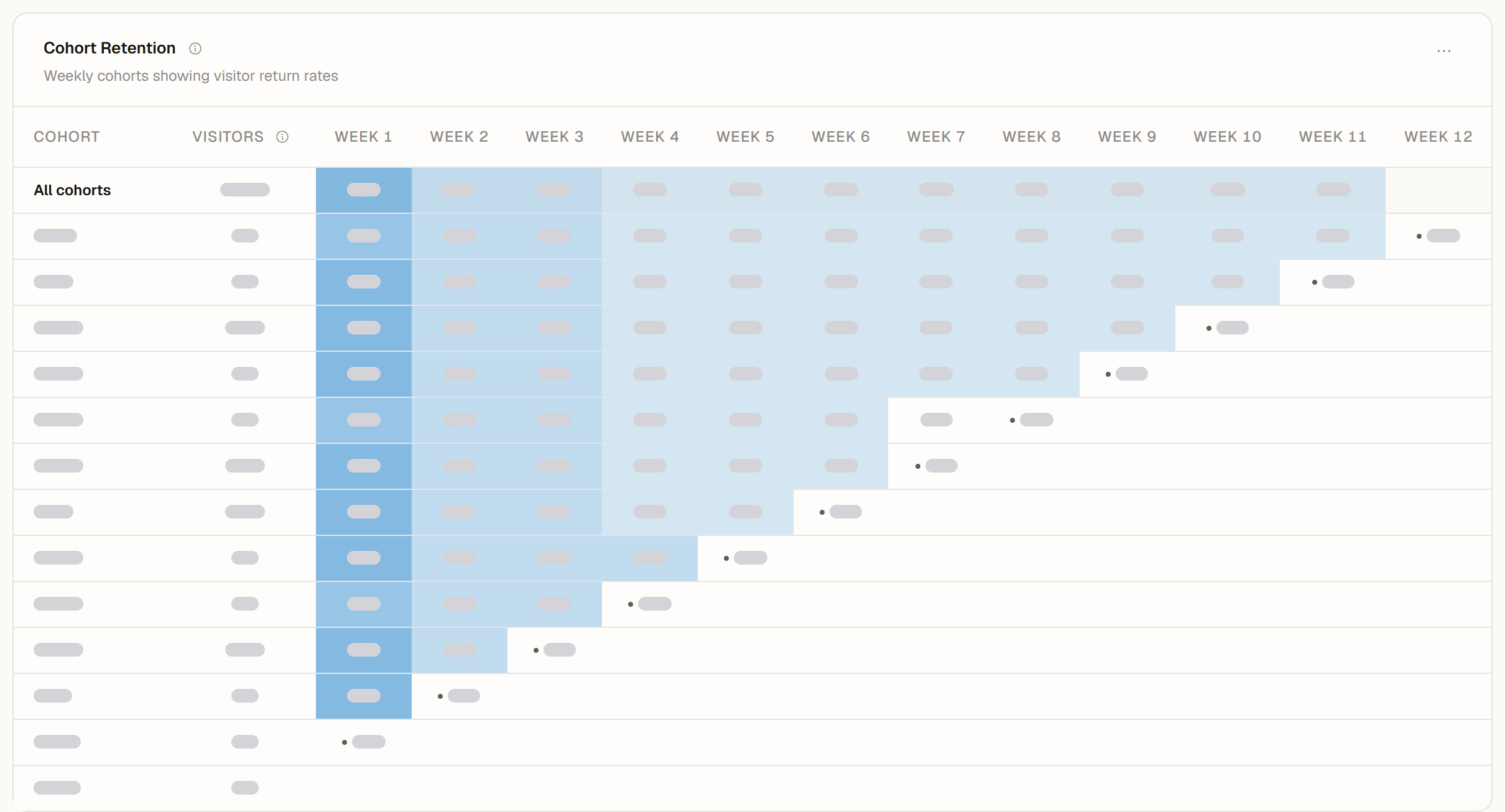
If a whole column is unusually low for every cohort, visitors were probably not recognized in that period, for example after a change of the tracking setup.
All time shows the latest 30 daily, 26 weekly or 24 monthly cohorts.
Messages you may see
- Not enough new visitors who can be recognized yet: retention needs at least 30 new visitors who can be recognized on a later visit. Choose a longer period or check back later.
- Not enough returning-visitor data yet: none of the new visitors came back in a later period so far. The grid fills in as visitors return.
- Retention can't be measured in cookieless mode: your site counts visitors without cookies, so nobody can be recognized on a later day. The message explains what to change and links to the tracking settings.
- This period is too large to analyze: the site had too many visits in the selected period to build cohorts on demand. Choose Last 30 days or Monthly cohorts.
Lifetime value (LTV)
The LTV view shows the revenue that new visitors brought in over time, divided by the number of new visitors. It uses the same cohorts of new visitors as Retention and counts completed payments that are linked to a visitor.
- Revenue per visitor after 30 days (60 days, 90 days): the average revenue per new visitor within that many days of the first visit. Only visitors whose first visit was at least that long ago are included; until then the tile reads Not enough history yet.
- Paying visitors: the share of new visitors in these cohorts who made at least one payment.
- The LTV Curve and the LTV Cohort Grid show the cumulative revenue per visitor by time since the first visit, with running periods marked like in the retention grid. Amounts keep the decimals of their currency.
- One currency. Amounts are shown in the currency of most completed payments in the period. When payments in other currencies exist, a note says how many are not included.
- Linking payments to visitors. A payment is linked when your checkout passes the Zenovay visitor ID with the payment. Payments without it appear on the Revenue tab but not here. When the period has payments but none is linked, the view says Payments aren't linked to visitors and offers Open revenue settings. Without a connected payment provider it shows No revenue data yet. See Revenue Attribution.
LTV is shown in your team's dashboard; shared dashboards show the Retention view.
Bounce
The Bounce view shows the bounce rate by landing page and by traffic channel or device. See Cohort Bounce.
Export
The ... menu of the retention grid and of the LTV grid exports the grid as CSV or Excel on Pro and above; the Excel file also holds one row per cohort and period. See Data Export.
See also
- Cohort Bounce: bounce rate by landing page and channel
- Visitor Identification: how Zenovay recognizes returning visitors
- Revenue Attribution: connect payments for lifetime value
On this page