Uptime
The Uptime tab shows whether your website answers and how fast. Zenovay checks it around the clock from its cloud network and turns the checks into availability, downtime and incidents.
Open it under Domains → your site → Uptime. Monitoring starts once the tracking script on your site is verified; the first check runs within 5 minutes. Until then, the tab shows No checks yet with a link to verify the installation.
Every figure in the tab has an info icon that explains how it is measured.
Choose the range
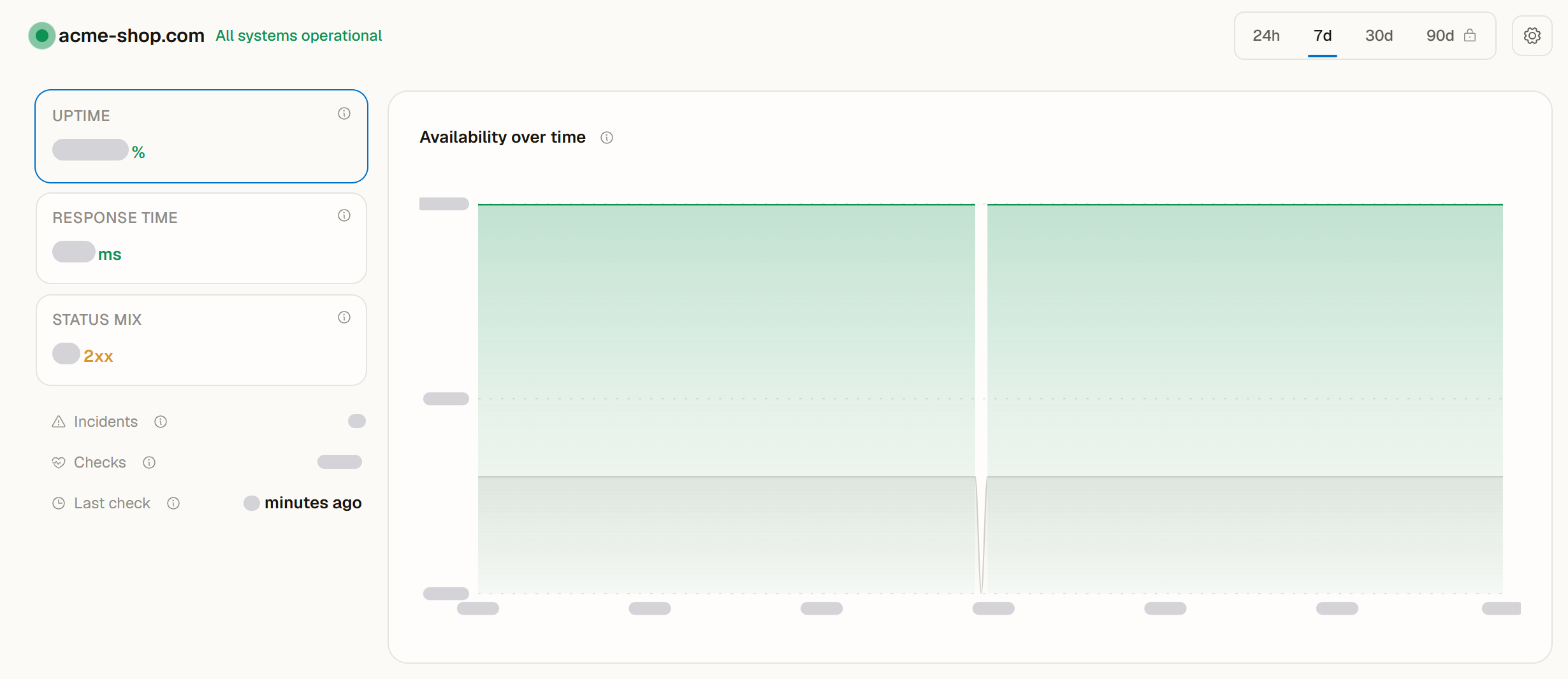
At the top of the tab, choose 24h, 7d, 30d or 90d. Every figure in the row of key figures and the chart follow this range. The ranges you can choose depend on your plan (see below).
Key figures
| Figure | What it shows |
|---|---|
| Uptime | The share of time in which checks passed. A check passes when your site answers with a status code below 500 (or the status code you expect, see the monitor settings) within 10 seconds. Redirects are followed. |
| Response time | The median time until your server answered a check: DNS lookup, connection, TLS and server time, measured from Zenovay's cloud network. It does not include loading the page in a browser, so it is not what your visitors experience. |
| Status mix | The share of checks answered with a 2xx status. Redirects are followed to the final page; no response means a timeout or a connection error. |
| Incidents | Incidents in the range. An incident opens after the set number of failed checks in a row and closes with the next successful check. |
| Checks | The checks in the range, with the check interval. |
Each check runs from one location of Zenovay's cloud network, so a site that is slow or unreachable only in some countries can still pass. Because an incident opens after several failed checks, the outage itself began up to a few minutes before the incident's start time; the info icon names the exact time span.
Availability by period
Availability by period lists the Last 24 hours, Last 7 days, Last 30 days and Last 90 days, each with:
- Availability: the share of time in which checks passed.
- Downtime: the time from a failed check to the next check, added up.
- Incidents and the Longest incident that overlaps the period, including one that is still ongoing, shown as Ongoing with its duration so far.
The values for 30 and 90 days are estimated from daily totals and marked with ≈. For scale: 99.9% over 30 days allows about 43 minutes of downtime, 99% about 7 hours. A period before monitoring started reads Not monitored yet, and a period that started during it says Monitored since with the date. Periods beyond your plan show the plan that includes them; selecting one opens an upgrade prompt.
Durations are shown in your language.
Charts and details
- Availability over time shows the checks of the range. Times without checks stay empty, so a monitoring gap is not mistaken for availability.
- Response time shows the percentiles over time: P50 is the median, half of the checks were faster; P95 and P99 show the slow outliers.
- Failure reasons groups failed checks: Timeout (no answer within 10 seconds), HTTP 5xx (server error), DNS error (the domain could not be resolved), Keyword missing (the text from the monitor settings was not on the page) and Other.
- Status codes counts the checks by status class.
Incidents
The Incidents card lists the incidents that overlap the selected range, newest first, with their cause, start, end and duration. An incident that is still open is marked Ongoing. The incident list is available on Pro and above; on the Free plan, the card shows what it offers.
Site-down incidents also appear in the Incidents tab, together with conversion drops, error spikes and new errors.
SSL certificate
On Pro and above, the SSL Certificate card shows the issuer, the validity dates, the chain and a grade. The grade is Zenovay's own, not an SSL Labs rating:
| Grade | Meaning |
|---|---|
| A | The certificate is valid for more than 30 days |
| B | 8 to 30 days left |
| C | 7 days or less left |
| F | Expired, or the check request to your site did not succeed |
Certificates from Let's Encrypt are usually renewed 30 days before they expire, so B can be normal.
Monitor settings
Configure monitor opens the settings of the check (owners, admins and editors):
- Check interval: every 5, 10 or 30 minutes. Checks run at most every 5 minutes. On the Free plan, the shortest interval is 10 minutes.
- Alert threshold: how many failed checks in a row open an incident, from 1 to 10.
- Expected status code: a check fails when the response code differs from this.
- Keyword assertion: the check counts as down when this text is missing from the page.
- SSL monitoring (Pro and above): tracks the certificate's expiry and chain.
- Alert channels: email.
If the settings cannot be saved, the window stays open and a message says why, for example when your plan does not include the chosen interval.
Plans
Uptime monitoring runs on every plan. The ranges you can look at depend on your plan:
| Plan | Ranges |
|---|---|
| Free | Last 24 hours and 7 days |
| Pro | Up to 30 days |
| Scale | Up to 90 days |
| Enterprise | Up to 90 days |
The incident list and SSL monitoring are available on Pro and above. On a public shared dashboard, the Uptime tab follows the plan of the team that shared it, without the monitor settings.
See also
- Incidents: site-down incidents next to conversion drops, error spikes and new errors
- Install Health: verify the tracking script
On this page