Main Chart
The chart at the top of a website's Analytics tab shows one metric over time. You choose the metric, the period, the interval and the period to compare with, and you can measure any range by dragging across the chart.
Open it under Domains → your site → Analytics.
Choose the metric
Open the metric menu in the chart header (Chart metric) and pick one of five metrics. The tiles above the chart show the same five metrics for the selected period: click a tile to show that metric on the chart.
| Metric | What it counts |
|---|---|
| Visitors | Unique people who visited in this period. |
| Visits | Visits (sessions) on your site. A visit ends after 30 minutes without activity. |
| Page views | Every page loaded, including repeat views during a visit. |
| Bounce rate | The share of visits that viewed only one page. |
| Avg. visit duration | The average engaged time of visits that lasted longer than 0 seconds. |
The info icon next to the metric repeats its definition together with a note on how your site measures it. Page views and bounce rate follow the definitions described in Dashboard Overview.
The tiles show the change against the comparison period: in percent, and for Bounce rate in percentage points. When the comparison period has a value of 0, the tile reads New.

With cookies and without cookies
How Zenovay recognizes a visitor depends on the tracking mode of your site, so Visitors and Visits read slightly differently:
- With cookies, a visitor is recognized for 30 days on the same browser.
- Without cookies (cookieless mode), a visitor is recognized for one day. Over several days, Visitors counts daily visitors, added up: a person who comes back on another day counts again. A visit also ends at midnight (UTC) or when the visitor's network changes, and the duration of a visit is its longest page view. Visits that end at midnight or on a network change count separately, which can raise the bounce rate slightly.
- Cookieless until consent (
data-cookieless="until-consent"): visits are measured without cookies until a visitor consents, so the figures combine both methods. The info text shows which share of the period's visits was measured without cookies.
Figures that are estimates on your site carry a ≈ sign. Page views count the same way in every mode. See Tracking Script for the modes.
Period and interval
Pick a period (Today, Yesterday, Last 24 hours, Last 7, 14, 30 or 90 days, Last 6 or 12 months, Year to date, All time) or a custom range, and an interval (hourly, daily, weekly or monthly). The intervals on offer depend on the length of the period.
- Days, weeks and months follow the time zone of your browser. Last 7 days is today plus the six full days before it. Weeks start on Monday.
- The point that contains the current moment, such as today, shows the value so far and looks the same as every other point. Its tooltip says So far. Dashed lines always mean the comparison period. A point that lies only partly inside the period is marked as a partial period.
- Very long ranges are shown with a coarser interval, and a note under the chart says so.
- How far back you can look depends on your plan: Free 30 days, Pro 1 year, Scale 4 years, Enterprise all retained data. Longer periods show a lock, and selecting one opens an upgrade prompt. When the plan window shortens the selected period, a note under the chart names the first date shown.
Compare with another period
Open Compare to in the chart header:
| Option | What the chart compares with |
|---|---|
| No comparison | Nothing; the chart shows the selected period only. |
| Previous period | The same number of days directly before the selected period. For Last 7 days, the 7 days before them. |
| Earlier period | The same period, shifted back by a number of days, weeks, months or years that you set, for example 1 year. |
- The comparison is drawn as a dashed line. The two periods are aligned point by point: the first day with the first day, the second with the second, and so on. The tooltip shows both values.
- An Earlier period follows the calendar: March 31 shifted back by one month is February 28 (or 29). You can go back up to 3,650 days, 520 weeks, 120 months or 10 years.
- For a period that is still running, such as Today, the tiles compare the same elapsed time, while the dashed line shows the whole comparison period.
- All time has no earlier period, so it shows no comparison.
Plans. The Previous period is available whenever data for it is stored. An Earlier period has to lie completely within your plan's report window (Free 30 days, Pro 1 year, Scale 4 years, Enterprise all retained data). A choice outside the window shows a lock with the plan that includes it and offers an upgrade instead of applying the comparison.
Measure a range
Select a range on the chart to read how the metric changed between two points:
- Mouse: press on the chart, drag to the left or right and release.
- Touch: press and hold for a moment, then drag. A normal swipe keeps scrolling the page, and a tap shows the tooltip.
- Keyboard: move the focus onto the chart with Tab. The arrow keys move from point to point, Shift with the arrow keys selects a range, Home and End jump to the first and last point.
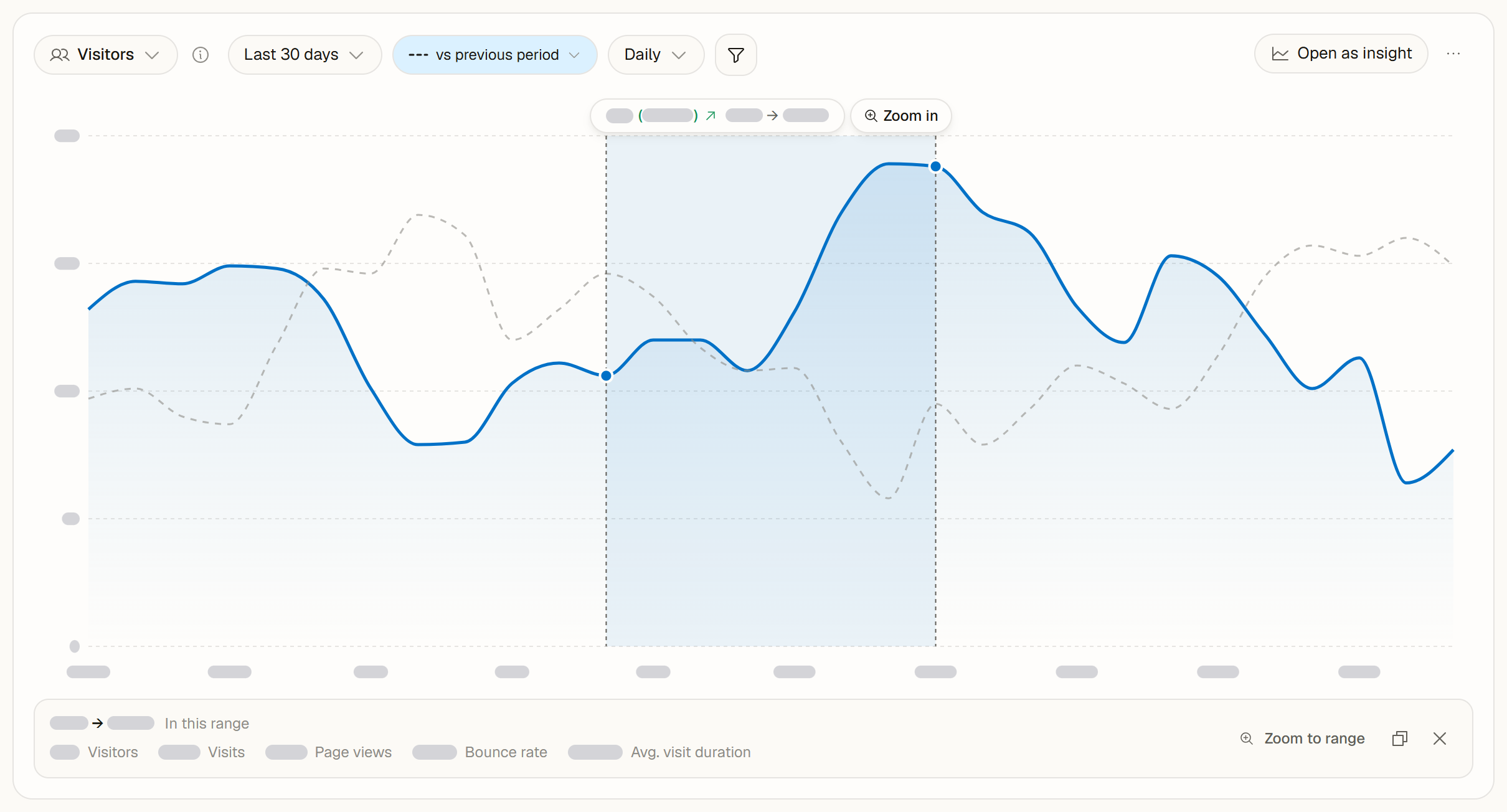
The label above the selection shows the change from the first to the last point of the range, as a number and in percent with an arrow for the direction, followed by the dates, for example +12 (+9%) Oct 17 → Oct 20. For Bounce rate, the change is shown in percentage points. When the first point is 0, the percentage reads New.
Below the chart, the strip In this range shows the exact totals of the selected range for all five metrics. Visitors are counted once per person over the whole range, so the figure can be lower than the sum of the points. If the range includes the current moment, the strip is marked In progress. It offers three actions:
- Zoom to range shows only the selected days, like Zoom in (see below).
- Copy selection copies the dates, the change and the totals as text.
- Clear selection removes the selection. Esc does the same.
Zoom in
Right next to the label of the selection sits Zoom in (on phones, a magnifier icon). Click it to show only the selected days on the chart; its tooltip names the range, for example Zoom into Oct 17 → Oct 20. With the keyboard, press Z while the chart has the focus and a range is selected.
- Zoom works in whole days in your time zone, at every interval: on Last 24 hours, a selection zooms into the day it lies in.
- When the selection already covers every day of the period, for example on Today or Yesterday, there is nothing to zoom into, so the button does not appear.
- After zooming, Back to with the previous period, for example Back to Last 90 days, sits under the chart and brings back the view you came from. The browser's Back and Forward buttons move through your zoom steps too.
The selection stays in place while the chart refreshes. Changing the period, the interval or the filters clears it.
A click on a single point, or Enter on a focused point, opens the notes of that point in time. Owners, admins and editors can turn the notes markers on or off with Show notes on chart in the chart menu.
Goal lines
Goal lines are available on Pro and above. On the Free plan, Add goal line shows a lock and Pro, and selecting it opens an upgrade prompt.
A goal line is a target value drawn across the chart as a dashed line, for example 500 visitors per day. You see at a glance whether a period is above or below the target. Its label sits on the line as a small solid tag, at a spot where it does not cover your data.
To add one, open the chart menu (Chart options, the ... button) and choose Add goal line. Then set:
- Metric: the metric the line belongs to. The line shows while the chart shows that metric.
- Target value: for Visitors, Visits and Page views a number per interval (per hour, day, week or month), set with Interval. These lines show when the chart uses that interval, and the target always keeps the value you entered: a goal line of 500 visitors per week appears on weekly values. For Bounce rate a percentage from 0 to 100, for Avg. visit duration seconds or minutes and seconds such as 1:30. These two show at every interval.
- Label (optional, up to 60 characters) and Color.
The chart's scale always includes the target value, with some room above it, so the line and its label stay visible. To change or remove a goal line, click its label: Remove asks you to click once more to confirm.
Show a goal line with one click
When a goal line belongs to another metric or interval than the chart shows, Goal lines not on this chart under the chart lists it with what it needs, for example: Launch · 500 per week. Needs Visitors with weekly values. Switches the range to Last 90 days. Click Show, and the chart switches to the metric and interval of the goal line in one step. When the current period does not offer that interval, the period changes too: hourly values to Last 24 hours, daily values to Last 30 days, weekly values to Last 90 days and monthly values to Last 12 months. Goal lines that need the same change share one row, and the goal lines of other metrics are summed up in one row, such as Goal lines for Visits.
In the Insight view, the same hints appear under the legend.
Who sees goal lines. Goal lines belong to the website. Everyone in your team who can open the website sees them on its Analytics chart and in its insights. Owners, admins and editors can add, change and remove them. A website can have up to 10 goal lines. Public shared dashboards show no goal lines.
Goal lines are not the same as Goals: a goal line is a target value you draw on a chart, a goal in Journeys counts conversions.
Export the chart
Exports are available on Pro and above. On the Free plan, the export items show a lock and Pro, and selecting one opens an upgrade prompt.
The chart menu offers Export as CSV and Export as Excel (.xlsx):
- One row per point of the chart, with the date and all five metrics: Visitors, Visits, Page views, Bounce rate and Avg. visit duration.
- With a comparison, the Excel file adds a Comparison sheet with each date, the date it is compared with, and the five metrics of the comparison period. A CSV file holds the chart table only.
- The Excel file ends with an About sheet that records the website, the report and the period.
Every member of a team on Pro or above can export the chart. See Data Export for every export in Zenovay.
Open as insight
Open as insight (in the chart header; on phones in the chart menu) opens the chart in the Insight view with the same metric, period, comparison, filters and segment. There you can show several metrics together, change the chart type, read detailed results and save the view for your team. The Insight view is available on Pro and above. See Insight View.
Share card
Share card above the chart (on phones, a share icon) turns your numbers into an image for a post, a report or a slide. Choose a Layout:
- Headline number: one metric of your choice, large. The Metric menu starts with the metric of the chart.
- Period summary: three metrics side by side with a trend line. Choose them under Metric 1, Metric 2 and Metric 3; each metric can appear once.
- Top sources: the sources that brought the most visits.
The cards show Visitors, Visits, Page views, Bounce rate and Avg. visit duration, each with the change against the comparison period: in percent, for Bounce rate in percentage points, and New when the comparison period had none. Above the card, choose the period: 24h, 7d, 30d or 90d within your plan's report window, or Current view for the period of your chart, such as 14 days or a custom range. The card names the exact dates. It shows all traffic of the site; when dashboard filters or a segment are active, a note says so.
Set the Aspect ratio, the Theme and the Accent color. On Scale and Enterprise, the Watermark option hides "Powered by Zenovay". Download PNG saves the image with the metric and the period in the file name, and Copy image puts it on the clipboard. The card is drawn in your browser. Share cards are available on every plan.
Copy link to this view
Copy link to this view in the chart menu copies a link to the Analytics tab with the current metric, period, interval and comparison. A teammate who opens it sees the same chart.
Shared dashboards
On a public shared dashboard, the chart offers the metric, the period, the comparison, the interval, range measurement and Zoom in. Goal lines, notes, exports, share cards and insights stay in your team's dashboard.
See also
- Insight View: several metrics, chart types, detailed results and saved insights
- Dashboard Overview: the other cards on the Analytics tab
- Data Export: every export, its format, plan and role
On this page