Dashboard Overview
Your Zenovay dashboard provides real-time insights into visitor behavior, trends, and conversions.
Dashboard Sections
Real-Time View
Monitor current visitor activity as it happens:
- Active Visitors - Users currently on your site
- Live Page Views - Pages being viewed right now
- Active Sessions - Ongoing user sessions
Analytics Overview
The tiles at the top of the Analytics tab show five metrics for the selected period, next to the number of visitors online right now:
| Metric | Description |
|---|---|
| Visitors | Unique people who visited in the selected period |
| Visits | Visits (sessions); a visit ends after 30 minutes without activity |
| Page views | Every page loaded, including repeat views during a visit |
| Bounce rate | Share of visits that viewed only one page |
| Avg. visit duration | Average engaged time of visits that lasted longer than 0 seconds |
Click a tile to show that metric on the chart below it. The chart compares with the previous period or an earlier one, measures any range you drag across it and, on Pro and above, shows goal lines and opens as an insight. See Main Chart and Insight View.

Top Pages
The Pages card on a website's Analytics tab shows your busiest pages in four tabs:
| Tab | What a row counts |
|---|---|
| Page | Page views of the page. Every page load, reload, single-page app route change and page restored from the browser's back/forward cache counts; a change of only the #hash does not. Bot traffic is left out. |
| Entry Page | Visits that started on the page |
| Exit Link | Clicks on links to other sites, grouped by destination |
| Hostname | Visits per hostname |
Hover a row to see more:
- On Page: the page's Visits (the visits that viewed it), its Exit rate (the share of its page views that were the last page view of their visit) and its Median time on page (the time from a page view to the visit's next page view; the last page view of a visit has no measurable time and is left out).
- On Entry Page: the Bounce rate of that entry page, that is, the visits that started there and viewed no other page, divided by all visits that started there.
Over all entry pages, the visits and the bounced visits add up to the visits and the bounce rate of the whole site. To look at the visits that started on one page, hover its row and click the filter icon (Filter by this value): the filter "Entry page is …" selects exactly those visits.
Bounce rate per landing page, split by channel or device, is also in Retention → Bounce (Pro). See Page Quality Metrics and Cohort Bounce.
Traffic Sources
Understand where your visitors come from:
- Direct - Direct traffic
- Organic Search - Google, Bing, etc.
- Referral - Other websites
- Social - Social media platforms
- Email - Email campaigns
- Paid - Paid advertising
Key Features
Filters
Filter data by:
- Date range (today, week, month, custom)
- Traffic source
- Device type (desktop, mobile, tablet)
- Location (country, city)
- Browser / OS
Up to 10 filters can be applied simultaneously. Filters sync with the URL so you can share filtered views.
Goals and Conversions
Track important business metrics by setting up goals in Journeys → Goals, or send them from your code:
// Track a conversion goal (created automatically the first time)
zenovay('goal', 'trial_signup', {
value: 29.99
});
Goals can be created in Journeys → Goals or are created automatically the first time your code sends them with zenovay('goal', ...). See Goals.
Funnels
Analyze conversion funnels in Journeys → Funnels:
- Define funnel steps
- See drop-off at each stage
- Identify optimization opportunities
- Calculate conversion rates
Journeys
The Journeys tab (Pro and above) has four sub-tabs: Goals, Funnels, Flows and Users.
- Flows shows how visits move from their source through the landing page and every next page to where they end. See Page Flows.
- Users lists everyone who visited in the period, one row per person, sortable by every column and with columns you choose. See Users in Journeys.
3D Globe
The 3D Globe provides a real-time geographic visualization of your visitors:
- Live visitor markers with DiceBear avatars
- Activity feed showing recent visitors
- Ambient music player
- Fullscreen mode for presentations
- Public sharing via link
See the Real-time Tracking documentation for details.
Visitor Value Scoring
Zenovay calculates a value score (0-100) for each visitor based on behavior signals:
- Pages viewed and time on site
- Return visit frequency
- Goal completions
- Engagement signals
The value score is displayed on the 3D Globe (marker size scales with value) and in visitor detail views.
Data Export
On Pro and above, most reports have a ... menu with Export as CSV and Export as Excel (.xlsx): the chart, the cards of the Analytics tab and their Details lists, Demographics, Journeys, Retention, Revenue, Errors, Sessions and more. The files hold the numbers, period and filters you see. The domain settings also send the website's daily figures as a CSV file by email, once or on a schedule. On the Free plan, the export items show a lock and Pro. See Data Export for every export, its format, plan and role.
API Access
Access your data programmatically:
curl -X GET 'https://api.zenovay.com/api/external/v1/analytics/{websiteId}' \
-H 'X-API-Key: zv_YOUR_API_KEY'
Dashboard Navigation
Sidebar Navigation
The sidebar provides access to all dashboard areas:
Global Navigation:
- Home - Main dashboard overview
- Domains - Your tracked websites
- Agency - Multi-site management (Scale and above)
- AI insights - What changed on your first website (Pro and above)
- Interviews - User interview tools (Pro and above)
- Settings - Account and workspace configuration
- Support / Help Center
Domain Navigation (when viewing a specific domain):
| Group | Tabs |
|---|---|
| Behavior | Analytics, Globe, Performance, Uptime, Retention, AI insights, Top movers, Companies, AI influence |
| Audience | Live view, Sessions, Heatmaps, Journeys, Demographics, Downloads |
| Revenue | Revenue, Incidents, Golden path, Experiments |
| Reliability | Errors, Trust, Carbon, Consent |
| Configure & explore | Widgets, Query Studio |
Configure & explore starts collapsed; click its heading to open it. API key management is under Settings → Security → API keys, not the top-level sidebar.
Favorites
Pin the tabs you use most to the top of the sidebar:
- Hover a sidebar item with the mouse and click its star (Add to favorites). The item appears under Favorites, the first section of the sidebar (inside a website, right below Home).
- A website tab is pinned for that website; when favorites come from several websites, the website's name is shown next to the tab.
- You can pin up to 10 favorites per workspace. Click the star again to remove one.
- In the command palette (
Cmd+K/Ctrl+K), Favorites is the first group.
Edit the sidebar
Click the pencil at the top of the sidebar (Edit sidebar) to arrange it in place:
- Drag an item by its handle to move it, or focus the handle and press Alt with the arrow keys. Each move is announced for screen readers.
- Use the eye to show or hide an item. Home, Domains and Analytics are always shown.
- Use the star to add or remove a favorite.
- Done saves your changes, Cancel or Esc discards them, Reset brings back the default order and keeps your favorites.
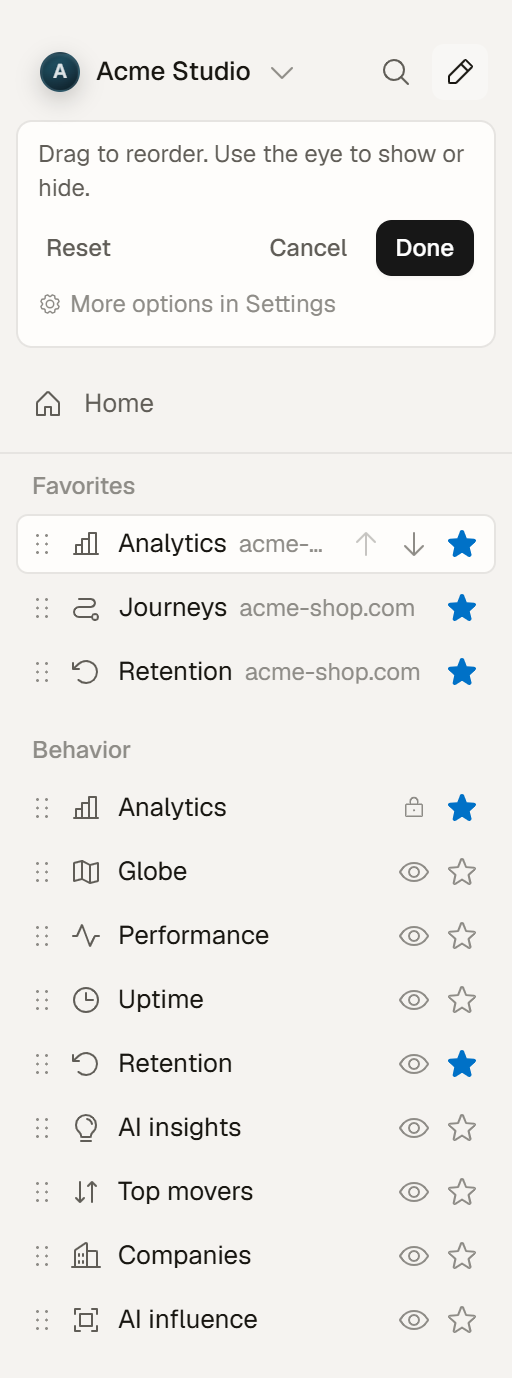
On touch screens, each item has a ... menu to move it, show or hide it, or add it to your favorites. The same settings are available under Settings → Account → Preferences → Dashboard navigation, which also lists your favorites to reorder or remove.
Your sidebar is saved to your account, so it looks the same on every device you sign in on. If saving to your account fails, the change stays on this device and a message tells you.
Command Palette
Press Cmd+K (Mac) or Ctrl+K (Windows/Linux) to open the command palette for quick navigation and search across your dashboard. It also offers Edit sidebar and, on a website, adding or removing the current tab from your favorites.
Customization
Personalize your dashboard:
- Dark/light mode toggle
- Collapsible sidebar with favorites, your own order and hidden items
- Team-based access and organization switching
Next Steps
Open Domains, select a site, and use the tab group to explore each analytics view.
Learn more:
- Custom Events - Track what matters
- API Reference - Programmatic access
On this page