Rastreo de primera parte con Next.js
Configura un proxy de primera parte en tu aplicación Next.js para eludir los bloqueadores de anuncios y la protección de rastreo del navegador.
Dificultad: Fácil - Esta es la opción más simple para proyectos Next.js. Solo tienes que agregar unas pocas líneas a tu archivo de configuración.
Por qué funciona (Mismo origen)
Este enfoque utiliza /api/_z/script.js que está en el mismo origen que tu sitio web. Firefox ETP y otras protecciones de rastreo solo bloquean solicitudes de origen cruzado.
- El navegador ve:
tudominio.com/api/_z/script.js— mismo origen (primera parte) - Next.js reescribe la solicitud al servidor de Zenovay en el lado del servidor (el navegador nunca lo ve)
- Toda la protección de rastreo se elude porque la solicitud es de primera parte
Antes de empezar
Asegúrate de que tienes:
- Un proyecto Next.js 12+ (App Router o Pages Router)
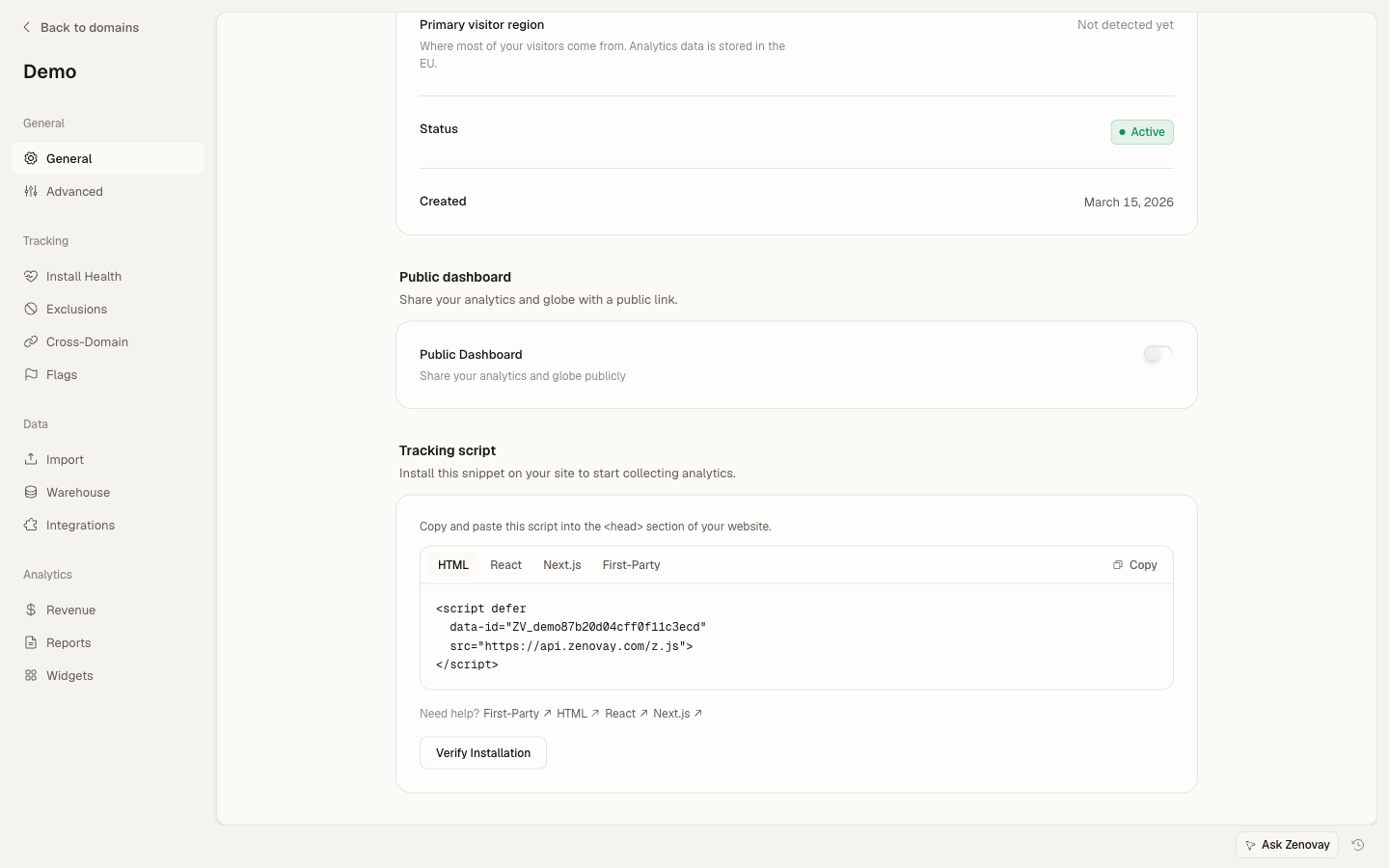
- Tu código de rastreo de Zenovay (encontrado en Dominios → tu sitio → General → Script de rastreo, en la pestaña Primera parte)
- Acceso a tu archivo
next.config.jsonext.config.ts
Tu formato de código de rastreo
Tu código de rastreo se ve así: ZV_XXXXXXXXXX
- Comienza con
ZV_ - Seguido de 10 caracteres (letras y números)
- SENSIBLE A MAYÚSCULAS - cópialo exactamente
Ejemplo: ZV_Q8U0GYD70WR
Cómo funciona
Las reescrituras de Next.js actúan como un proxy del lado del servidor. Cuando un navegador solicita /api/_z/script.js, Next.js lo obtiene de api.zenovay.com/fp/script.js y lo devuelve. El navegador solo ve tu dominio.
Navegador → tudominio.com/api/_z/script.js  (Primera parte)
               ↓
         Reescritura de Next.js
               ↓
         api.zenovay.com/fp/script.js (Servidor a servidor)
Paso 1: Configurar las reescrituras
Añade la configuración de reescritura a tu archivo de configuración de Next.js.
¿Qué archivo de configuración?
next.config.js- Si tu proyecto usa JavaScriptnext.config.mjs- Si tu proyecto usa módulos ESnext.config.ts- Si tu proyecto usa TypeScript (Next.js 15+)
Para next.config.js (JavaScript)
/** @type {import('next').NextConfig} */
const nextConfig = {
// Añade esta configuración de reescrituras
async rewrites() {
  return [
    {
      // Redirige todas las solicitudes a /api/_z/* al endpoint de primera parte de Zenovay
      source: '/api/_z/:path*',
      destination: 'https://api.zenovay.com/fp/:path*',
    },
  ]
},
}

module.exports = nextConfig
Para next.config.mjs (Módulos ES)
/** @type {import('next').NextConfig} */
const nextConfig = {
async rewrites() {
  return [
    {
      source: '/api/_z/:path*',
      destination: 'https://api.zenovay.com/fp/:path*',
    },
  ]
},
}

export default nextConfig
Para next.config.ts (TypeScript - Next.js 15+)
import type { NextConfig } from 'next'

const nextConfig: NextConfig = {
async rewrites() {
  return [
    {
      source: '/api/_z/:path*',
      destination: 'https://api.zenovay.com/fp/:path*',
    },
  ]
},
}

export default nextConfig
Si ya tienes reescrituras
Si tu configuración ya tiene una función rewrites(), añade la reescritura de Zenovay al array existente:
const nextConfig = {
async rewrites() {
  return [
    // Tus reescrituras existentes...
    {
      source: '/old-page',
      destination: '/new-page',
    },
    // Añade la reescritura de Zenovay
    {
      source: '/api/_z/:path*',
      destination: 'https://api.zenovay.com/fp/:path*',
    },
  ]
},
}

module.exports = nextConfig
Paso 2: Añade el script de rastreo
Ahora añade el script de rastreo a tu aplicación.
App Router (Next.js 13+)
Añade el script a tu layout raíz:
import Script from 'next/script'

export default function RootLayout({
children,
}: {
children: React.ReactNode
}) {
return (
  <html lang="en">
    <head>
      <Script
        src="/api/_z/script.js"
        data-tracking-code="YOUR_TRACKING_CODE"
        strategy="afterInteractive"
      />
    </head>
    <body>{children}</body>
  </html>
)
}
Pages Router
Añade el script a tu _app.tsx personalizado:
import Script from 'next/script'
import type { AppProps } from 'next/app'

export default function App({ Component, pageProps }: AppProps) {
return (
  <>
    <Script
      src="/api/_z/script.js"
      data-tracking-code="YOUR_TRACKING_CODE"
      strategy="afterInteractive"
    />
    <Component {...pageProps} />
  </>
)
}
Reemplaza YOUR_TRACKING_CODE con tu código de rastreo real del panel de Zenovay (ej. ZV_Q8U0GYD70WR).
Paso 3: Reinicia tu servidor de desarrollo
¡Importante! Next.js cachea el archivo de configuración. DEBES reiniciar tu servidor de desarrollo después de editar next.config.js.
# Detén tu servidor de desarrollo actual (Ctrl+C)
# Luego reinícialo
npm run dev
Paso 4: Despliega tus cambios
# Para Vercel (despliegue automático)
git add .
git commit -m "Add Zenovay first-party tracking"
git push

# O despliegue manual en Vercel
vercel deploy

# Para otras plataformas
npm run build && npm run start
Paso 5: Verifica que funciona
Comprobación 1: Desarrollo local
- Abre tu sitio en
http://localhost:3000 - Presiona F12 para abrir las herramientas de desarrollo
- Haz clic en la pestaña Network
- Actualiza la página
- Filtra por
script.js - Deberías ver una solicitud a
/api/_z/script.jscon estado 200
Comprobación 2: Modo estricto de Firefox (¡Lo más importante!)
Firefox tiene la protección de rastreo más estricta. Si funciona en Firefox, funciona en todas partes.
- Abre el navegador Firefox
- Haz clic en el botón de menú (tres líneas, arriba a la derecha) → Configuración
- Haz clic en Privacidad y seguridad en la barra lateral izquierda
- Bajo "Protección mejorada de rastreo", selecciona Estricta
- Visita tu sitio web
- Abre las herramientas de desarrollo (F12) → pestaña Network
- Actualiza y verifica que
/api/_z/script.jsse carga con estado 200
Comprobación 3: Panel de Zenovay
- Ve a app.zenovay.com e inicia sesión
- Haz clic en tu sitio web
- Visita tu sitio en otra pestaña
- En 1-2 minutos, deberías ver la visita aparecer en tu panel
Lista de verificación final
Antes de terminar, verifica TODOS estos puntos:
-
next.config.jstiene la regla de reescritura para/api/_z/:path* - El servidor de desarrollo fue reiniciado después del cambio de configuración
- La etiqueta script usa
/api/_z/script.js(no la URL directa de Zenovay) - El atributo
data-tracking-codecontiene tu código de rastreo correcto - Probado en Firefox con la protección mejorada de rastreo configurada en Estricta
- Visitas apareciendo en el panel de Zenovay
Solución de problemas
El script devuelve 404
Causa: La reescritura no está configurada correctamente o el servidor no fue reiniciado.
Solución:
- Reinicia tu servidor de desarrollo - Esta es la solución más común
- Verifica que el archivo
next.config.jsestá guardado - Comprueba que la ruta coincide exactamente:
/api/_z/:path* - Asegúrate de que estés usando
sourceydestination(nofromyto)
El script se carga pero no aparecen datos
Causa: El código de rastreo podría ser incorrecto.
Solución:
- Encuentra tu código de rastreo en Dominios → tu sitio → General → Script de rastreo
- Asegúrate de que
data-tracking-codecoincida exactamente (sensible a mayúsculas) - Comprueba la consola del navegador (F12 → pestaña Console) para ver errores
Las reescrituras funcionan localmente pero no en producción
Causa: Algunas plataformas de alojamiento manejan las reescrituras de manera diferente.
Solución:
- Vercel: Las reescrituras funcionan automáticamente
- Netlify: Añade también la reescritura a
netlify.toml - Alojamiento propio: Asegúrate de que tu servidor admite reescrituras de Next.js
La geolocalización es incorrecta
Causa: La IP real del visitante no se está reenviando.
Solución: Para Vercel, esto funciona automáticamente. Para otras plataformas, es posible que necesites middleware:
import { NextResponse } from 'next/server'
import type { NextRequest } from 'next/server'

export function middleware(request: NextRequest) {
if (request.nextUrl.pathname.startsWith('/api/_z/')) {
  const response = NextResponse.rewrite(
    new URL(`https://api.zenovay.com/fp/${request.nextUrl.pathname.replace('/api/_z/', '')}${request.nextUrl.search}`)
  )

  // Reenvía la IP del cliente real
  const clientIP = request.headers.get('x-forwarded-for')?.split(',')[0]
                || request.headers.get('x-real-ip')
                || ''

  response.headers.set('X-Zenovay-Real-IP', clientIP)

  return response
}
}

export const config = {
matcher: '/api/_z/:path*',
}
Ejemplo completo
Aquí hay un ejemplo completo de next.config.js:
/** @type {import('next').NextConfig} */
const nextConfig = {
// Tus opciones de configuración existentes...
reactStrictMode: true,

// Reescritura de proxy de primera parte de Zenovay
async rewrites() {
  return [
    {
      source: '/api/_z/:path*',
      destination: 'https://api.zenovay.com/fp/:path*',
    },
  ]
},
}

module.exports = nextConfig
Y un completo app/layout.tsx:
import Script from 'next/script'
import './globals.css'

export default function RootLayout({
children,
}: {
children: React.ReactNode
}) {
return (
  <html lang="en">
    <head>
      {/* Zenovay Analytics - Rastreo de primera parte */}
      <Script
        src="/api/_z/script.js"
        data-tracking-code="ZV_Q8U0GYD70WR"  // Reemplaza con tu código de rastreo
        strategy="afterInteractive"
      />
    </head>
    <body>{children}</body>
  </html>
)
}
Próximos pasos
- Eventos personalizados - Rastrear acciones de usuarios personalizadas
- Identificación de visitantes - Identificar usuarios que iniciaron sesión
- Solución de problemas - Más ayuda con problemas comunes