Guía de Inicio Rápido
Inicia tu análisis de sitio web con Zenovay en menos de 5 minutos.
Agrega un único fragmento de JavaScript ligero a tu sitio web y Zenovay comienza a rastrear vistas de página, visitantes, fuentes de referencia e información de dispositivos. El script ocupa menos de 5 KB comprimido con gzip, se carga de forma asíncrona y no tiene efecto en el rendimiento de la página. Para implementaciones sin cookies, un único atributo data-cookieless="true" cambia el rastreador al modo solo en memoria, que no establece cookies ni escribe en localStorage.
Paso 1: Crear tu Cuenta
Regístrate para obtener una cuenta gratuita de Zenovay en auth.zenovay.com/signup.
El nivel gratuito incluye: 1 sitio web, 10.000 eventos/mes, 1 año de retención de datos
Paso 2: Agregar tu Sitio Web
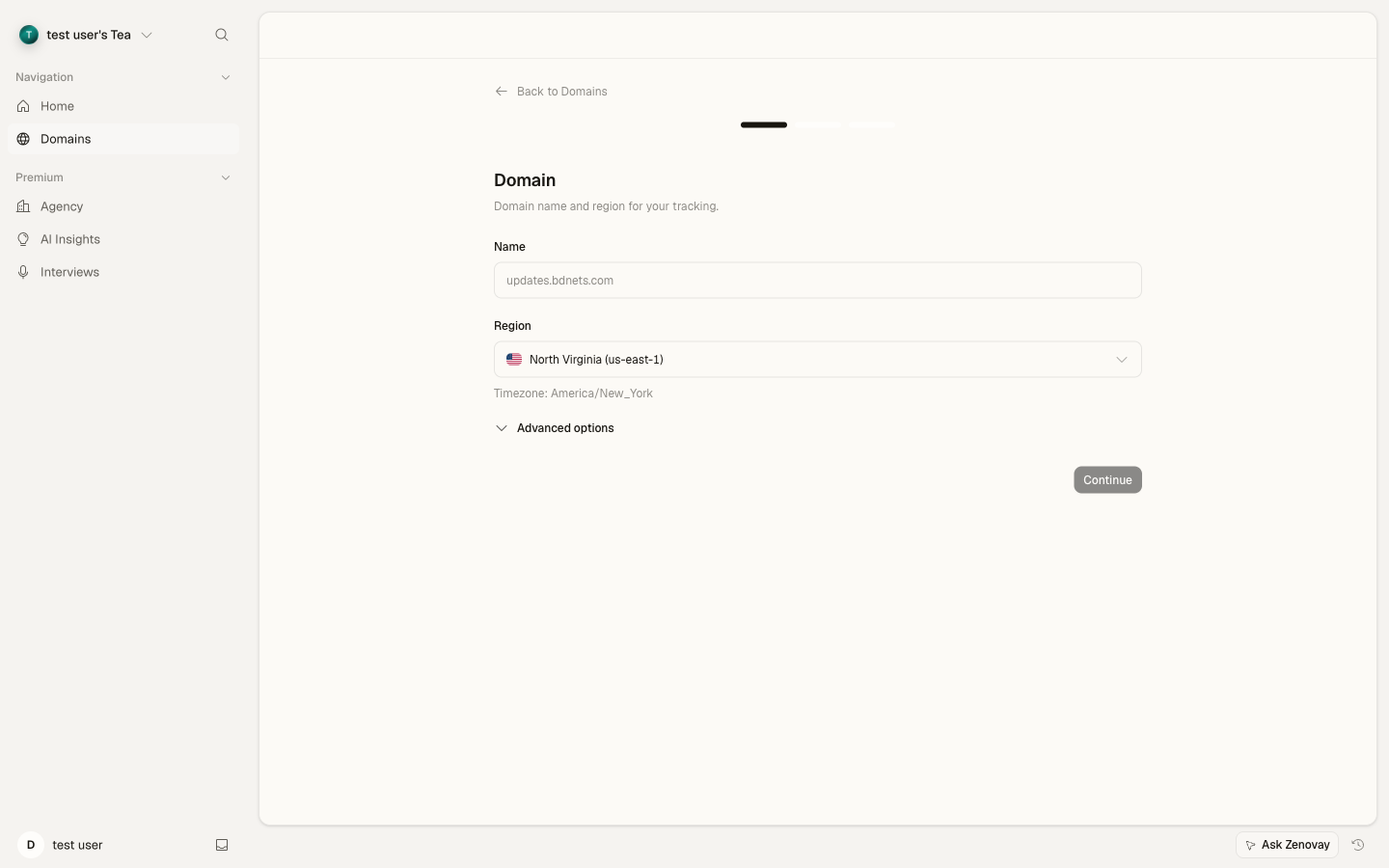
- Abre Dominios → Agregar dominio en la barra lateral.
- Ingresa el nombre de tu dominio (p. ej.,
ejemplo.com). - Dale un nombre a tu sitio.
- Haz clic en Agregar dominio.
Paso 3: Instalar el Script de Rastreo
Encuentra tu fragmento de rastreo único en Dominios → tu sitio → General (la tarjeta Script de rastreo). Cópialo y agrégalo a la sección <head> de tu sitio web:
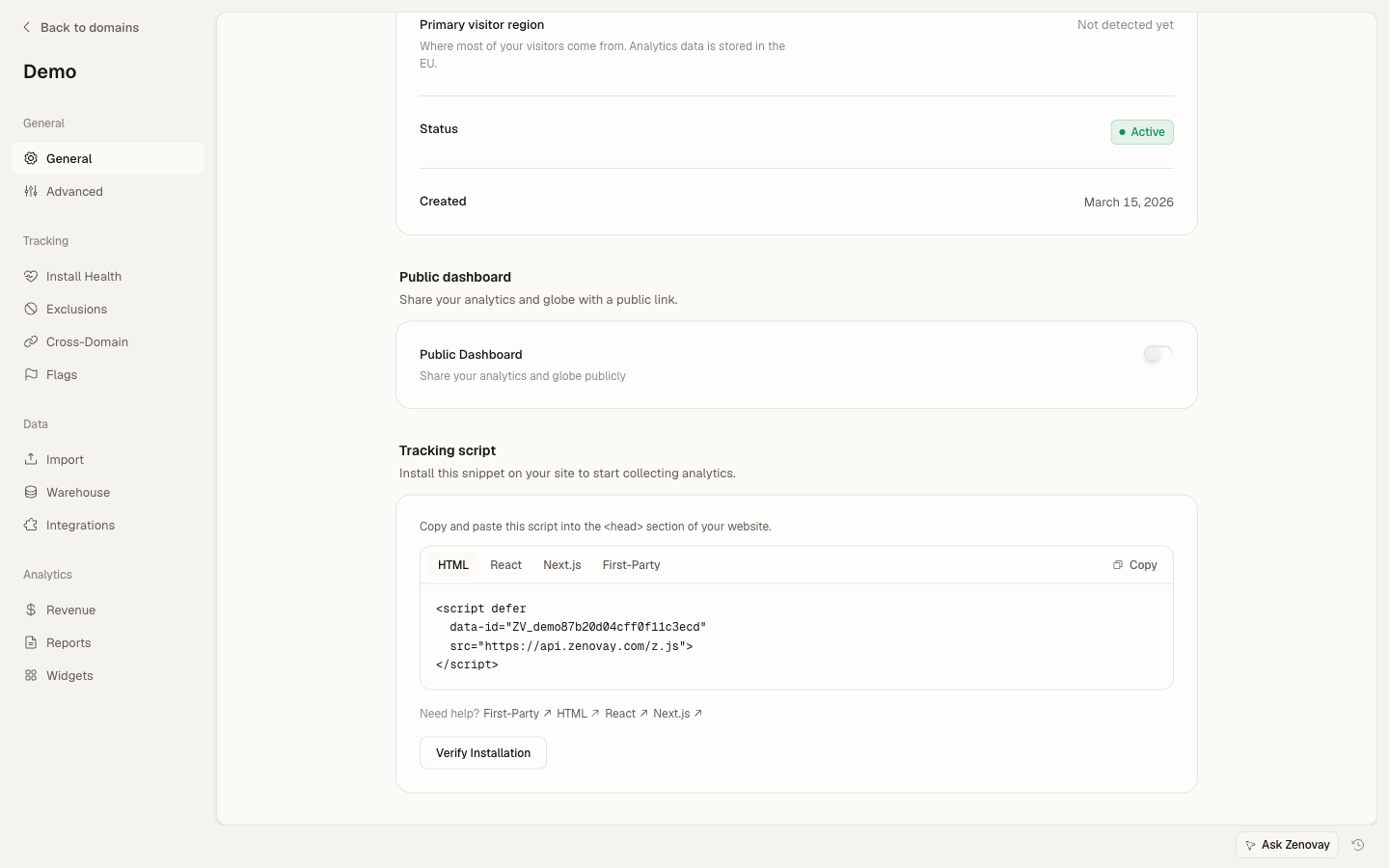
<!-- Zenovay Analytics -->
<script defer
data-tracking-code="YOUR_TRACKING_CODE"
src="https://api.zenovay.com/z.js">
</script>
Reemplaza YOUR_TRACKING_CODE con tu código de rastreo real del panel de control.
Paso 4: Verificar la Instalación
- Visita tu sitio web en una nueva ventana del navegador
- Regresa a tu panel de control de Zenovay
- Deberías ver tu visita aparecer en el globo 3D en unos pocos segundos
Una vez que tu script esté instalado, los nuevos visitantes aparecen en el globo en tiempo real en unos pocos segundos. Abre Dominios → tu sitio → Vista en vivo para verlos en tiempo real.
Instalación Específica por Plataforma
Instalación en WordPress
- Ve a tu panel de administración de WordPress
- Navega a Apariencia > Editor de temas
- Selecciona tu tema activo
- Edita el archivo
header.php - Agrega el script de rastreo antes de la etiqueta de cierre
</head>
<!-- Zenovay Analytics -->
<script defer
data-tracking-code="<?php echo esc_attr(get_option('zenovay_tracking_code')); ?>"
src="https://api.zenovay.com/z.js">
</script>
<?php wp_head(); ?>
Próximos Pasos
Ahora que estás rastreando visitantes, explora estas características:
- Puntuación de Valor del Visitante - Ve qué visitantes son más valiosos
- Análisis en Tiempo Real - Monitorea tu tráfico en vivo
- Eventos Personalizados - Rastrea acciones específicas del usuario
- Integración de API - Accede a tus datos mediante programación
Solución de Problemas
¿No ves datos en tu panel de control?
- Verifica tu código de rastreo - Asegúrate de que coincida exactamente con el del panel de control
- Verifica la carga del script - Abre las herramientas de desarrollo del navegador y verifica la pestaña Red
- Desactiva los bloqueadores de anuncios - Algunos bloqueadores de anuncios pueden bloquear scripts de análisis
- Verifica los errores de la consola - Busca errores de JavaScript en la consola del navegador
- Espera unos minutos - Los datos pueden tardar 1-2 minutos en aparecer
¿El código de rastreo no funciona en sitios HTTPS?
Asegúrate de estar usando la versión HTTPS del script:
<script defer data-tracking-code="YOUR_TRACKING_CODE" src="https://api.zenovay.com/z.js"></script>¿Necesitas ayuda con una plataforma específica?
Consulta las guías de integración detalladas o contacta al equipo de soporte en [email protected].
¿Necesitas Ayuda?
- Consulta nuestra guía de solución de problemas
- Contacta a [email protected]
Listo. Tus visitantes ahora aparecerán en el globo 3D en tiempo real. Abre Dominios → tu sitio para ver la pestaña Análisis.