Rastreamento First-Party com nginx/Apache
Configure um proxy first-party no seu servidor auto-hospedado usando a configuração de proxy reverso do nginx ou Apache.
Dificuldade: Média - Requer acesso aos arquivos de configuração do servidor e conhecimento básico de terminal.
Por Que Isso Funciona (Same-Origin)
Esta abordagem usa /api/_z/script.js que está na mesma origem do seu site. Firefox ETP e outras proteções de rastreamento bloqueiam apenas requisições cross-origin.
- O navegador vê:
yourdomain.com/api/_z/script.js→ Mesma origem ✅ - nginx/Apache proxia a requisição para o servidor Zenovay (o navegador nunca vê isso)
- Toda proteção de rastreamento é contornada porque a requisição é first-party
Antes de Começar
Certifique-se de que você tem:
- Acesso root/sudo ao seu servidor
- nginx ou Apache instalado
- Seu código de rastreamento Zenovay (encontrado em Domínios, selecione seu site, então a aba Geral)
- Acesso SSH ao seu servidor
Formato do Seu Código de Rastreamento
Seu código de rastreamento parece: ZV_XXXXXXXXXX
- Começa com
ZV_ - Seguido por 10 caracteres (letras e números)
- SENSÍVEL A MAIÚSCULAS - copie exatamente
Exemplo: ZV_Q8U0GYD70WR
Configuração do nginx
Passo 1: Adicione o Local do Proxy
Adicione o seguinte bloco location à sua configuração do servidor nginx:
server {
  listen 80;
  listen 443 ssl;
  server_name yourdomain.com www.yourdomain.com;

  # Your existing SSL configuration...
  ssl_certificate /etc/letsencrypt/live/yourdomain.com/fullchain.pem;
  ssl_certificate_key /etc/letsencrypt/live/yourdomain.com/privkey.pem;

  # Your existing root configuration...
  root /var/www/yourdomain;
  index index.html;

  # Zenovay first-party proxy
  location /api/_z/ {
      # Proxy to Zenovay's first-party endpoint
      proxy_pass https://api.zenovay.com/fp/;

      # Set the correct Host header
      proxy_set_header Host api.zenovay.com;

      # Forward the real client IP for accurate geolocation
      proxy_set_header X-Real-IP $remote_addr;
      proxy_set_header X-Forwarded-For $proxy_add_x_forwarded_for;
      proxy_set_header X-Zenovay-Real-IP $remote_addr;

      # Required for HTTPS backend
      proxy_ssl_server_name on;
      proxy_ssl_protocols TLSv1.2 TLSv1.3;

      # Timeouts
      proxy_connect_timeout 10s;
      proxy_send_timeout 10s;
      proxy_read_timeout 30s;

      # Buffering
      proxy_buffering on;
      proxy_buffer_size 4k;
      proxy_buffers 8 4k;
  }

  # Your existing location blocks...
  location / {
      try_files $uri $uri/ =404;
  }
}
Passo 2: Teste a Configuração
# Test nginx configuration
sudo nginx -t

# If test passes, reload nginx
sudo systemctl reload nginx
Passo 3: Adicione o Script de Rastreamento
<script defer
data-tracking-code="YOUR_TRACKING_CODE"
src="/api/_z/script.js">
</script>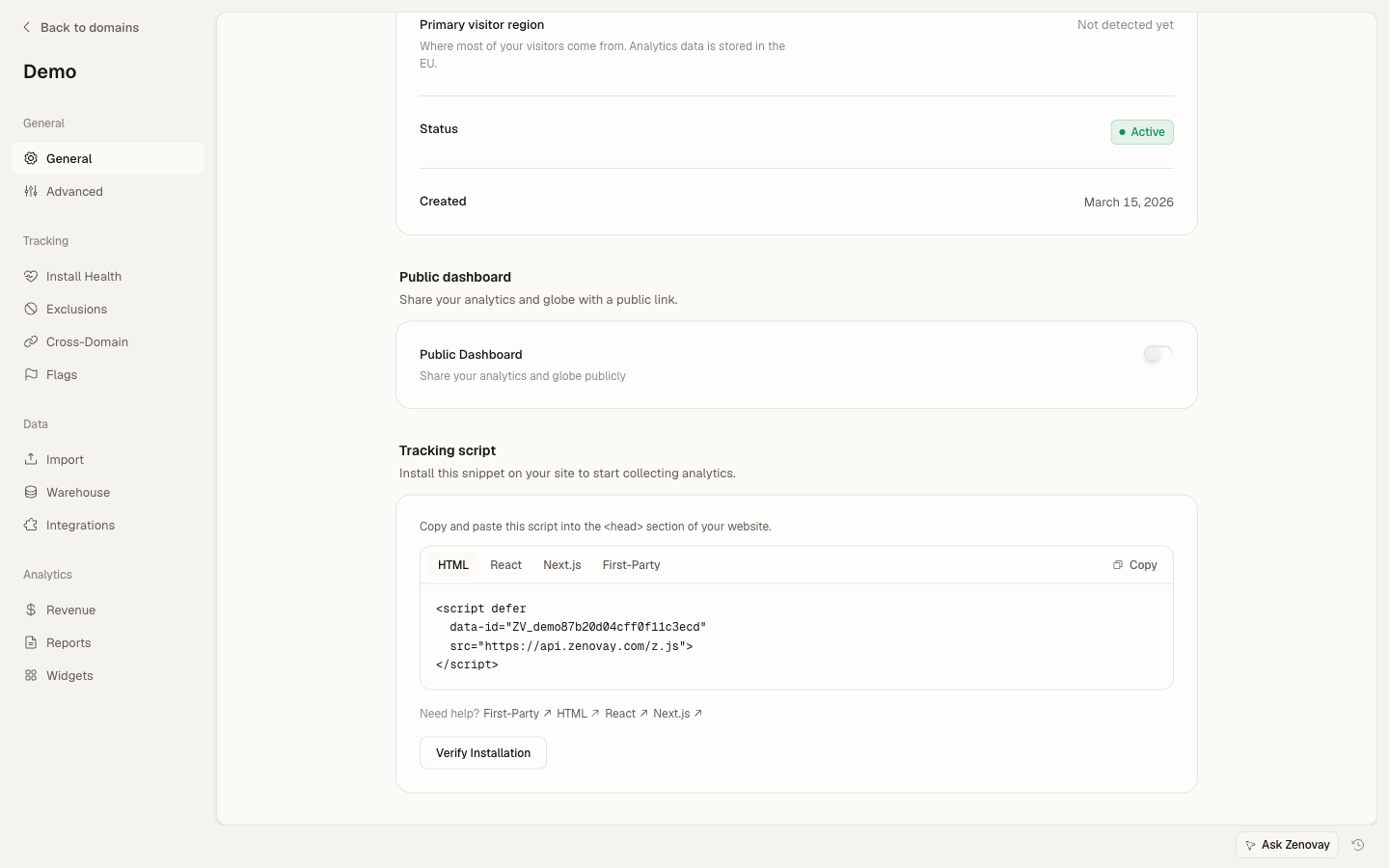
Configuração do Apache
Passo 1: Habilite os Módulos Necessários
Primeiro, habilite os módulos necessários do Apache:
# Enable proxy modules
sudo a2enmod proxy
sudo a2enmod proxy_http
sudo a2enmod ssl
sudo a2enmod headers

# Restart Apache
sudo systemctl restart apache2
Passo 2: Adicione a Configuração do Proxy
Adicione o seguinte à sua configuração de host virtual Apache:
<VirtualHost *:443>
  ServerName yourdomain.com
  ServerAlias www.yourdomain.com

  # Your existing SSL configuration...
  SSLEngine on
  SSLCertificateFile /etc/letsencrypt/live/yourdomain.com/fullchain.pem
  SSLCertificateKeyFile /etc/letsencrypt/live/yourdomain.com/privkey.pem

  # Your existing document root...
  DocumentRoot /var/www/yourdomain

  # Enable SSL for proxy connections
  SSLProxyEngine on
  SSLProxyVerify none
  SSLProxyCheckPeerCN off
  SSLProxyCheckPeerName off

  # Zenovay first-party proxy
  ProxyPass "/api/_z/" "https://api.zenovay.com/fp/"
  ProxyPassReverse "/api/_z/" "https://api.zenovay.com/fp/"

  <Location "/api/_z/">
      # Don't preserve the original Host header
      ProxyPreserveHost Off

      # Forward the real client IP
      RequestHeader set X-Zenovay-Real-IP "%{REMOTE_ADDR}s"
      RequestHeader set X-Real-IP "%{REMOTE_ADDR}s"
      RequestHeader set X-Forwarded-For "%{REMOTE_ADDR}s"
  </Location>

  # Your existing configuration...
  <Directory /var/www/yourdomain>
      Options Indexes FollowSymLinks
      AllowOverride All
      Require all granted
  </Directory>
</VirtualHost>
Alternativa: Usando .htaccess
Se você não tem acesso à configuração principal do Apache, você pode usar .htaccess (requer mod_rewrite e mod_proxy):
RewriteEngine On

# Zenovay first-party proxy
RewriteRule ^api/_z/(.*)$ https://api.zenovay.com/fp/$1 [P,L]

<IfModule mod_headers.c>
  <Location "/api/_z">
      RequestHeader set X-Zenovay-Real-IP "%{REMOTE_ADDR}s"
  </Location>
</IfModule>
Nota: Usar .htaccess para proxying requer AllowOverride All e mod_proxy ativado pelo seu provedor de hospedagem. Muitos hosts compartilhados não permitem isso.
Passo 3: Teste e Reinicie
# Test Apache configuration
sudo apachectl configtest

# If test passes, restart Apache
sudo systemctl restart apache2
Passo 4: Adicione o Script de Rastreamento
<script defer
data-tracking-code="YOUR_TRACKING_CODE"
src="/api/_z/script.js">
</script>
Verifique Se Está Funcionando
Teste com curl
# Test the proxy endpoint
curl -I https://yourdomain.com/api/_z/script.js

# Expected output:
# HTTP/2 200
# content-type: application/javascript
# ...
Verifique a Aba Network
- Abra seu site em um navegador
- Abra DevTools (F12)
- Vá para a aba Network
- Recarregue a página
- Procure por
/api/_z/script.js
Você deve ver:
- Status: 200
- Domínio: Seu domínio (não api.zenovay.com)
- Resposta: Código JavaScript
Teste no Firefox
- Abra o Firefox
- Configurações → Privacidade e Segurança → Proteção Aprimorada de Rastreamento: Rigorosa
- Visite seu site
- Verifique se o script carrega com sucesso
Solução de Problemas
nginx: 502 Bad Gateway
Causa: nginx não consegue conectar à API Zenovay.
Solução:
- Verifique se
proxy_ssl_server_name on;está configurado - Verifique se seu servidor consegue alcançar api.zenovay.com:
curl https://api.zenovay.com/fp/script.js - Verifique os logs de erro do nginx:
sudo tail -f /var/log/nginx/error.log
nginx: 404 Not Found
Causa: O bloco location não está correspondendo.
Solução:
- Certifique-se de que a barra final é consistente:
location /api/_z/corresponde a/api/_z/script.jsproxy_pass https://api.zenovay.com/fp/;(note a barra final)
- Teste com
nginx -te recarregue
Apache: 503 Service Unavailable
Causa: Módulos de proxy não habilitados ou problema de SSL.
Solução:
- Habilite os módulos necessários:
sudo a2enmod proxy proxy_http ssl - Adicione as configurações de proxy SSL:
SSLProxyEngine on SSLProxyVerify none - Verifique os logs de erro do Apache:
sudo tail -f /var/log/apache2/error.log
Geolocalização Mostra a Localização do Servidor
Causa: O IP real do cliente não está sendo encaminhado corretamente.
Solução:
Certifique-se de que está definindo o cabeçalho X-Zenovay-Real-IP:
nginx:
proxy_set_header X-Zenovay-Real-IP $remote_addr;
Apache:
RequestHeader set X-Zenovay-Real-IP "%{REMOTE_ADDR}s"
Se Atrás do Cloudflare ou Load Balancer
Se seu servidor está atrás do Cloudflare ou outro proxy, use o IP encaminhado:
nginx (atrás do Cloudflare):
proxy_set_header X-Zenovay-Real-IP $http_cf_connecting_ip;
nginx (atrás de load balancer):
proxy_set_header X-Zenovay-Real-IP $http_x_forwarded_for;
Otimização de Desempenho
Cache do nginx
Adicione cache para o script de rastreamento (opcional):
location /api/_z/ {
  proxy_pass https://api.zenovay.com/fp/;

  # ... other proxy settings ...

  # Cache the script for 1 hour
  proxy_cache_valid 200 1h;
  proxy_cache_use_stale error timeout updating;
  add_header X-Cache-Status $upstream_cache_status;
}
Cache do Apache
<Location "/api/_z/">
  # Enable caching
  CacheEnable disk
  CacheDefaultExpire 3600
</Location>
Exemplo Completo do nginx
server {
  listen 80;
  server_name yourdomain.com www.yourdomain.com;
  return 301 https://$server_name$request_uri;
}

server {
  listen 443 ssl http2;
  server_name yourdomain.com www.yourdomain.com;

  ssl_certificate /etc/letsencrypt/live/yourdomain.com/fullchain.pem;
  ssl_certificate_key /etc/letsencrypt/live/yourdomain.com/privkey.pem;

  root /var/www/yourdomain;
  index index.html;

  # Zenovay first-party proxy
  location /api/_z/ {
      proxy_pass https://api.zenovay.com/fp/;
      proxy_set_header Host api.zenovay.com;
      proxy_set_header X-Real-IP $remote_addr;
      proxy_set_header X-Forwarded-For $proxy_add_x_forwarded_for;
      proxy_set_header X-Zenovay-Real-IP $remote_addr;
      proxy_ssl_server_name on;
  }

  location / {
      try_files $uri $uri/ /index.html;
  }
}
Lista de Verificação Final
Antes de terminar, verifique TODOS estes itens:
- A configuração nginx/Apache tem o local do proxy para
/api/_z/ - O teste de configuração passa (
nginx -touapachectl configtest) - O servidor foi recarregado após a mudança de configuração
- A tag script usa
/api/_z/script.js(não a URL direta de Zenovay) - O atributo
data-tracking-codecontém seu código de rastreamento correto - O cabeçalho
X-Zenovay-Real-IPestá sendo definido para geolocalização - Testado no Firefox com Proteção Aprimorada de Rastreamento configurada como Rigorosa
- Visitas aparecendo no painel de Zenovay
Próximas Etapas
- Eventos Personalizados - Rastreie interações do usuário
- Identificação de Visitante - Vincule análises aos usuários
- Solução de Problemas - Mais ajuda com problemas