Rastreamento de Primeira Parte com Netlify
Configure um proxy de primeira parte no Netlify usando regras de redirecionamento simples. Funciona com qualquer site estático ou framework.
Dificuldade: Fácil - Basta adicionar algumas linhas a um arquivo de configuração.
Por Que Funciona (Mesma Origem)
Esta abordagem usa /api/_z/script.js que está na mesma origem do seu site. Firefox ETP e outras proteções de rastreamento apenas bloqueiam requisições de origens diferentes.
- Navegador vê:
seudominio.com/api/_z/script.js→ Mesma origem ✅ - Netlify redireciona a requisição para servidor Zenovay no backend (navegador nunca vê isso)
- Toda proteção de rastreamento é contornada porque a requisição é de primeira parte
Antes de Começar
Certifique-se de que você tem:
- Um projeto implantado no Netlify
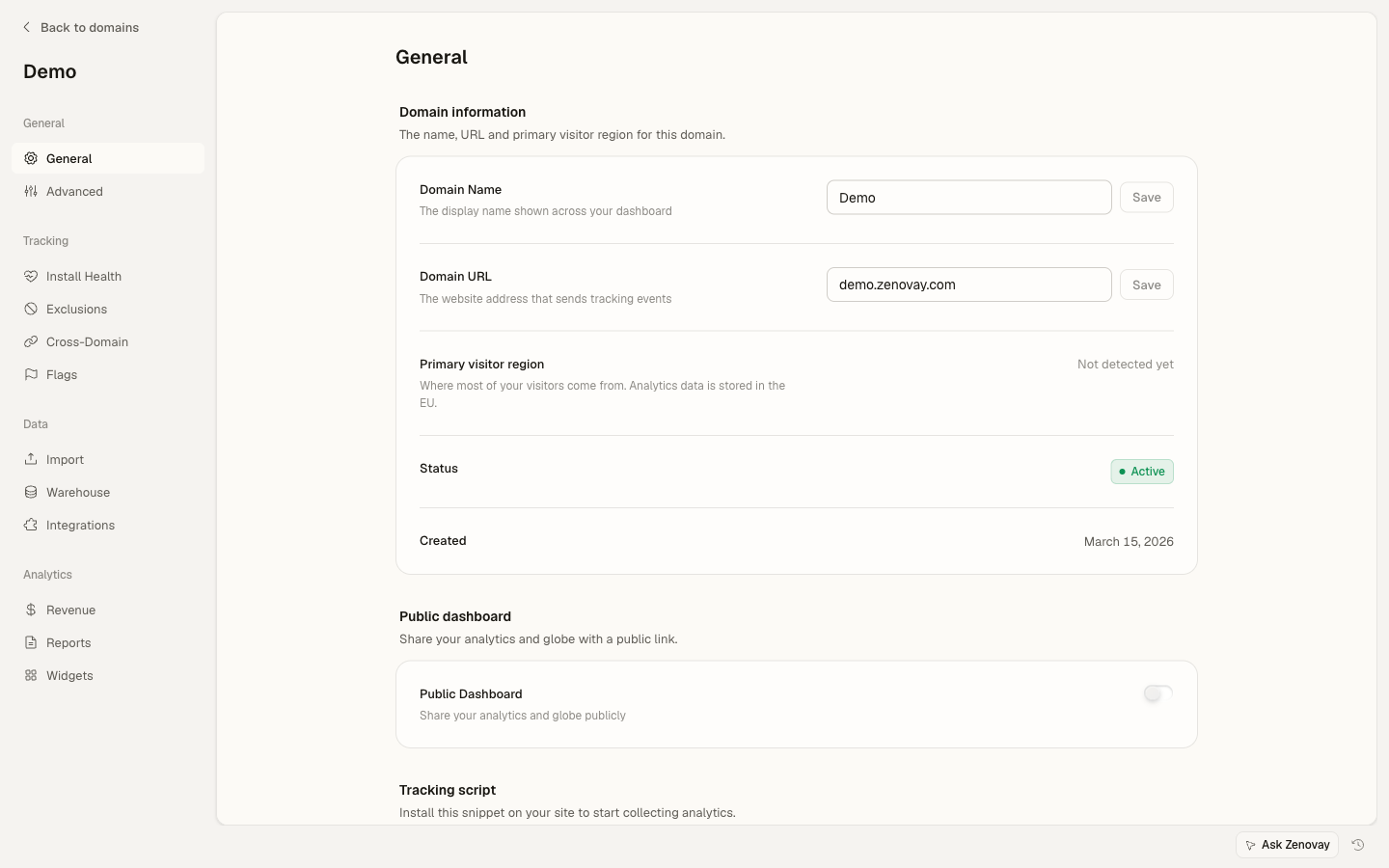
- Seu código de rastreamento Zenovay (encontrado em Domains → seu site → General, no cartão Tracking script)
- Acesso à configuração de compilação do seu projeto
Formato do Seu Código de Rastreamento
Seu código de rastreamento é como: ZV_XXXXXXXXXX
- Começa com
ZV_ - Seguido por 10 caracteres (letras e números)
- SENSÍVEL A MAIÚSCULAS E MINÚSCULAS - copie exatamente
Exemplo: ZV_Q8U0GYD70WR
Opção 1: Usar Arquivo _redirects (Mais Simples)
A maneira mais fácil de configurar o proxy é usar o arquivo _redirects do Netlify.
Passo 1: Criar o Arquivo de Redirecionamentos
Crie um arquivo _redirects em sua pasta public/ (ou onde quer que seus ativos estáticos vão):
# Proxy de rastreamento de primeira parte Zenovay
/api/_z/*  https://api.zenovay.com/fp/:splat  200
Como funciona: O código de status 200 torna isto uma reescrita (proxy) em vez de um redirecionamento. O navegador vê seu domínio, mas o Netlify busca da API Zenovay nos bastidores.
Passo 2: Adicionar o Script de Rastreamento
<script defer
data-tracking-code="YOUR_TRACKING_CODE"
src="/api/_z/script.js">
</script>
Passo 3: Implantar
netlify deploy --prodOu faça push do seu repositório Git se você tiver implantação contínua configurada.
Opção 2: Usar netlify.toml (Mais Explícito)
Para configurações mais complexas, use netlify.toml:
Passo 1: Criar ou Atualizar netlify.toml
Adicione a regra de redirecionamento ao seu netlify.toml na raiz do seu projeto:
# Proxy de rastreamento de primeira parte Zenovay
[[redirects]]
from = "/api/_z/*"
to = "https://api.zenovay.com/fp/:splat"
status = 200
force = true
Se você já tem um netlify.toml, adicione o redirecionamento ao seu arquivo existente:
[build]
command = "npm run build"
publish = "dist"

# Proxy de rastreamento de primeira parte Zenovay
[[redirects]]
from = "/api/_z/*"
to = "https://api.zenovay.com/fp/:splat"
status = 200
force = true

# Seus outros redirecionamentos...
[[redirects]]
from = "/*"
to = "/index.html"
status = 200
A ordem importa! Coloque o redirecionamento Zenovay ANTES de qualquer redirecionamento catch-all (como fallbacks de SPA). Netlify processa redirecionamentos em ordem.
Passo 2: Adicionar o Script de Rastreamento
<script defer
data-tracking-code="YOUR_TRACKING_CODE"
src="/api/_z/script.js">
</script>
Passo 3: Implantar
netlify deploy --prodExemplos Específicos do Framework
React (Create React App)
/api/_z/* https://api.zenovay.com/fp/:splat 200<!DOCTYPE html>
<html lang="en">
<head>
<script defer data-tracking-code="YOUR_TRACKING_CODE" src="/api/_z/script.js"></script>
<!-- other head elements -->
</head>
<body>
<div id="root"></div>
</body>
</html>Vue.js (Vite)
/api/_z/* https://api.zenovay.com/fp/:splat 200<!DOCTYPE html>
<html lang="en">
<head>
<script defer data-tracking-code="YOUR_TRACKING_CODE" src="/api/_z/script.js"></script>
</head>
<body>
<div id="app"></div>
<script type="module" src="/src/main.js"></script>
</body>
</html>Gatsby
[build]
command = "gatsby build"
publish = "public"

[[redirects]]
from = "/api/_z/*"
to = "https://api.zenovay.com/fp/:splat"
status = 200
force = trueimport React from 'react'
export const onRenderBody = ({ setHeadComponents }) => {
setHeadComponents([
<script
key="zenovay"
defer
data-tracking-code="YOUR_TRACKING_CODE"
src="/api/_z/script.js"
/>
])
}Hugo
/api/_z/* https://api.zenovay.com/fp/:splat 200<script defer data-tracking-code="YOUR_TRACKING_CODE" src="/api/_z/script.js"></script>11ty (Eleventy)
/api/_z/* https://api.zenovay.com/fp/:splat 200Certifique-se de que _redirects é copiado para a saída adicionando ao seu .eleventy.js:
module.exports = function(eleventyConfig) {
eleventyConfig.addPassthroughCopy("src/_redirects");
// ... rest of config
}
Verificar se Está Funcionando
Verificar no Dashboard do Netlify
- Vá para seu site no Dashboard do Netlify
- Clique em Site configuration → Redirects
- Você deve ver seu redirecionamento
/api/_z/*listado
Verificar a Aba Rede
- Visite seu site implantado
- Abra DevTools (F12)
- Vá para a aba Network
- Recarregue a página
- Procure por
/api/_z/script.js
Você deve ver:
- Status: 200
- Domain: Seu domínio Netlify
- Response: Código JavaScript
Testar no Modo Estrito do Firefox
- Abra Firefox
- Settings → Privacy & Security → Enhanced Tracking Protection: Strict
- Visite seu site
- Verifique se o script carrega com sucesso
Resolução de Problemas
Redirecionamento Retorna 404
Causa: O arquivo _redirects não está sendo publicado ou está no local errado.
Solução:
- Certifique-se de que
_redirectsestá em seu diretório de publicação (geralmentepublic/oudist/) - Para ferramentas de compilação, garanta que o arquivo seja copiado durante a compilação
- Verifique Dashboard do Netlify → Redirects para ver se é reconhecido
Redirecionamento Causa um Loop
Causa: Outro redirecionamento está interferindo.
Solução:
- Use
force = trueemnetlify.tomlpara anular outras regras - Certifique-se de que o redirecionamento Zenovay vem ANTES de regras catch-all
- Verifique regras conflitantes em
_redirectsenetlify.toml
Script Carrega Mas Retorna HTML
Causa: Um redirecionamento SPA catch-all está interceptando a requisição.
Solução: Coloque o redirecionamento Zenovay ANTES do seu fallback SPA:
# Isto DEVE vir primeiro
[[redirects]]
from = "/api/_z/*"
to = "https://api.zenovay.com/fp/:splat"
status = 200
force = true

# Fallback SPA vem depois
[[redirects]]
from = "/*"
to = "/index.html"
status = 200
Geolocalização Mostra Local Errado
Causa: O proxy do Netlify não encaminha automaticamente o IP do cliente.
Solução: Infelizmente, redirecionamentos simples do Netlify não suportam headers personalizados. A geolocalização será baseada no local do servidor de borda do Netlify. Para geolocalização precisa, considere:
- Usar Netlify Functions (Edge Functions) - configuração mais complexa
- Usar Cloudflare Workers na frente do Netlify
Avançado: Usar Netlify Edge Functions
Para mais controle (incluindo encaminhamento de IP), você pode usar Netlify Edge Functions:
import type { Context } from '@netlify/edge-functions'

export default async (request: Request, context: Context) => {
const url = new URL(request.url)
const path = url.pathname.replace('/api/_z/', '')
const targetUrl = `https://api.zenovay.com/fp/${path}${url.search}`

// Get client IP
const clientIP = context.ip || ''

const headers = new Headers(request.headers)
headers.set('X-Zenovay-Real-IP', clientIP)
headers.delete('Host')

const response = await fetch(targetUrl, {
  method: request.method,
  headers: headers,
  body: request.body,
})

const responseHeaders = new Headers(response.headers)
responseHeaders.set('Access-Control-Allow-Origin', '*')

return new Response(response.body, {
  status: response.status,
  headers: responseHeaders,
})
}

export const config = {
path: '/api/_z/*',
}
Exemplo Completo
my-netlify-site/
├── netlify.toml
├── public/
│   ├── _redirects
│   └── index.html
├── src/
│   └── ...
└── package.json[build]
command = "npm run build"
publish = "dist"
[[redirects]]
from = "/api/_z/*"
to = "https://api.zenovay.com/fp/:splat"
status = 200
force = true<!DOCTYPE html>
<html lang="en">
<head>
<meta charset="UTF-8">
<title>My Site</title>
<script defer data-tracking-code="YOUR_TRACKING_CODE" src="/api/_z/script.js"></script>
</head>
<body>
<div id="app"></div>
</body>
</html>Checklist Final
Antes de terminar, verifique TODOS estes itens:
-
_redirectsounetlify.tomltem a regra de redirecionamento Zenovay - Regra de redirecionamento vem ANTES de qualquer regra catch-all SPA
- Tag de script usa
/api/_z/script.js(não a URL Zenovay direta) - Atributo
data-tracking-codecontém seu código de rastreamento correto - Projeto está implantado (não apenas rodando localmente)
- Testado no Firefox com Enhanced Tracking Protection definido como Strict
- Visitas aparecendo no dashboard Zenovay
Próximos Passos
- Eventos Personalizados - Rastreie interações do usuário
- Identificação de Visitante - Vincule análises a usuários
- Resolução de Problemas - Mais ajuda com problemas