Rastreamento de Primeira Parte com Cloudflare Workers
Configure um proxy de primeira parte usando Cloudflare Workers. Este guia é para usuários em hospedagem compartilhada (Hostinger, GoDaddy, Bluehost, etc.) que não conseguem configurar proxies no lado do servidor.
Limitação Importante: Proteção Aprimorada de Rastreamento do Firefox Não é Contornada
Este guia configura um subdomínio personalizado (z.seudominio.com). Embora isso contorne alguns bloqueadores de anúncios e ITP do Safari, NÃO contorna a Proteção Aprimorada de Rastreamento (ETP) do Firefox porque os subdomínios ainda são considerados origens diferentes.
Se você precisar de compatibilidade com Firefox ETP, use uma destas opções de proxy no mesmo domínio:
- Cloudflare Pages Functions - Se você está no Cloudflare Pages
- Vercel - Se você está no Vercel
- Netlify - Se você está no Netlify
- Next.js - Se você está usando Next.js
Estas usam caminhos /api/_z/ que são na mesma origem e realmente contornam toda proteção de rastreamento.
Dificuldade: Fácil - Leva cerca de 10 minutos. Nenhuma experiência em codificação necessária. Apenas copie e cole.
Nomenclatura de Subdomínio
Se você prosseguir com esta abordagem, use z.seudominio.com (não analytics.*, metrics.*, tracking.*, ou stats.* que são bloqueados adicionalmente por filtros heurísticos).
Antes de Começar
Certifique-se de que você tem:
- Uma conta Cloudflare (o plano gratuito funciona perfeitamente) - Inscreva-se aqui
- Seu domínio adicionado ao Cloudflare (veja Passo 2)
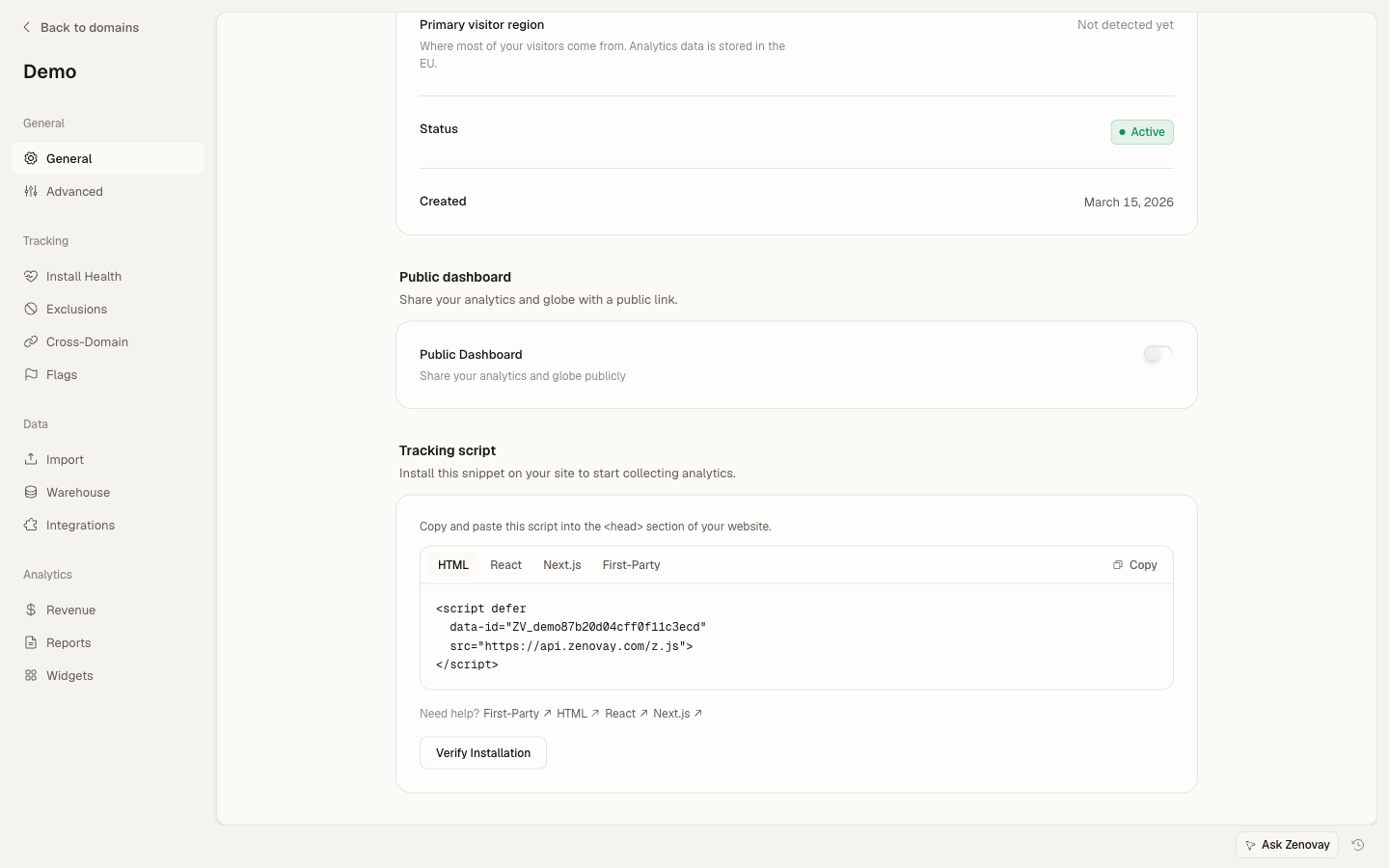
- Seu código de rastreamento Zenovay (encontrado em Domínios → seu site → Geral)
Formato do Seu Código de Rastreamento
Seu código de rastreamento se parece com: ZV_XXXXXXXXXX
- Começa com
ZV_ - Seguido por 10 caracteres (letras e números)
- SENSÍVEL A MAIÚSCULAS/MINÚSCULAS - copie exatamente
Exemplo: ZV_Q8U0GYD70WR
Por que Cloudflare Workers?
Cloudflare Workers executam na rede de borda global do Cloudflare (300+ data centers). Isto significa:
- Rápido: Tempos de resposta menores que 50ms em todo mundo
- Gratuito: 100.000 requisições/dia no plano gratuito (mais que suficiente para a maioria dos sites)
- Simples: Nenhum servidor para gerenciar
- Confiável: 99,99% de tempo de atividade
Passo 1: Criar uma Conta Cloudflare
Se você já tem uma conta Cloudflare, pule para o Passo 2.
- Vá para cloudflare.com
- Clique em Sign Up (canto superior direito)
- Digite seu endereço de e-mail
- Crie uma senha (pelo menos 8 caracteres)
- Clique em Create Account
- Verifique seu e-mail e clique no link de verificação
E-mail Não Chegou? Verifique sua pasta de spam. O e-mail vem de [email protected].
Passo 2: Adicione Seu Domínio ao Cloudflare
Este passo é obrigatório. Sem adicionar seu domínio ao Cloudflare, você não consegue criar um subdomínio personalizado como z.seudominio.com.
- Faça login no seu painel do Cloudflare
- Clique em Add a Site (botão azul grande)
- Digite o nome do seu domínio (ex:
seudominio.com)- Não inclua
www.ouhttps:// - Apenas o domínio:
seudominio.com
- Não inclua
- Clique em Continue
- Selecione o plano Free e clique em Continue
- Cloudflare escaneará seus registros DNS existentes - clique em Continue
- Cloudflare mostra dois nameservers como:
bella.ns.cloudflare.comtroy.ns.cloudflare.com
- Copie esses nameservers - você vai precisar deles no próximo passo
Atualize os Nameservers do Seu Domínio
Agora você precisa apontar seu domínio para Cloudflare:
- Faça login no seu registrador de domínio (onde você comprou seu domínio):
- GoDaddy: godaddy.com
- Namecheap: namecheap.com
- Google Domains: domains.google.com
- Hostinger: hostinger.com
- Encontre as configurações de DNS ou Nameserver do seu domínio
- Substitua os nameservers existentes pelos nameservers do Cloudflare
- Salve as alterações
Mudanças de Nameserver Levam Tempo. Pode levar de 5 minutos a 48 horas para as alterações se propagarem. Geralmente é feito em 30 minutos.
Cloudflare enviará um e-mail quando seu domínio estiver ativo.
Usando hospedagem compartilhada? Você ainda consegue adicionar seu domínio ao Cloudflare. Sua hospedagem existente continuará funcionando - Cloudflare apenas se torna um proxy na sua frente. Seu site continuará funcionando normalmente.
Passo 3: Crie o Worker
- No painel do Cloudflare, clique em Workers & Pages
- Clique no botão azul Create
- Clique em Create Worker
- Dê um nome para seu worker:
zenovay-proxy- Use apenas letras minúsculas, números e hífens
- Sem espaços permitidos
- Clique em Deploy
Você verá uma mensagem de sucesso. Agora precisamos adicionar o código do proxy.
Passo 4: Adicione o Código do Proxy
Não pule nenhuma etapa! Copie o código exatamente como mostrado. Um caractere faltando vai quebrar tudo.
- Após fazer o deploy, clique em Edit code (ou vá ao seu Worker e clique em "Edit code")
- Você verá um editor de código com algum código padrão
- Selecione TODO o código existente (Cmd+A no Mac, Ctrl+A no Windows)
- Delete-o (pressione Delete ou Backspace)
- Copie e cole o código a seguir:
// Zenovay First-Party Proxy Worker
// This proxies tracking requests through your domain to bypass ad blockers

export default {
async fetch(request) {
  const url = new URL(request.url);

  // Get the real visitor IP address (for accurate geolocation)
  const clientIP = request.headers.get('CF-Connecting-IP') || '';

  // Determine the target URL based on the request path
  let targetUrl;
  if (url.pathname === '/script.js' || url.pathname === '/z.js') {
    // Script requests go to the regular endpoint
    targetUrl = `https://api.zenovay.com/z.js${url.search}`;
  } else {
    // All other requests (events, settings) go through first-party endpoint
    targetUrl = `https://api.zenovay.com/fp${url.pathname}${url.search}`;
  }

  // Copy the original request headers
  const headers = new Headers(request.headers);

  // IMPORTANT: Forward the real visitor IP for accurate geolocation
  headers.set('X-Zenovay-Real-IP', clientIP);

  // Remove the Host header (we're proxying to a different domain)
  headers.delete('Host');

  // Handle CORS preflight requests
  if (request.method === 'OPTIONS') {
    return new Response(null, {
      status: 204,
      headers: {
        'Access-Control-Allow-Origin': '*',
        'Access-Control-Allow-Methods': 'GET, POST, OPTIONS',
        'Access-Control-Allow-Headers': 'Content-Type',
      },
    });
  }

  try {
    // Forward the request to Zenovay API
    const response = await fetch(targetUrl, {
      method: request.method,
      headers: headers,
      body: request.body,
    });

    // Add CORS headers to the response
    const responseHeaders = new Headers(response.headers);
    responseHeaders.set('Access-Control-Allow-Origin', '*');

    // Return the response to the visitor's browser
    return new Response(response.body, {
      status: response.status,
      headers: responseHeaders,
    });
  } catch (error) {
    // If something goes wrong, return an error
    return new Response(JSON.stringify({ error: 'Proxy error' }), {
      status: 502,
      headers: { 'Content-Type': 'application/json' },
    });
  }
}
}- Clique em Save and Deploy (canto superior direito)
- Aguarde a mensagem "Worker deployed successfully"
Código copiado com sucesso? Você deve ver "Worker deployed successfully" no topo. Se você vir erros, certifique-se de que copiou TODO o código incluindo a abertura export default { e fechamento }.
Passo 5: Adicione Seu Domínio Personalizado
CRÍTICO: Você DEVE usar z.seudominio.com
Firefox e Edge automaticamente bloqueiam esses subdomínios:
analytics.seudominio.com— BLOQUEADOmetrics.seudominio.com— BLOQUEADOtracking.seudominio.com— BLOQUEADOstats.seudominio.com— BLOQUEADOtelemetry.seudominio.com— BLOQUEADOpixel.seudominio.com— BLOQUEADO
O ÚNICO subdomínio recomendado é: z.seudominio.com
Este é um subdomínio neutro de uma única letra que navegadores não bloqueiam.
Agora vamos conectar seu Worker ao seu domínio:
- Vá ao seu Worker no painel do Cloudflare
- Clique na aba Settings (não "Triggers" - se mudou para Settings)
- Desça até encontrar a seção Domains & Routes
- Clique em Add → Custom Domain
- Digite seu subdomínio:
z.seudominio.com- Substitua
seudominio.compelo seu domínio real - Mantenha o prefixo
z.exatamente como mostrado
- Substitua
- Clique em Add Custom Domain
- Cloudflare automaticamente:
- Criará um registro DNS para
z.seudominio.com - Fornecerá um certificado SSL (HTTPS)
- Isto leva 1-2 minutos
- Criará um registro DNS para
Aguarde a marca de seleção verde. Seu domínio personalizado mostrará "Initializing" e depois mudará para "Active" com uma marca de seleção verde. Não prossiga até ver a marca de seleção verde.
Passo 6: Teste Seu Worker
Antes de adicionar o script de rastreamento, vamos nos certificar de que o Worker está funcionando:
- Abra uma nova aba do navegador
- Vá para:
https://z.seudominio.com/script.js- Substitua
seudominio.compelo seu domínio real
- Substitua
- Você deve ver código JavaScript (uma porção de código minificado)
Vê código JavaScript? Seu Worker está funcionando corretamente. Prossiga para o Passo 7.
Vê um erro ou página em branco?
- Verifique se seu domínio personalizado mostra "Active" no Cloudflare
- Aguarde 2-3 minutos e tente novamente
- Certifique-se de que digitou a URL corretamente
Passo 7: Adicione o Script de Rastreamento ao Seu Website
IMPORTANTE: Você deve usar o método de script inline abaixo.
O método simples <script src="..."> NÃO funciona de forma confiável com Cloudflare Workers porque:
- Cloudflare Rocket Loader pode interferir no carregamento do script
- A configuração deve ser definida ANTES do script ser carregado
Use o método de script inline mostrado abaixo.
Adicione este código à seção <head> do seu website. Você pode encontrar seu código de rastreamento em Domínios → seu site → Geral no aplicativo Zenovay.
<script data-cfasync="false">
window.ZENOVAY_TRACKER_CONFIG = {
trackingCode: 'YOUR_TRACKING_CODE',
apiUrl: 'https://z.seudominio.com',
settingsEndpoint: '/settings'
};
var script = document.createElement('script');
script.src = 'https://z.seudominio.com/script.js';
script.defer = true;
document.head.appendChild(script);
</script>
O que Substituir:
| Espaço Reservado | Substitua Por | Exemplo |
|---|---|---|
YOUR_TRACKING_CODE | Seu código de rastreamento do painel Zenovay | ZV_Q8U0GYD70WR |
z.seudominio.com (aparece 2 vezes) | Seu domínio personalizado real | z.meusite.com |
Substitua AMBAS as ocorrências de z.seudominio.com! Há dois lugares no código onde você precisa colocar seu domínio.
Exemplo com Valores Reais:
<script data-cfasync="false">
window.ZENOVAY_TRACKER_CONFIG = {
trackingCode: 'ZV_Q8U0GYD70WR',
apiUrl: 'https://z.meusite.com',
settingsEndpoint: '/settings'
};
var script = document.createElement('script');
script.src = 'https://z.meusite.com/script.js';
script.defer = true;
document.head.appendChild(script);
</script>
Onde Adicionar Este Código:
- WordPress: Use um plugin como "Insert Headers and Footers" ou adicione ao
header.phpdo seu tema - Wix: Settings → Custom Code → Head Code
- Squarespace: Settings → Advanced → Code Injection → Header
- Shopify: Online Store → Themes → Edit Code →
theme.liquid(na seção<head>) - Arquivos HTML: Entre as tags
<head>e</head> - Qualquer CMS: Procure por "Custom Code" ou "Header Scripts" em suas configurações
Passo 8: Verifique se Está Funcionando
Verificação 1: Aba Network (Qualquer Navegador)
- Abra seu website em Chrome, Firefox ou Edge
- Pressione F12 (ou Cmd+Option+I no Mac) para abrir DevTools
- Clique na aba Network
- Atualize seu website (Cmd+R ou Ctrl+R)
- Na caixa de filtro/busca, digite
script.js - Procure por uma requisição para
z.seudominio.com/script.js
O que você deve ver:
- Status: 200 (OK)
- Domínio:
z.seudominio.com(seu domínio, não api.zenovay.com)
Verificação 2: Modo Strict do Firefox (Mais Importante!)
Firefox tem a proteção de rastreamento mais rigorosa. Se funcionar no Firefox, funciona em todo lugar.
- Abra o navegador Firefox
- Clique no menu (☰) → Settings
- Clique em Privacy & Security na barra lateral esquerda
- Em "Enhanced Tracking Protection", selecione Strict
- Feche Settings e visite seu website
- Abra DevTools (F12) → aba Network
- Atualize a página
- Procure por
script.js- deve carregar com status 200
Funciona no modo Strict do Firefox? Parabéns! Seu rastreamento de primeira parte está configurado corretamente e funcionará em TODOS os navegadores.
Verificação 3: Painel Zenovay
- Vá para app.zenovay.com e faça login
- Clique no seu website
- Visite seu website em outra aba
- Em 1-2 minutos, você deve ver a visita aparecer no seu painel
Lista de Verificação Final
Antes de terminar, verifique TODOS estes itens:
- Worker implementado em
z.seudominio.com(respondendo com código JavaScript) - Domínio personalizado usa prefixo
z.(NÃOanalytics.,metrics., etc.) - Tag de script inclui atributo
data-cfasync="false" -
window.ZENOVAY_TRACKER_CONFIGestá definido comtrackingCodecorreto - Ambas as URLs no script usam seu domínio personalizado
z.seudominio.com - Testado no Firefox com Proteção Aprimorada de Rastreamento definida para Strict
- Visitas aparecendo no painel Zenovay
Solução de Problemas
Worker Retorna Erro 522 ou 524
Causa: Timeout ao conectar à API Zenovay.
Solução:
- Verifique se
api.zenovay.comé acessível (visite no seu navegador) - Verifique se não há erros de digitação no código do proxy
- Tente reimplementar o worker (Edit code → Save and Deploy)
Domínio Personalizado Mostra Erro SSL
Causa: Certificado SSL ainda não foi provisionado.
Solução: Aguarde 1-5 minutos. Cloudflare automaticamente provisiona certificados SSL. Se levar mais que 10 minutos, verifique se os nameservers do seu domínio estão apontando corretamente para Cloudflare.
Script Carrega Mas Nenhum Dado no Painel
Causa: Geralmente uma incompatibilidade de código de rastreamento.
Solução:
- Abra o Console DevTools do seu navegador (F12 → aba Console)
- Procure por mensagens de erro em vermelho
- Verifique se seu
trackingCodecorresponde exatamente ao que está no seu painel Zenovay (sensível a maiúsculas/minúsculas!) - Certifique-se de que o domínio do website está registrado no Zenovay
"Script executando" Mas Nada Acontece
Causa: A apiUrl na sua configuração está errada.
Solução:
Certifique-se de que sua window.ZENOVAY_TRACKER_CONFIG tem a apiUrl correta:
apiUrl: 'https://z.seudominio.com', // Seu domínio personalizado real
Geolocalização Mostra Local Errado
Causa: IP real não está sendo encaminhado para Zenovay.
Solução: Certifique-se de que o código do seu worker inclui esta linha:
headers.set('X-Zenovay-Real-IP', clientIP);
Firefox/Edge Ainda Bloqueando
Causa: Você está usando um subdomínio bloqueado como analytics.* ou metrics.*.
Solução:
Mude seu domínio personalizado para z.seudominio.com. Você precisará:
- Vá para Workers & Pages → Seu Worker → Settings
- Delete o domínio personalizado antigo
- Adicione novo domínio personalizado:
z.seudominio.com - Atualize ambas as URLs no seu script de rastreamento
Avançado: Múltiplos Websites
Se você tem múltiplos websites, você pode usar um worker para todos eles:
-
Adicione múltiplos domínios personalizados ao mesmo worker:
z.website1.comz.website2.comz.website3.com
-
Cada website usa seu próprio código de rastreamento:
<script data-cfasync="false">
window.ZENOVAY_TRACKER_CONFIG = {
  trackingCode: 'ZV_SITE1CODE',
  apiUrl: 'https://z.website1.com',
  settingsEndpoint: '/settings'
};
var s = document.createElement('script');
s.src = 'https://z.website1.com/script.js';
s.defer = true;
document.head.appendChild(s);
</script><script data-cfasync="false">
window.ZENOVAY_TRACKER_CONFIG = {
trackingCode: 'ZV_SITE2CODE',
apiUrl: 'https://z.website2.com',
settingsEndpoint: '/settings'
};
var s = document.createElement('script');
s.src = 'https://z.website2.com/script.js';
s.defer = true;
document.head.appendChild(s);
</script>Próximas Etapas
- Eventos Personalizados - Rastreie cliques de botão e envios de formulário
- Identificação de Visitantes - Conecte análises a contas de usuários
- Solução de Problemas - Mais ajuda com problemas comuns
Precisa de Ajuda?
Se você está preso:
- Verifique novamente cada passo acima
- Certifique-se de que está usando
z.seudominio.com(nãoanalytics.*oumetrics.*) - Teste no modo Strict do Firefox
- Verifique o console do navegador em busca de erros (F12 → aba Console)
Ainda preso? Contate o suporte em [email protected] com:
- Nome do seu domínio
- Screenshot da aba Network
- Qualquer mensagem de erro da aba Console