インストール
Zenovay Analytics をウェブサイトに数分で導入・運用開始できます。
クイックスタート
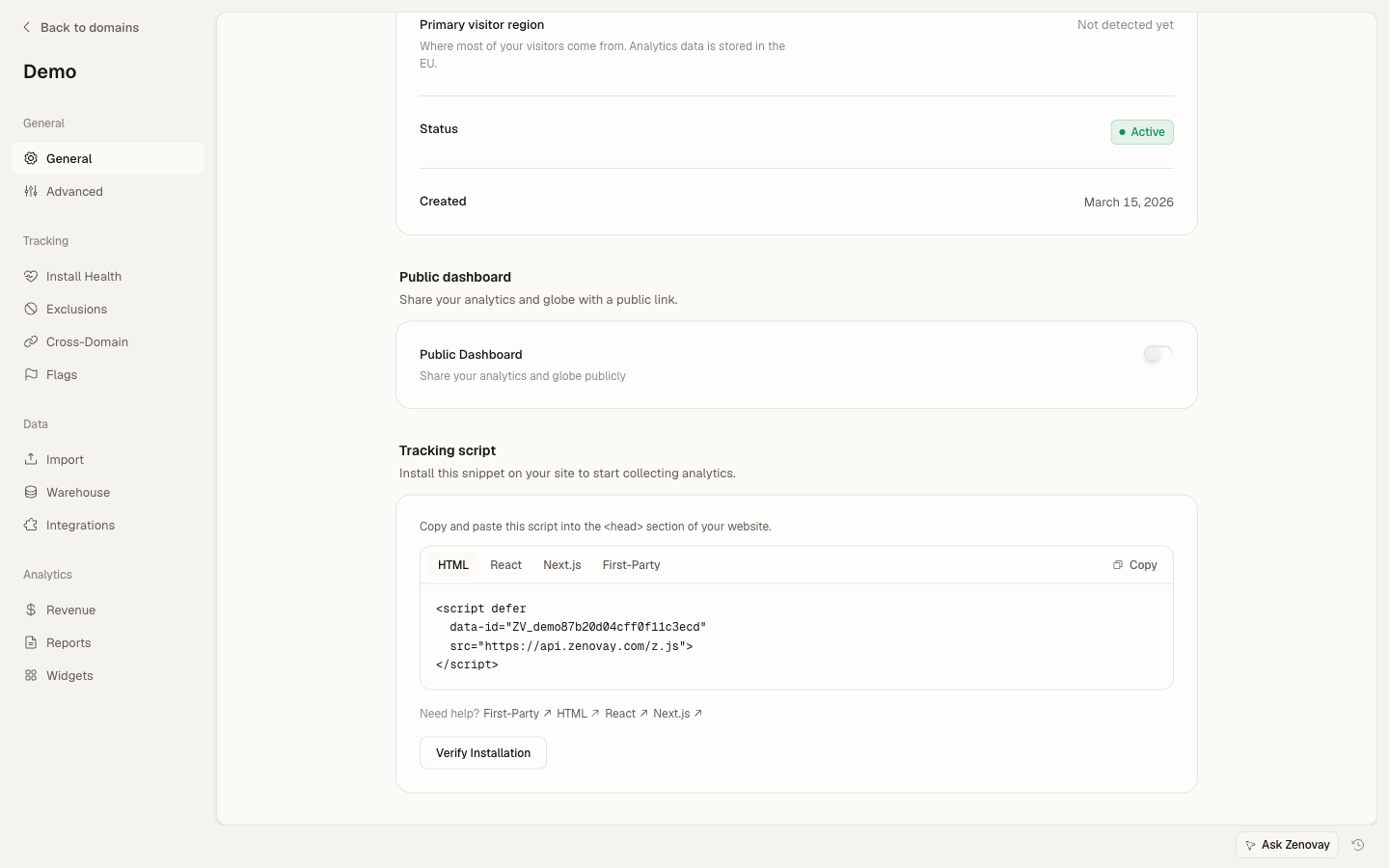
ウェブサイトの <head> タグにトラッキングスクリプトを追加します:
<!-- Zenovay Analytics -->
<script defer
data-tracking-code="YOUR_TRACKING_CODE"
src="https://api.zenovay.com/z.js">
</script>
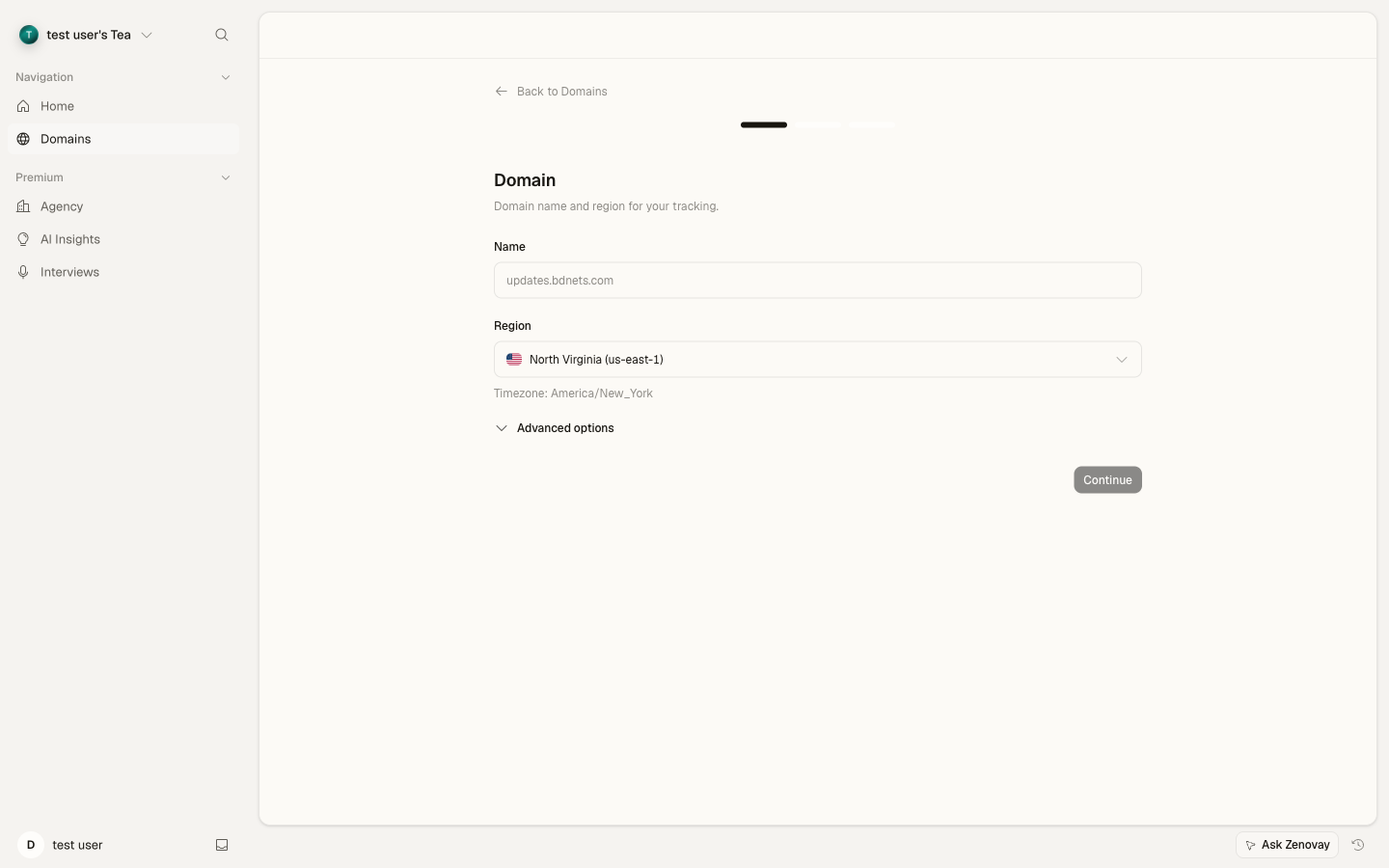
YOUR_TRACKING_CODE をあなたのトラッキングコードで置き換えてください。トラッキングコードは Domains → あなたのサイト → General に表示されます(Tracking script カード)。最初のサイトを追加するには、Domains → Add domain に進んでください。
npm でのインストール
バンドラー(Next.js、Nuxt、SvelteKit、Vite、webpack、esbuild など)を使用している場合は、HTML に <script> タグを追加する代わりに、Zenovay を npm パッケージとしてインストールし、コードから init() を呼び出せます。
パッケージは @zenovay/tracker として公開されています。
npm install @zenovay/trackerimport { init, track } from '@zenovay/tracker';
init('YOUR_TRACKING_CODE');
// Later, from any component or handler:
track('Signup clicked', { source: 'hero' });init() は <script> タグと同じ https://api.zenovay.com/z.js ローダーを読み込みます。ワイヤーフォーマット上の動作は同一です。npm パッケージはトラッカーのフォークではなく薄いラッパーなので、依存関係を更新しなくても常に最新の本番トラッカーが配信されます。
2 つのインストール方法の使い分け
| 方法 | 推奨用途 |
|---|---|
<script> タグ | 静的 HTML ページ、WordPress、Shopify、バンドラーを使わないシンプルな HTML |
@zenovay/tracker npm | バンドラーを使う最新アプリで、型付きの track、identify、goal 呼び出しが欲しい場合 |
npm パッケージは追加のインストール方法であり、<script> タグの代替ではありません。
フレームワーク別セットアップ
React、Vue、Next.js などの最新フレームワークを使用している場合、アプリの HTML テンプレートまたはルートレイアウト内に同じスクリプトタグを追加します。詳細はフレームワーク別ガイドを参照してください:
スクリプトがロードされたら、グローバルの window.zenovay オブジェクトを使ってカスタムイベントをトラッキングできます:
// Track a custom event
zenovay('track', 'button_click', {
button_id: 'signup-cta',
page: '/pricing'
});

// Identify a user
zenovay('identify', 'user_123', {
email: '[email protected]',
plan: 'pro'
});
サーバーサイドトラッキング
Node.js や Express などのサーバーサイドアプリケーションの場合は、Zenovay External API を fetch で直接使用します。npm パッケージは必要ありません。詳細は Node.js Quickstart または Express.js Quickstart を参照してください。
検証
インストール後、Zenovay が正常に機能しているか検証できます:
- ウェブサイトにアクセスする
- ブラウザの開発者ツールを開く
- Network タブで
zenovay.comへのリクエストを確認する - Domains → あなたのサイト → Analytics でリアルタイムデータを確認する
アナリティクスはダッシュボードに 5 分以内に表示されます!
次のステップ
関連する無料ツール
一般的なアナリティクス構成が、広告ブロッカーやトラッキング防止でどれだけのトラフィックを取りこぼしているか気になりますか。無料の アナリティクス精度チェッカー でサイトを診断してみましょう。