Session Replay
Fonctionnalité ProRegardez exactement comment les utilisateurs interagissent avec votre site. Session Replay enregistre les mouvements de la souris, les clics, le défilement et les interactions avec les pages afin que vous puissiez comprendre le comportement des utilisateurs au niveau individuel.
Session Replay est disponible sur les plans Pro, Scale et Enterprise. Mettez à niveau votre plan pour activer cette fonctionnalité.
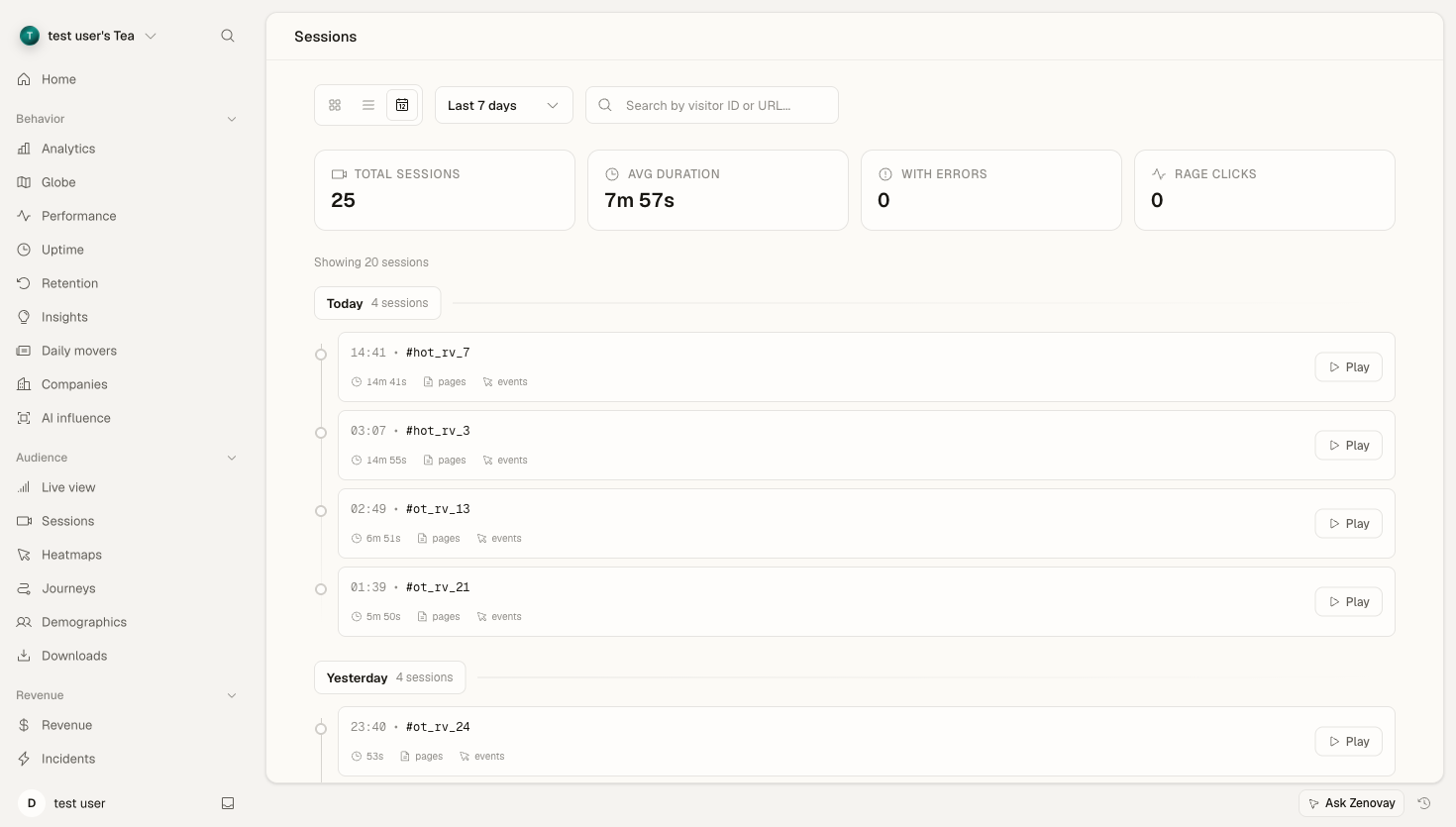
Aperçu
Session Replay capture un enregistrement de type vidéo des sessions utilisateur sans enregistrer réellement une vidéo. En utilisant des instantanés DOM et des modifications supplémentaires, les lectures sont légères (~50-100 Ko par session) tout en offrant une fidélité complète de l'expérience utilisateur.
Avantages clés
- Déboguez les problèmes plus rapidement : voyez exactement ce que les utilisateurs ont expérimenté avant de signaler un bogue
- Identifiez les problèmes UX : regardez les utilisateurs avoir du mal avec les interfaces déroutantes
- Améliorez les conversions : comprendre pourquoi les utilisateurs abandonnent le processus de paiement ou d'inscription
- Validez les modifications : confirmez que les nouvelles fonctionnalités fonctionnent comme prévu en production
- Confidentialité d'abord : masque automatiquement les données sensibles comme les mots de passe et les numéros de carte de crédit
Activation de Session Replay
Étape 1 : activer dans le tableau de bord
- Ouvrez Domaines, cliquez sur votre site, puis allez à la section Configurer et sélectionnez Drapeaux de fonctionnalité
- Basculez Session Replay pour activer
- Configurez votre mode d'enregistrement (voir Modes de déclenchement)
- Enregistrez les modifications
Étape 2 : vérifier l'installation
Le script de suivi commence automatiquement l'enregistrement une fois activé. Vérifiez que cela fonctionne :
- Visitez votre site Web
- Effectuez quelques interactions (clics, défilements, saisie)
- Ouvrez Domaines → votre site → onglet Sessions dans votre tableau de bord Zenovay
- Votre session devrait apparaître dans les 30 secondes
Les sessions n'apparaissent qu'après avoir été téléchargées. Selon votre mode de déclenchement, cela peut ne pas se produire jusqu'à la fin de la session ou après un événement de déclenchement.
Modes de déclenchement
Contrôlez le moment où les sessions sont enregistrées et téléchargées pour optimiser le stockage et vous concentrer sur ce qui compte le plus.
Toutes les sessions (all)
Enregistre et télécharge chaque session.
Idéal pour :
- Les produits en phase initiale qui ont besoin d'une visibilité maximale
- Les sites Web à faible trafic
- Les environnements de test et d'assurance qualité
Configuration :
{
  "session_replay_trigger": "all"
}
Erreurs uniquement (errors_only)
Enregistre toujours en arrière-plan, mais télécharge uniquement les sessions où des erreurs JavaScript se produisent. Utilise la capture rétroactive pour inclure les événements qui ont conduit à l'erreur.
Idéal pour :
- Les environnements de production avec trafic élevé
- Les équipes axées sur le débogage
- L'utilisation économe en coûts
Configuration :
{
  "session_replay_trigger": "errors_only"
}
Fonctionnement :
- L'enregistrement commence immédiatement dans le tampon mémoire
- Lorsqu'une erreur se produit, le tampon est vidé et téléchargé
- Vous obtenez le contexte complet de ce qui s'est passé avant l'erreur
Mode intelligent (smart)
Télécharge intelligemment les sessions en fonction de plusieurs signaux :
- Erreurs JavaScript : toute exception non gérée
- Signaux de frustration : clics de rage, clics morts, abandon de formulaire
- Visiteurs à forte valeur : visiteurs montrant l'intention d'achat ou l'engagement
Idéal pour :
- Une couverture équilibrée sans données accablantes
- Les équipes de produit axées sur l'optimisation UX
- L'optimisation de la conversion du commerce électronique
Configuration :
{
  "session_replay_trigger": "smart"
}
La détection de la frustration comprend :
- Clics de rage : 3+ clics dans la même zone en 500 ms
- Clics morts : clics sur des éléments non interactifs
- Frustration du formulaire : plusieurs envois de formulaire échoués
- Battage des défilements : défilement rapide haut-bas
Contrôles de confidentialité
Session Replay est conçu avec la confidentialité comme principe fondamental. Les informations sensibles sont automatiquement protégées.
Masquage automatique
Par défaut, Zenovay masque :
- Les entrées de mot de passe (
<input type="password">) - Les champs de carte de crédit (
<input type="cc-number">, etc.) - Les numéros de sécurité sociale
- Les champs de courrier électronique (configurable)
- Tout élément avec
data-private
Masquage manuel
Ajoutez l'attribut mask à n'importe quel élément :
<!-- Masquer le contenu sensible -->
<div data-private>
  Ce contenu sera masqué dans les lectures
</div>

<!-- Masquer le champ de formulaire -->
<input type="text" name="ssn" data-private />
Bloquer entièrement l'enregistrement
Excluez des éléments ou sections spécifiques de l'enregistrement :
<!-- N'enregistrez pas cette section du tout -->
<div data-private>
  <video><!-- Le contenu vidéo n'est pas enregistré --></video>
</div>
Conformité au RGPD
- Aucun cookie requis : Session Replay fonctionne avec les données propriétaires uniquement
- Minimisation des données : seules les modifications DOM sont enregistrées, pas les valeurs réelles
- Droit à l'oubli : les sessions peuvent être supprimées sur demande
- Intégration du consentement : respecter les préférences de consentement des visiteurs
Voir Conformité au RGPD pour la configuration détaillée.
Affichage des sessions
Liste des sessions
Ouvrez Domaines → votre site → onglet Sessions pour voir toutes les sessions enregistrées.
Filtrer par :
- Plage de dates
- Type de périphérique
- Pays
- A des erreurs
- Signaux de frustration
- Durée de la session
Tri par :
- Le plus récent
- Durée la plus longue
- Plus d'erreurs
- Score de frustration le plus élevé
Lecteur de session
Cliquez sur n'importe quelle session pour ouvrir le lecteur de relecture.
Fonctionnalités du lecteur :
- Lecture/Pause : contrôles de lecture standard
- Vitesse : lecture à 1x, 2x, 4x
- Chronologie : avancer vers n'importe quel point de la session
- Marqueurs d'événement : voir les clics, les erreurs et les événements de frustration sur la chronologie
- Console : afficher les erreurs JavaScript qui se sont produites
- Réseau : voir les demandes d'API échouées (Entreprise)
Raccourcis clavier :
Space: Lecture/Pause←/→: ignorer 5 secondes1/2/4: définir la vitesse de lectureF: basculer le mode plein écran
Métadonnées de la session
Chaque session capture des informations contextuelles :
| Champ | Description |
|---|---|
sessionId | Identifiant de session unique |
visitorId | ID de visiteur anonyme |
startedAt | Horodatage du démarrage de la session |
duration | Durée totale de la session |
pageViews | Nombre de pages visitées |
hasErrors | Si des erreurs JS se sont produites |
hasFrustration | Si des signaux de frustration ont été détectés |
viewport | Résolution de l'écran |
device | Type et modèle d'appareil |
browser | Nom et version du navigateur |
country | Localisation géographique |
initialUrl | URL de la page d'entrée |
Intégration avec le suivi des erreurs
Lorsque le suivi des erreurs est activé, les relectures de session sont automatiquement liées aux erreurs.
Contexte d'erreur
À partir de n'importe quelle erreur de votre tableau de bord des erreurs :
- Cliquez sur Afficher la session
- La relecture s'ouvre au moment où l'erreur s'est produite
- Avancez en arrière pour voir ce qui a conduit à l'erreur
Corrélation de la trace de la pile
Les traces de pile d'erreur sont affichées à côté de la chronologie de relecture, montrant exactement où et quand le code a échoué.
Stockage et rétention
Stockage des données
Les données de relecture de session sont stockées dans Cloudflare R2 (stockage compatible S3) avec :
- Chiffrement au repos : AES-256
- Redondance géographique : réplication multi-région
- Mise en cache de périphérie : lecture rapide à partir du emplacement le plus proche
Périodes de rétention
| Plan | Rétention |
|---|---|
| Pro | 60 jours |
| Scale | 120 jours |
| Enterprise | 180 jours |
Les sessions sont automatiquement nettoyées après la période de rétention.
Impact de la performance
Session Replay est conçu pour un impact minimal :
| Métrique | Impact |
|---|---|
| Chargement de la page | <5 ms ajoutés |
| Utilisation de la mémoire | ~2-5 Mo de tampon |
| Réseau | ~50-100 Ko par session (compressé) |
| CPU | Négligeable (modifications supplémentaires uniquement) |
Conseils d'optimisation
- Utilisez le mode de déclenchement approprié :
errors_onlyousmartpour les sites à trafic élevé - Bloquez les éléments lourds : excluez les vidéos, les animations complexes, les iframes
- Enregistrement des exemples : utilisez le taux d'échantillonnage pour un trafic très élevé
Référence de configuration
Configurez la relecture de session via les paramètres du site Web :
{
  "feature_flags": {
    "enable_session_replay": true,
    "session_replay_trigger": "smart",
    "replay_sampling_rate": 0.02
  }
}
Options
| Option | Type | Par défaut | Description |
|---|---|---|---|
enable_session_replay | boolean | false | Activer/désactiver l'enregistrement |
session_replay_trigger | string | "smart" | Mode de déclenchement : "all", "errors_only", "smart" |
replay_sampling_rate | number | 0.02 | Taux d'échantillonnage (0,02 = 2% des sessions) |
Le taux d'échantillonnage ne s'applique qu'au mode all. Les modes errors_only et smart capturent 100% des sessions déclenchées.
Dépannage
Les sessions n'apparaissent pas
- Vérifiez que la fonctionnalité est activée : Domaines → votre site → Configurer → Drapeaux de fonctionnalité → Session Replay
- Vérifiez le mode de déclenchement :
errors_onlyne sera téléchargé que si une erreur se produit - Vérifiez la console du navigateur : recherchez les messages d'initialisation Zenovay
- Attendez le téléchargement : les sessions sont téléchargées lorsque l'utilisateur quitte la page ou après 2 minutes
La relecture ne lit pas
- Vérifiez l'intégrité des données : la session peut avoir des données incomplètes
- Essayez un navigateur différent : certains navigateurs plus anciens ont des problèmes de lecture
- Rechargez la page : videz le cache du navigateur et réessayez
Le masquage de confidentialité ne fonctionne pas
- Vérifiez la syntaxe de l'attribut : utilisez
data-private(pasdata-mask) - Vérifiez les éléments parents : le masquage n'hérite pas des parents
- Inspectez le DOM : assurez-vous que l'attribut est présent dans le HTML rendu
Accès à l'API
Accédez aux données de session par programmation via l'API des sessions.
Lister les sessions
GET /api/websites/:websiteId/sessions
Authorization: Bearer YOUR_API_KEY
Obtenir les événements de session
GET /api/replay/:sessionId
Authorization: Bearer YOUR_API_KEY
Meilleures pratiques
- Commencez par le mode
smart- Obtenez les sessions les plus précieuses sans surcharger le stockage - Masquez agressivement - En cas de doute, masquez le contenu sensible
- Examinez régulièrement - Planifiez un examen hebdomadaire des sessions pour des informations UX
- Partagez avec l'équipe - utilisez les liens de session pour communiquer les problèmes
- Combinez avec l'analyse - utilisez les données quantitatives pour trouver les sessions à regarder
Étapes suivantes
- Suivi des erreurs - Capturez automatiquement les erreurs JavaScript
- Heatmaps - voir les modèles de clic et de défilement agrégés
- Conformité au RGPD - Configurer les paramètres de confidentialité