Dépannage SSO
Ce guide couvre les problèmes courants que vous pourriez rencontrer lors de la configuration ou l'utilisation de l'authentification unique (SSO) avec Zenovay, ainsi que leurs solutions.
Erreurs SAML 2.0
« Échec de la vérification de la signature SAML »
Cause : Le certificat X.509 dans Zenovay ne correspond pas au certificat que votre fournisseur d'identité a utilisé pour signer la réponse SAML.
Solution :
- Téléchargez une copie fraîche du certificat de signature de votre IdP
- Dans Zenovay, allez à Settings → Security → SSO
- Modifiez le fournisseur SAML et remplacez le certificat
- Assurez-vous d'avoir copié le certificat complet, y compris
-----BEGIN CERTIFICATE-----et-----END CERTIFICATE-----
« Incompatibilité de digest SAML »
Cause : La réponse SAML a été modifiée en transit ou un mauvais certificat est configuré.
Solution :
- Vérifiez que le certificat dans Zenovay correspond au certificat de signature actif dans votre IdP
- Si votre IdP a récemment fait tourner les certificats, téléchargez le nouveau
- Assurez-vous qu'aucun proxy ou middleware ne modifie la réponse SAML
« Élément référencé non trouvé »
Cause : La réponse SAML ne contient pas l'élément signé attendu.
Solution :
- Vérifiez que votre IdP envoie une réponse SAML 2.0 standard
- Vérifiez que la réponse comprend un élément
Assertionavec un attributIDvalide - Contactez votre administrateur IdP si le problème persiste
« Incompatibilité d'Entity ID » ou « Incompatibilité d'Audience »
Cause : L'Entity ID du fournisseur de services configuré dans votre IdP ne correspond pas à ce que Zenovay attend.
Solution :
- Définissez l'Entity ID du fournisseur de services / URI d'Audience dans votre IdP à exactement :
https://auth.zenovay.com - N'incluez pas de barre oblique finale ou de chemin
« URL ACS invalide » ou « Incompatibilité d'URL de réponse »
Cause : L'URL ACS dans votre IdP ne correspond pas au point de terminaison de rappel de Zenovay.
Solution :
- Définissez l'URL ACS à exactement :
https://auth.zenovay.com/api/sso/saml/callback - Assurez-vous qu'il n'y a pas de barre oblique finale
« NameID non trouvé » ou « Email non fourni »
Cause : La réponse SAML ne contient pas l'adresse e-mail de l'utilisateur au format attendu.
Solution :
- Définissez le format NameID à
EmailAddressdans votre IdP - Assurez-vous que la valeur NameID correspond à l'adresse e-mail de l'utilisateur
- Vérifiez que l'utilisateur a une adresse e-mail valide dans votre répertoire IdP
Erreurs OAuth 2.0 / OIDC
« URI de redirection invalide » ou « Incompatibilité d'URI de redirection »
Cause : L'URI de redirection configuré dans votre IdP ne correspond pas à ce que Zenovay envoie.
Solution :
- Définissez l'URI de redirection à exactement :
https://auth.zenovay.com/api/sso/oauth/callback - Assurez-vous qu'il n'y a pas de barre oblique finale
- L'URI doit être une correspondance exacte (sensible à la casse)
« Identifiants du client invalides »
Cause : L'ID client ou le secret client saisis dans Zenovay sont incorrects.
Solution :
- Vérifiez l'ID client et le secret client dans le tableau de bord de votre IdP
- Si le secret a expiré, générez-en un nouveau
- Mettez à jour les valeurs dans Zenovay
« Découverte OIDC échouée »
Cause : Zenovay ne peut pas atteindre le point de terminaison de découverte OpenID Connect à votre URL d'émetteur.
Solution :
- Vérifiez que l'URL de l'émetteur est correcte
- Testez l'URL de découverte dans votre navigateur :
{issuer-url}/.well-known/openid-configuration - Certains IdP requièrent une barre oblique finale dans l'URL de l'émetteur (par ex. Auth0 :
https://tenant.us.auth0.com/) - Assurez-vous que votre IdP est accessible publiquement
« Échec de la vérification du jeton »
Cause : Le jeton ID de votre IdP n'a pas pu être vérifié.
Solution :
- Assurez-vous que le point de terminaison JWKS de votre IdP est accessible
- Vérifiez que l'algorithme de signature du jeton correspond à ce que votre IdP annonce
- Vérifiez que la revendication
aud(audience) du jeton correspond à l'ID client
« Incompatibilité du paramètre d'état »
Cause : L'état d'authentification a été perdu ou altéré, généralement en raison de problèmes de session.
Solution :
- Effacez les cookies du navigateur et réessayez
- Assurez-vous que vous n'utilisez pas d'extension de navigateur qui bloque les cookies
- Essayez dans une fenêtre incognito/privée
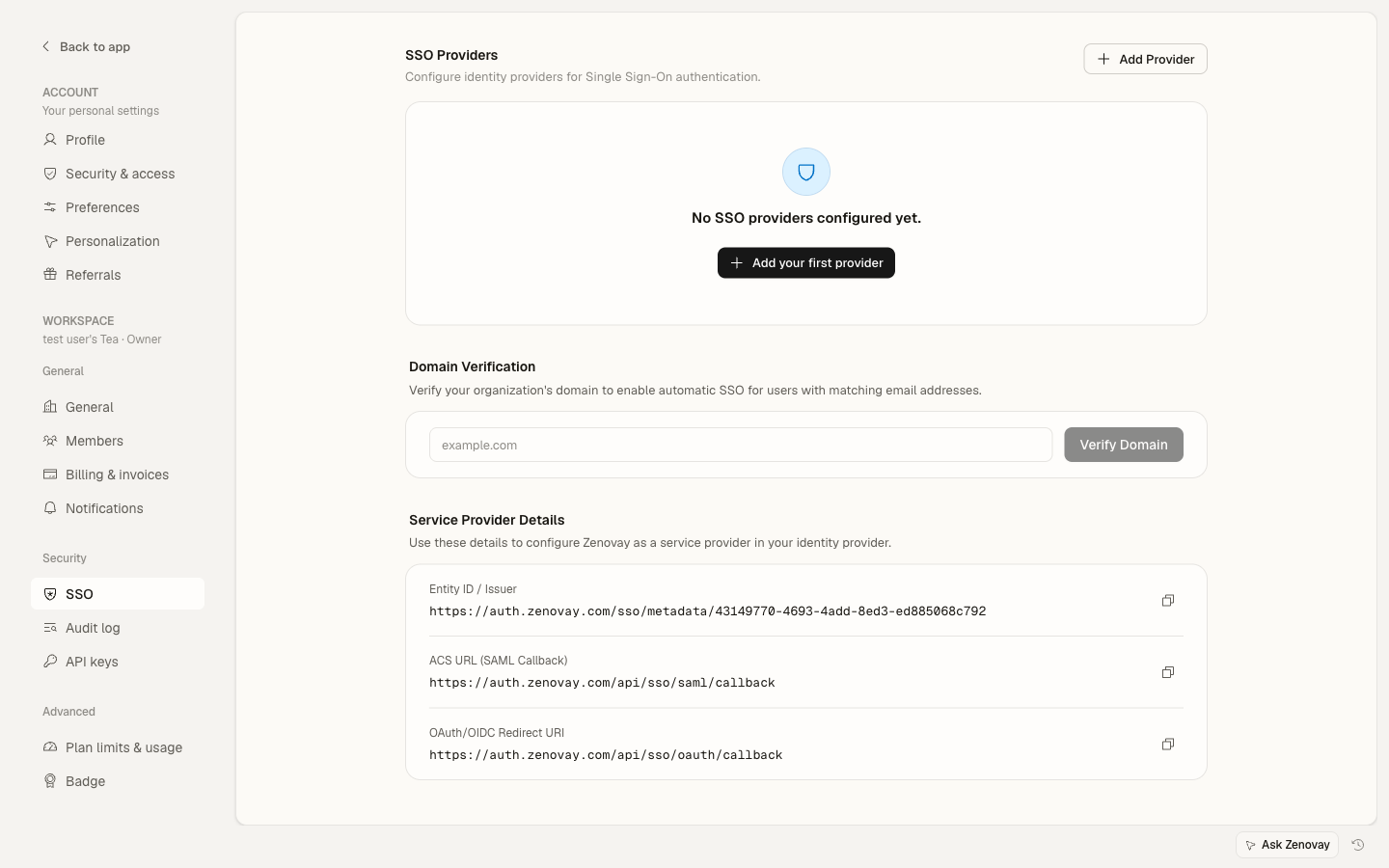
Problèmes de vérification de domaine
« Domaine non vérifié »
Cause : Votre domaine de messagerie n'a pas été vérifié pour SSO.
Solution :
- Allez à Settings → Security → SSO
- Cliquez sur votre fournisseur SSO
- Cliquez sur Add Domain et entrez votre domaine de messagerie
- Suivez les étapes de vérification DNS
- Attendez la propagation DNS (jusqu'à 48 heures)
« Domaine déjà en usage »
Cause : Le domaine de messagerie est déjà lié à un autre fournisseur SSO ou organisation.
Solution :
- Vérifiez si un autre fournisseur SSO de votre organisation utilise déjà ce domaine
- Supprimez d'abord le domaine de l'autre fournisseur
- Si le domaine est lié à une organisation différente, contactez [email protected]
Problèmes de certificat
Expiration du certificat
Les certificats de signature SAML ont une date d'expiration. Lorsqu'ils expirent, l'authentification SSO échouera.
Comment vérifier :
- Vérifiez la date d'expiration du certificat dans le tableau de bord de votre IdP
- Définissez un rappel calendaire 30 jours avant l'expiration
Comment mettre à jour :
- Téléchargez le nouveau certificat de votre IdP
- Dans Zenovay, modifiez le fournisseur SSO
- Remplacez le certificat et enregistrez
- Testez la connexion
Mettez toujours à jour le certificat dans Zenovay avant qu'il n'expire dans votre IdP. Si le certificat expire sans être mis à jour, tous les utilisateurs SSO seront verrouillés jusqu'à ce que le nouveau certificat soit configuré.
Format de certificat
Zenovay attend le certificat X.509 au format PEM :
-----BEGIN CERTIFICATE-----
MIIDpDCCAoygAwIBAgIGAX...
(base64 encoded certificate data)
...
-----END CERTIFICATE-----
- Incluez les lignes
BEGINetEND - N'incluez pas d'espace blanc ou d'en-têtes supplémentaires
- Si votre IdP fournit un fichier
.cerou.der, convertissez-le d'abord au format PEM
Problèmes généraux
« Fournisseur SSO non trouvé »
Cause : Le domaine de messagerie saisi à la connexion ne correspond à aucun fournisseur SSO configuré.
Solution :
- Vérifiez que le domaine est ajouté et vérifié sur le fournisseur SSO dans Zenovay
- Assurez-vous que l'utilisateur saisit un e-mail avec le domaine correct
Les utilisateurs ne peuvent pas se connecter après application de SSO
Cause : SSO est appliqué mais les utilisateurs ne peuvent pas s'authentifier auprès de l'IdP.
Solution :
- Désactivez temporairement l'application de SSO dans Settings → Security → SSO
- Connectez-vous avec e-mail/mot de passe pour accéder aux paramètres
- Corrigez la configuration SSO
- Réactivez l'application
Les propriétaires d'organisations peuvent toujours se connecter par e-mail/mot de passe même lorsque SSO est appliqué, assurant que vous ne soyez jamais verrouillé de votre compte.
Les nouveaux utilisateurs ne sont pas créés
Cause : L'utilisateur existe dans votre IdP mais n'a pas de compte Zenovay.
Solution : Zenovay provisionne automatiquement les nouveaux comptes utilisateurs à la première connexion SSO. Si cela ne se produit pas :
- Vérifiez que la réponse SAML ou le jeton OIDC comprend l'adresse e-mail de l'utilisateur
- Vérifiez que le domaine de messagerie correspond au domaine vérifié
- Assurez-vous que l'utilisateur est assigné à l'application Zenovay dans votre IdP
Liste de vérification de test
Avant d'appliquer SSO, vérifiez :
- Le fournisseur SSO est configuré dans Zenovay avec les bonnes valeurs IdP
- Le domaine de messagerie est vérifié
- Les utilisateurs sont assignés à l'application dans votre IdP
- La connexion de test fonctionne dans une fenêtre incognito
- L'approvisionnement des nouveaux utilisateurs fonctionne (testez avec un utilisateur qui n'a pas encore de compte Zenovay)
- Au moins un propriétaire peut toujours se connecter par e-mail/mot de passe en tant que sauvegarde
Obtenir de l'aide
Si vous rencontrez toujours des problèmes :
- E-mail : [email protected]
- Support Enterprise : [email protected]
Lors de la prise de contact avec le support, incluez :
- Le nom de votre fournisseur d'identité et le protocole (SAML/OAuth/OIDC)
- Le message d'erreur exact que vous voyez
- Si c'est une nouvelle configuration ou une configuration existante qui a cessé de fonctionner
- Tout changement récent de votre configuration IdP