Guide de démarrage rapide
Lancez vos analyses de site web avec Zenovay en moins de 5 minutes.
Ajoutez un seul snippet JavaScript léger à votre site web et Zenovay commencera à suivre les pages vues, les visiteurs, les sources de référence et les informations sur les appareils. Le script fait moins de 5 Ko compressé en gzip, se charge de manière asynchrone et n'a aucun impact sur les performances de la page. Pour les déploiements sans cookies, un seul attribut data-cookieless="true" bascule le suivi en mode mémoire uniquement, qui ne définit pas de cookies et n'écrit pas dans localStorage.
Étape 1 : Créer votre compte
Inscrivez-vous pour un compte Zenovay gratuit sur auth.zenovay.com/signup.
L'offre gratuite comprend : 1 site web, 10 000 événements/mois, conservation des données pendant 1 an
Étape 2 : Ajouter votre site web
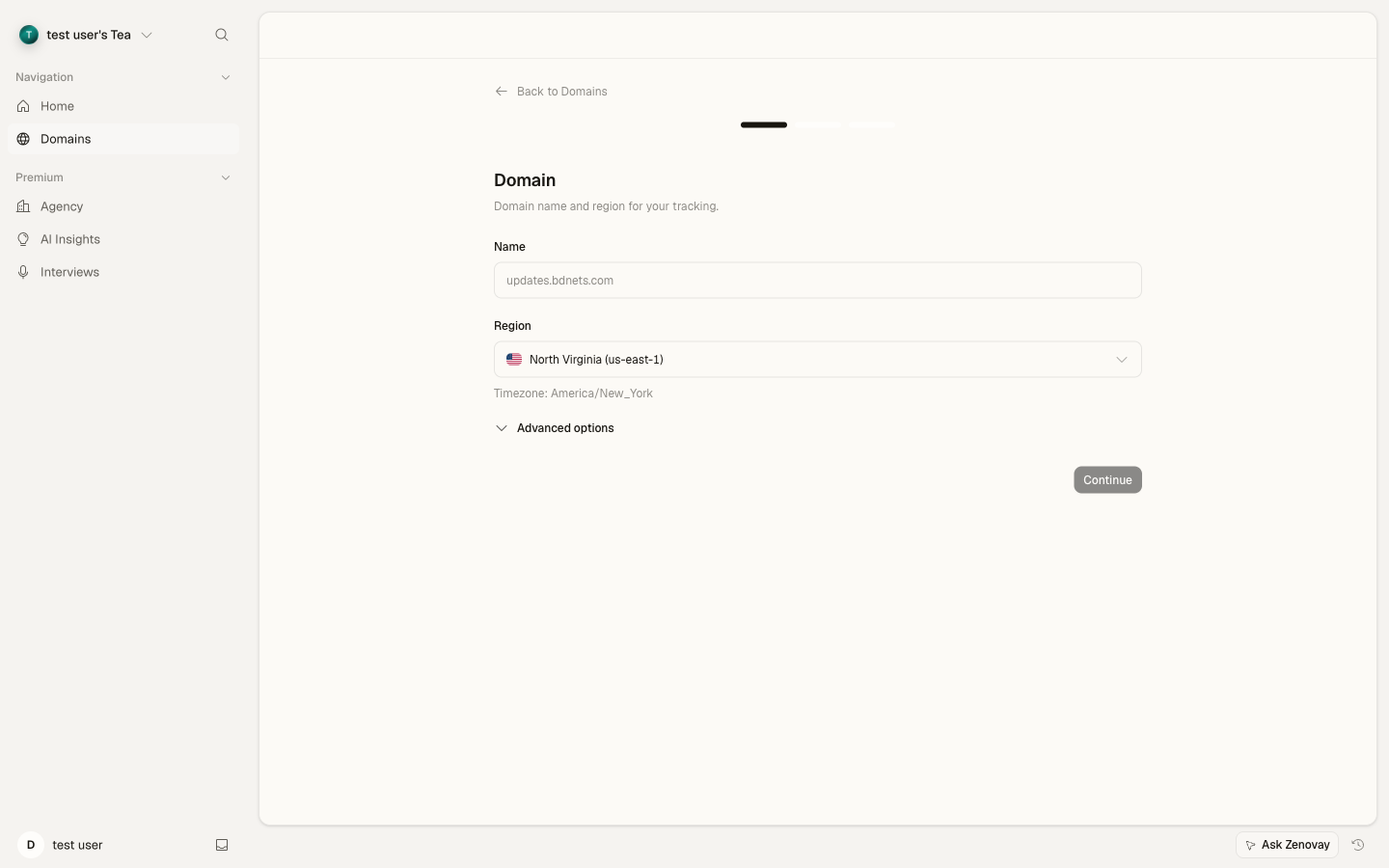
- Ouvrez Domaines → Ajouter un domaine dans la barre latérale.
- Entrez le nom de votre domaine (par ex.,
example.com). - Donnez un nom à votre site.
- Cliquez sur Ajouter un domaine.
Étape 3 : Installer le script de suivi
Trouvez votre snippet de suivi unique à Domaines → votre site → Général (la carte du script de suivi). Copiez-le et ajoutez-le à la section <head> de votre site web :
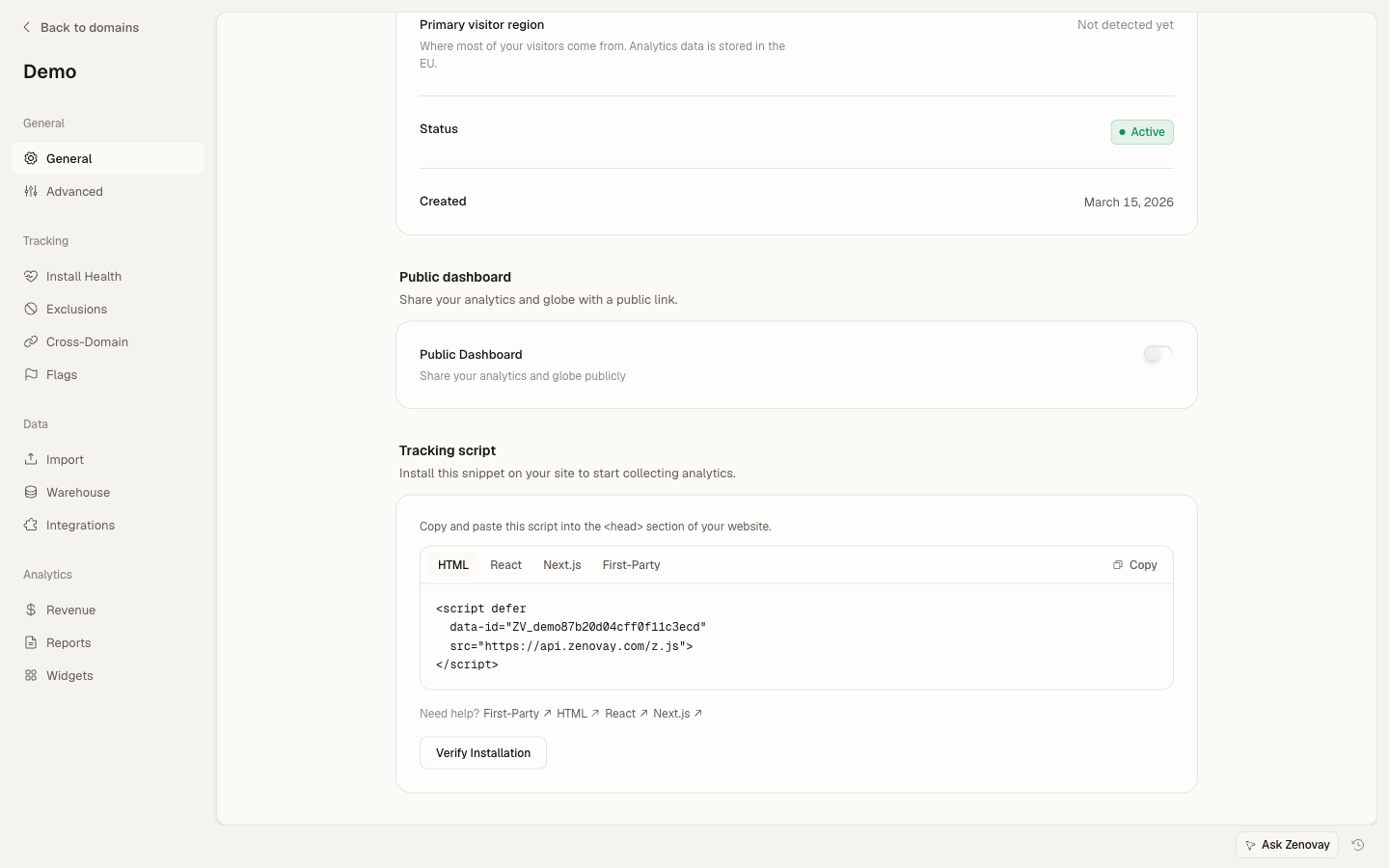
<!-- Zenovay Analytics -->
<script defer
data-tracking-code="YOUR_TRACKING_CODE"
src="https://api.zenovay.com/z.js">
</script>
Remplacez YOUR_TRACKING_CODE par votre code de suivi réel du tableau de bord.
Étape 4 : Vérifier l'installation
- Visitez votre site web dans une nouvelle fenêtre du navigateur
- Retournez à votre tableau de bord Zenovay
- Vous devriez voir votre visite apparaître sur le globe 3D dans quelques secondes
Une fois votre script installé, les nouveaux visiteurs apparaissent sur le globe en direct dans quelques secondes. Ouvrez Domaines → votre site → Vue en direct pour les voir en temps réel.
Installation spécifique à la plateforme
Installation WordPress
- Accédez à votre tableau de bord d'administration WordPress
- Naviguez jusqu'à Apparence > Éditeur de thème
- Sélectionnez votre thème actif
- Modifiez le fichier
header.php - Ajoutez le script de suivi avant la balise de fermeture
</head>
<!-- Zenovay Analytics -->
<script defer
data-tracking-code="<?php echo esc_attr(get_option('zenovay_tracking_code')); ?>"
src="https://api.zenovay.com/z.js">
</script>
<?php wp_head(); ?>
Étapes suivantes
Maintenant que vous suivez les visiteurs, explorez ces fonctionnalités :
- Évaluation de la valeur du visiteur - Voyez quels visiteurs sont les plus précieux
- Analyses en temps réel - Surveillez votre trafic en direct
- Événements personnalisés - Suivez les actions spécifiques des utilisateurs
- Intégration API - Accédez à vos données par programme
Dépannage
Les données n'apparaissent pas dans votre tableau de bord ?
- Vérifiez votre code de suivi - Assurez-vous qu'il correspond exactement à celui du tableau de bord
- Vérifiez le chargement du script - Ouvrez les outils de développement du navigateur et vérifiez l'onglet Réseau
- Désactivez les bloqueurs de publicités - Certains bloqueurs de publicités pourraient bloquer les scripts d'analyse
- Vérifiez les erreurs de la console - Recherchez les erreurs JavaScript dans la console du navigateur
- Attendez quelques minutes - Les données peuvent prendre 1 à 2 minutes pour apparaître
Le code de suivi ne fonctionne pas sur les sites HTTPS ?
Assurez-vous que vous utilisez la version HTTPS du script :
<script defer data-tracking-code="YOUR_TRACKING_CODE" src="https://api.zenovay.com/z.js"></script>Avez-vous besoin d'aide avec une plateforme spécifique ?
Consultez les guides d'intégration détaillés ou contactez l'équipe d'assistance à [email protected].
Besoin d'aide ?
- Consultez notre guide de dépannage
- Contactez [email protected]
Terminé. Vos visiteurs apparaîtront maintenant sur le globe 3D en temps réel. Ouvrez Domaines → votre site pour voir l'onglet Analyses.