First-Party-Tracking mit nginx/Apache
Richten Sie einen First-Party-Proxy auf Ihrem selbst gehosteten Server mit nginx oder Apache Reverse-Proxy-Konfiguration ein.
Schwierigkeit: Mittel - Erfordert Zugriff auf Serverkonfigurationsdateien und grundlegende Terminalkenntnis.
Warum dies funktioniert (Same-Origin)
Dieser Ansatz verwendet /api/_z/script.js, die sich auf der gleichen Herkunft wie Ihre Website befindet. Firefox ETP und andere Tracking-Schutzmaßnahmen blockieren nur Cross-Origin-Anfragen.
- Browser sieht:
yourdomain.com/api/_z/script.js→ Same origin ✅ - nginx/Apache leitet die Anfrage auf der Serverseite an Zenovay weiter (der Browser sieht dies nie)
- Alle Tracking-Schutzmaßnahmen werden umgangen, da die Anfrage First-Party ist
Bevor Sie beginnen
Stellen Sie sicher, dass Sie folgendes haben:
- Root/sudo-Zugriff auf Ihren Server
- nginx oder Apache installiert
- Ihren Zenovay-Tracking-Code (unter Domains → Website auswählen → General Tab)
- SSH-Zugriff auf Ihren Server
Ihr Tracking-Code-Format
Ihr Tracking-Code sieht wie folgt aus: ZV_XXXXXXXXXX
- Beginnt mit
ZV_ - Gefolgt von 10 Zeichen (Buchstaben und Zahlen)
- GROSS-/KLEINSCHREIBUNG BEACHTEN - kopieren Sie genau
- Beispiel:
ZV_Q8U0GYD70WR
nginx-Konfiguration
Schritt 1: Proxy-Location hinzufügen
Fügen Sie den folgenden Location-Block zu Ihrer nginx-Serverkonfiguration hinzu:
server {
  listen 80;
  listen 443 ssl;
  server_name yourdomain.com www.yourdomain.com;

  # Your existing SSL configuration...
  ssl_certificate /etc/letsencrypt/live/yourdomain.com/fullchain.pem;
  ssl_certificate_key /etc/letsencrypt/live/yourdomain.com/privkey.pem;

  # Your existing root configuration...
  root /var/www/yourdomain;
  index index.html;

  # Zenovay first-party proxy
  location /api/_z/ {
      # Proxy to Zenovay's first-party endpoint
      proxy_pass https://api.zenovay.com/fp/;

      # Set the correct Host header
      proxy_set_header Host api.zenovay.com;

      # Forward the real client IP for accurate geolocation
      proxy_set_header X-Real-IP $remote_addr;
      proxy_set_header X-Forwarded-For $proxy_add_x_forwarded_for;
      proxy_set_header X-Zenovay-Real-IP $remote_addr;

      # Required for HTTPS backend
      proxy_ssl_server_name on;
      proxy_ssl_protocols TLSv1.2 TLSv1.3;

      # Timeouts
      proxy_connect_timeout 10s;
      proxy_send_timeout 10s;
      proxy_read_timeout 30s;

      # Buffering
      proxy_buffering on;
      proxy_buffer_size 4k;
      proxy_buffers 8 4k;
  }

  # Your existing location blocks...
  location / {
      try_files $uri $uri/ =404;
  }
}
Schritt 2: Konfiguration testen
# Test nginx configuration
sudo nginx -t

# If test passes, reload nginx
sudo systemctl reload nginx
Schritt 3: Tracking-Skript hinzufügen
<script defer
data-tracking-code="YOUR_TRACKING_CODE"
src="/api/_z/script.js">
</script>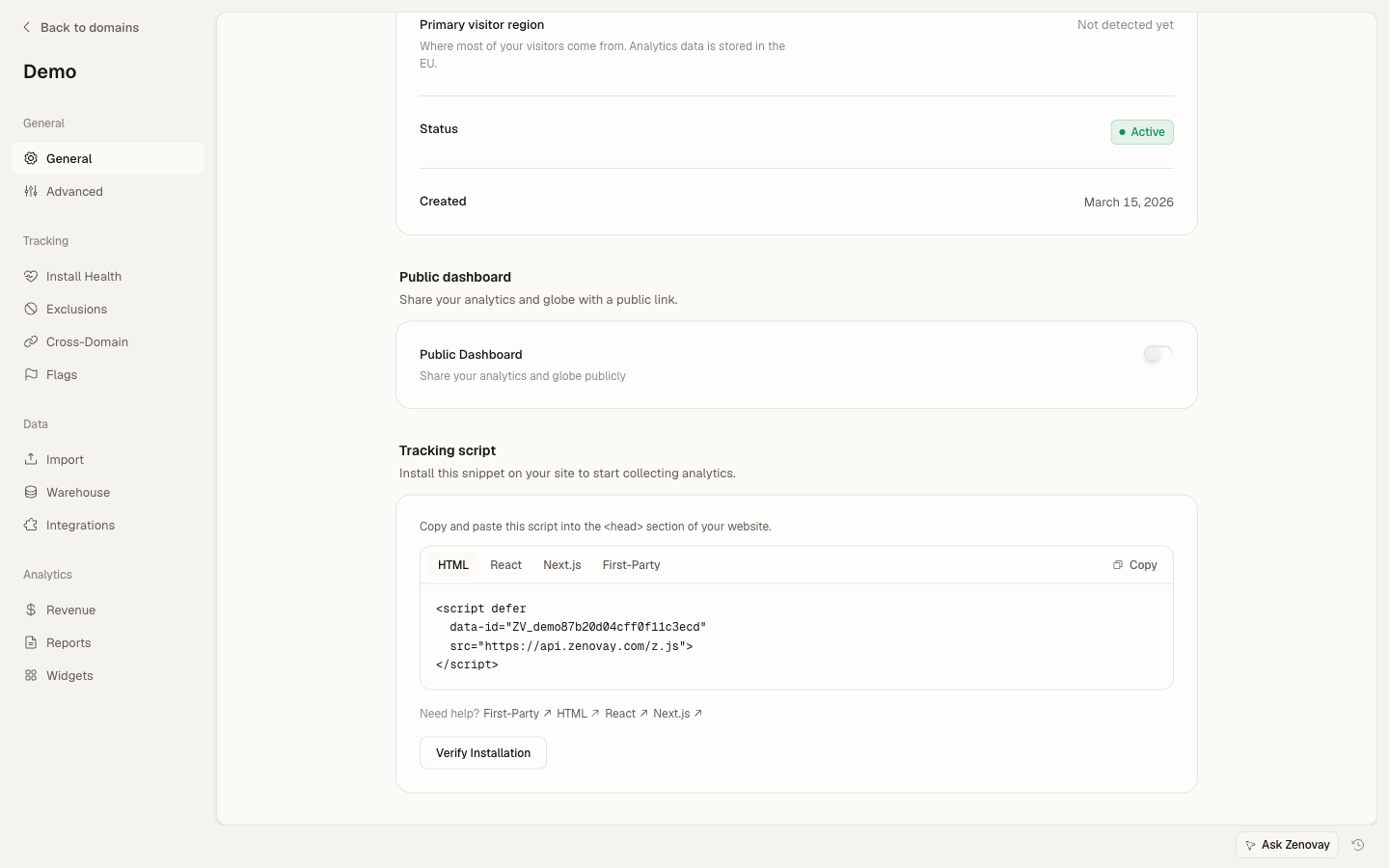
Apache-Konfiguration
Schritt 1: Erforderliche Module aktivieren
Aktivieren Sie zunächst die erforderlichen Apache-Module:
# Enable proxy modules
sudo a2enmod proxy
sudo a2enmod proxy_http
sudo a2enmod ssl
sudo a2enmod headers

# Restart Apache
sudo systemctl restart apache2
Schritt 2: Proxy-Konfiguration hinzufügen
Fügen Sie Folgendes zu Ihrer Apache-VirtualHost-Konfiguration hinzu:
<VirtualHost *:443>
  ServerName yourdomain.com
  ServerAlias www.yourdomain.com

  # Your existing SSL configuration...
  SSLEngine on
  SSLCertificateFile /etc/letsencrypt/live/yourdomain.com/fullchain.pem
  SSLCertificateKeyFile /etc/letsencrypt/live/yourdomain.com/privkey.pem

  # Your existing document root...
  DocumentRoot /var/www/yourdomain

  # Enable SSL for proxy connections
  SSLProxyEngine on
  SSLProxyVerify none
  SSLProxyCheckPeerCN off
  SSLProxyCheckPeerName off

  # Zenovay first-party proxy
  ProxyPass "/api/_z/" "https://api.zenovay.com/fp/"
  ProxyPassReverse "/api/_z/" "https://api.zenovay.com/fp/"

  <Location "/api/_z/">
      # Don't preserve the original Host header
      ProxyPreserveHost Off

      # Forward the real client IP
      RequestHeader set X-Zenovay-Real-IP "%{REMOTE_ADDR}s"
      RequestHeader set X-Real-IP "%{REMOTE_ADDR}s"
      RequestHeader set X-Forwarded-For "%{REMOTE_ADDR}s"
  </Location>

  # Your existing configuration...
  <Directory /var/www/yourdomain>
      Options Indexes FollowSymLinks
      AllowOverride All
      Require all granted
  </Directory>
</VirtualHost>
Alternative: .htaccess verwenden
Wenn Sie keinen Zugriff auf die Apache-Hauptkonfiguration haben, können Sie .htaccess verwenden (erfordert mod_rewrite und mod_proxy):
RewriteEngine On

# Zenovay first-party proxy
RewriteRule ^api/_z/(.*)$ https://api.zenovay.com/fp/$1 [P,L]

<IfModule mod_headers.c>
  <Location "/api/_z">
      RequestHeader set X-Zenovay-Real-IP "%{REMOTE_ADDR}s"
  </Location>
</IfModule>
Hinweis: Die Verwendung von .htaccess für Proxying erfordert AllowOverride All und mod_proxy aktiviert von Ihrem Hoster. Viele Shared-Hosts erlauben dies nicht.
Schritt 3: Testen und Neustarten
# Test Apache configuration
sudo apachectl configtest

# If test passes, restart Apache
sudo systemctl restart apache2
Schritt 4: Tracking-Skript hinzufügen
<script defer
data-tracking-code="YOUR_TRACKING_CODE"
src="/api/_z/script.js">
</script>
Überprüfen Sie, ob es funktioniert
Mit curl testen
# Test the proxy endpoint
curl -I https://yourdomain.com/api/_z/script.js

# Expected output:
# HTTP/2 200
# content-type: application/javascript
# ...
Network-Tab überprüfen
- Öffnen Sie Ihre Website in einem Browser
- Öffnen Sie DevTools (F12)
- Gehen Sie zum Network-Tab
- Laden Sie die Seite neu
- Suchen Sie nach
/api/_z/script.js
Sie sollten sehen:
- Status: 200
- Domain: Ihre Domain (nicht api.zenovay.com)
- Response: JavaScript-Code
Mit Firefox testen
- Öffnen Sie Firefox
- Settings → Privacy & Security → Enhanced Tracking Protection: Strict
- Besuchen Sie Ihre Website
- Überprüfen Sie, dass das Skript erfolgreich geladen wird
Problembehandlung
nginx: 502 Bad Gateway
Ursache: nginx kann keine Verbindung zur Zenovay-API aufbauen.
Lösung:
- Überprüfen Sie, dass
proxy_ssl_server_name on;gesetzt ist - Überprüfen Sie, dass Ihr Server api.zenovay.com:443 erreichen kann:
curl https://api.zenovay.com/fp/script.js - Überprüfen Sie nginx-Fehlerprotokolle:
sudo tail -f /var/log/nginx/error.log
nginx: 404 Not Found
Ursache: Der Location-Block stimmt nicht überein.
Lösung:
- Stellen Sie sicher, dass der abschließende Schrägstrich konsistent ist:
location /api/_z/stimmt mit/api/_z/script.jsübereinproxy_pass https://api.zenovay.com/fp/;(beachten Sie den abschließenden Schrägstrich)
- Testen Sie mit
nginx -tund laden Sie neu
Apache: 503 Service Unavailable
Ursache: Proxy-Module nicht aktiviert oder SSL-Problem.
Lösung:
- Erforderliche Module aktivieren:
sudo a2enmod proxy proxy_http ssl - SSL-Proxy-Einstellungen hinzufügen:
SSLProxyEngine on SSLProxyVerify none - Überprüfen Sie Apache-Fehlerprotokolle:
sudo tail -f /var/log/apache2/error.log
Geolokalisierung zeigt Serverstandort
Ursache: Die echte Client-IP wird nicht korrekt weitergeleitet.
Lösung:
Stellen Sie sicher, dass Sie den X-Zenovay-Real-IP-Header setzen:
nginx:
proxy_set_header X-Zenovay-Real-IP $remote_addr;
Apache:
RequestHeader set X-Zenovay-Real-IP "%{REMOTE_ADDR}s"
Hinter Cloudflare oder Load Balancer
Wenn sich Ihr Server hinter Cloudflare oder einem anderen Proxy befindet, verwenden Sie die weitergeleitet IP:
nginx (hinter Cloudflare):
proxy_set_header X-Zenovay-Real-IP $http_cf_connecting_ip;
nginx (hinter Load Balancer):
proxy_set_header X-Zenovay-Real-IP $http_x_forwarded_for;
Leistungsoptimierung
nginx-Caching
Fügen Sie Caching für das Tracking-Skript hinzu (optional):
location /api/_z/ {
  proxy_pass https://api.zenovay.com/fp/;

  # ... other proxy settings ...

  # Cache the script for 1 hour
  proxy_cache_valid 200 1h;
  proxy_cache_use_stale error timeout updating;
  add_header X-Cache-Status $upstream_cache_status;
}
Apache-Caching
<Location "/api/_z/">
  # Enable caching
  CacheEnable disk
  CacheDefaultExpire 3600
</Location>
Vollständiges nginx-Beispiel
server {
  listen 80;
  server_name yourdomain.com www.yourdomain.com;
  return 301 https://$server_name$request_uri;
}

server {
  listen 443 ssl http2;
  server_name yourdomain.com www.yourdomain.com;

  ssl_certificate /etc/letsencrypt/live/yourdomain.com/fullchain.pem;
  ssl_certificate_key /etc/letsencrypt/live/yourdomain.com/privkey.pem;

  root /var/www/yourdomain;
  index index.html;

  # Zenovay first-party proxy
  location /api/_z/ {
      proxy_pass https://api.zenovay.com/fp/;
      proxy_set_header Host api.zenovay.com;
      proxy_set_header X-Real-IP $remote_addr;
      proxy_set_header X-Forwarded-For $proxy_add_x_forwarded_for;
      proxy_set_header X-Zenovay-Real-IP $remote_addr;
      proxy_ssl_server_name on;
  }

  location / {
      try_files $uri $uri/ /index.html;
  }
}
Endgültige Checkliste
Überprüfen Sie VOR Fertigstellung ALLE folgenden Punkte:
- nginx/Apache-Konfiguration hat den Proxy-Location für
/api/_z/ - Konfigurationstest wird bestanden (
nginx -toderapachectl configtest) - Server wurde nach Konfigurationsänderung neu geladen
- Skript-Tag verwendet
/api/_z/script.js(nicht die direkte Zenovay-URL) - Das Attribut
data-tracking-codeenthält Ihren korrekten Tracking-Code - Der Header
X-Zenovay-Real-IPwird für Geolokalisierung gesetzt - Mit Firefox mit Enhanced Tracking Protection auf Strict getestet
- Besuche erscheinen im Zenovay-Dashboard
Nächste Schritte
- Custom Events - Benutzerinteraktionen verfolgen
- Visitor Identification - Analytics zu Benutzern verknüpfen
- Troubleshooting - Weitere Hilfe bei Problemen