Schnellstart-Anleitung
Richten Sie Ihre Website-Analyse mit Zenovay in weniger als 5 Minuten ein.
Fügen Sie ein einfaches leichtgewichtiges JavaScript-Snippet zu Ihrer Website hinzu, und Zenovay beginnt sofort mit der Verfolgung von Seitenaufrufen, Besuchern, Referrer-Quellen und Geräteinformationen. Das Script ist unter 5 KB gzipped, lädt asynchron und hat keine Auswirkungen auf die Seitenleistung. Für Cookieless-Bereitstellungen schaltet ein einfaches data-cookieless="true"-Attribut den Tracker in den Nur-Speicher-Modus um, welcher keine Cookies setzt und nichts in den localStorage schreibt.
Schritt 1: Erstellen Sie Ihr Konto
Registrieren Sie sich kostenlos unter auth.zenovay.com/signup.
Kostenlos beinhaltet: 1 Website, 10.000 Events/Monat, 1 Jahr Datenspeicherung
Schritt 2: Fügen Sie Ihre Website hinzu
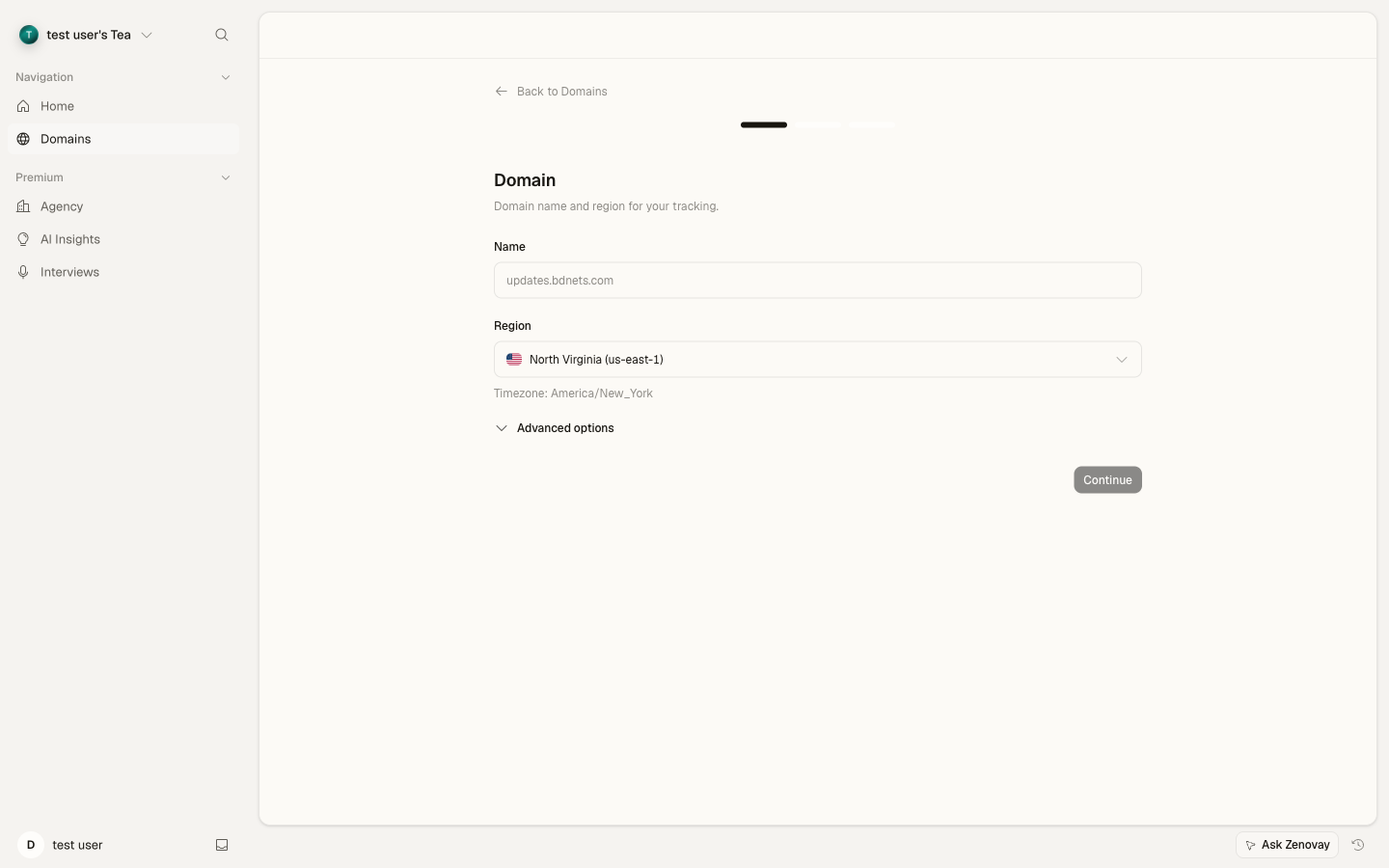
- Öffnen Sie Domains → Add domain in der Seitenleiste.
- Geben Sie Ihren Domänennamen ein (z. B.
example.com). - Geben Sie Ihrer Website einen Namen.
- Klicken Sie auf Add domain.
Schritt 3: Installieren Sie das Tracking-Script
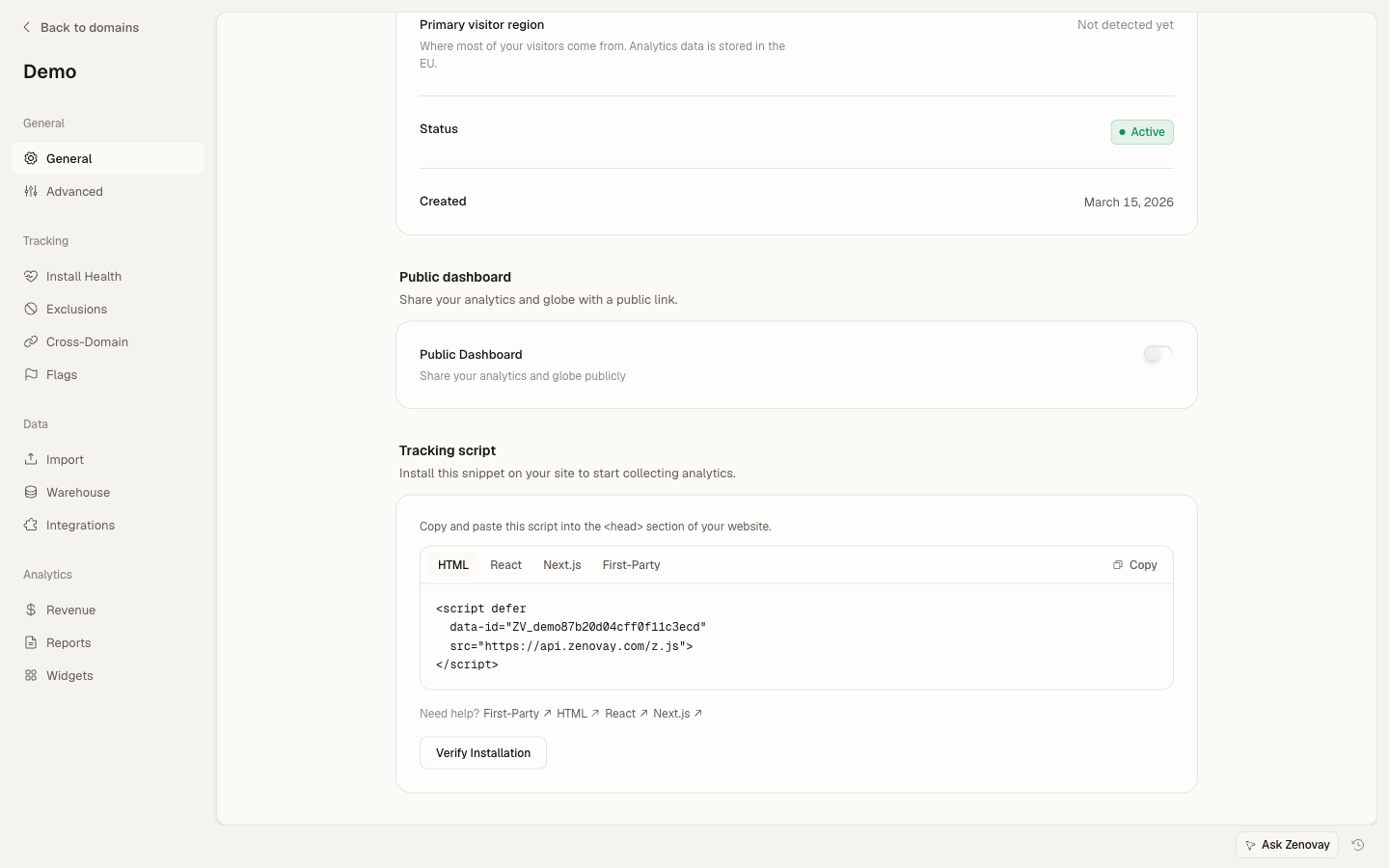
Finden Sie Ihr eindeutiges Tracking-Snippet unter Domains → Ihre Website → General (die Tracking-Script-Karte). Kopieren Sie es und fügen Sie es in den <head>-Bereich Ihrer Website ein:
<!-- Zenovay Analytics -->
<script defer
data-tracking-code="YOUR_TRACKING_CODE"
src="https://api.zenovay.com/z.js">
</script>
Ersetzen Sie YOUR_TRACKING_CODE durch Ihren tatsächlichen Tracking-Code aus dem Dashboard.
Schritt 4: Installation überprüfen
- Besuchen Sie Ihre Website in einem neuen Browser-Fenster
- Gehen Sie zurück zu Ihrem Zenovay-Dashboard
- Sie sollten Ihren Besuch innerhalb weniger Sekunden auf dem 3D-Globus sehen
Sobald Ihr Script installiert ist, erscheinen neue Besucher innerhalb weniger Sekunden auf dem Live-Globus. Öffnen Sie Domains → Ihre Website → Live view, um sie in Echtzeit zu sehen.
Platform-spezifische Installation
WordPress-Installation
- Gehen Sie zu Ihrem WordPress-Admin-Dashboard
- Navigieren Sie zu Appearance > Theme Editor
- Wählen Sie Ihr aktives Theme
- Bearbeiten Sie die
header.php-Datei - Fügen Sie das Tracking-Script vor dem schließenden
</head>-Tag hinzu
<!-- Zenovay Analytics -->
<script defer
data-tracking-code="<?php echo esc_attr(get_option('zenovay_tracking_code')); ?>"
src="https://api.zenovay.com/z.js">
</script>
<?php wp_head(); ?>
Nächste Schritte
Jetzt, da Sie Besucher verfolgen, erkunden Sie diese Funktionen:
- Visitor Value Scoring - Sehen Sie, welche Besucher am wertvollsten sind
- Echtzeit-Analyse - Überwachen Sie Ihren Traffic live
- Benutzerdefinierte Events - Verfolgen Sie spezifische Benutzeraktionen
- API-Integration - Greifen Sie programmgesteuert auf Ihre Daten zu
Fehlerbehebung
Sehen Sie keine Daten in Ihrem Dashboard?
- Überprüfen Sie Ihren Tracking-Code - Stellen Sie sicher, dass er genau mit Ihrem Dashboard übereinstimmt
- Überprüfen Sie das Script-Laden - Öffnen Sie die Browser-Entwicklertools und überprüfen Sie den Network-Tab
- Deaktivieren Sie Ad Blocker - Einige Ad Blocker blockieren möglicherweise Analytics-Scripts
- Überprüfen Sie Konsolenfehler - Suchen Sie nach JavaScript-Fehlern in der Browser-Konsole
- Warten Sie ein paar Minuten - Daten können 1-2 Minuten dauern, bis sie angezeigt werden
Tracking-Code funktioniert auf HTTPS-Websites nicht?
Stellen Sie sicher, dass Sie die HTTPS-Version des Scripts verwenden:
<script defer data-tracking-code="YOUR_TRACKING_CODE" src="https://api.zenovay.com/z.js"></script>Benötigen Sie Hilfe mit einer bestimmten Plattform?
Lesen Sie die detaillierten Integrationsleitfäden oder kontaktieren Sie das Support-Team unter [email protected].
Benötigen Sie Hilfe?
- Lesen Sie unseren Fehlerbehebungsleitfaden
- Kontaktieren Sie [email protected]
Fertig. Ihre Besucher werden jetzt in Echtzeit auf dem 3D-Globus angezeigt. Öffnen Sie Domains → Ihre Website, um die Analytics-Registerkarte zu sehen.