トラッキングスクリプトのインストール
わずか1行のコードでZenovayアナリティクスをウェブサイトに追加できます。設定は不要です。
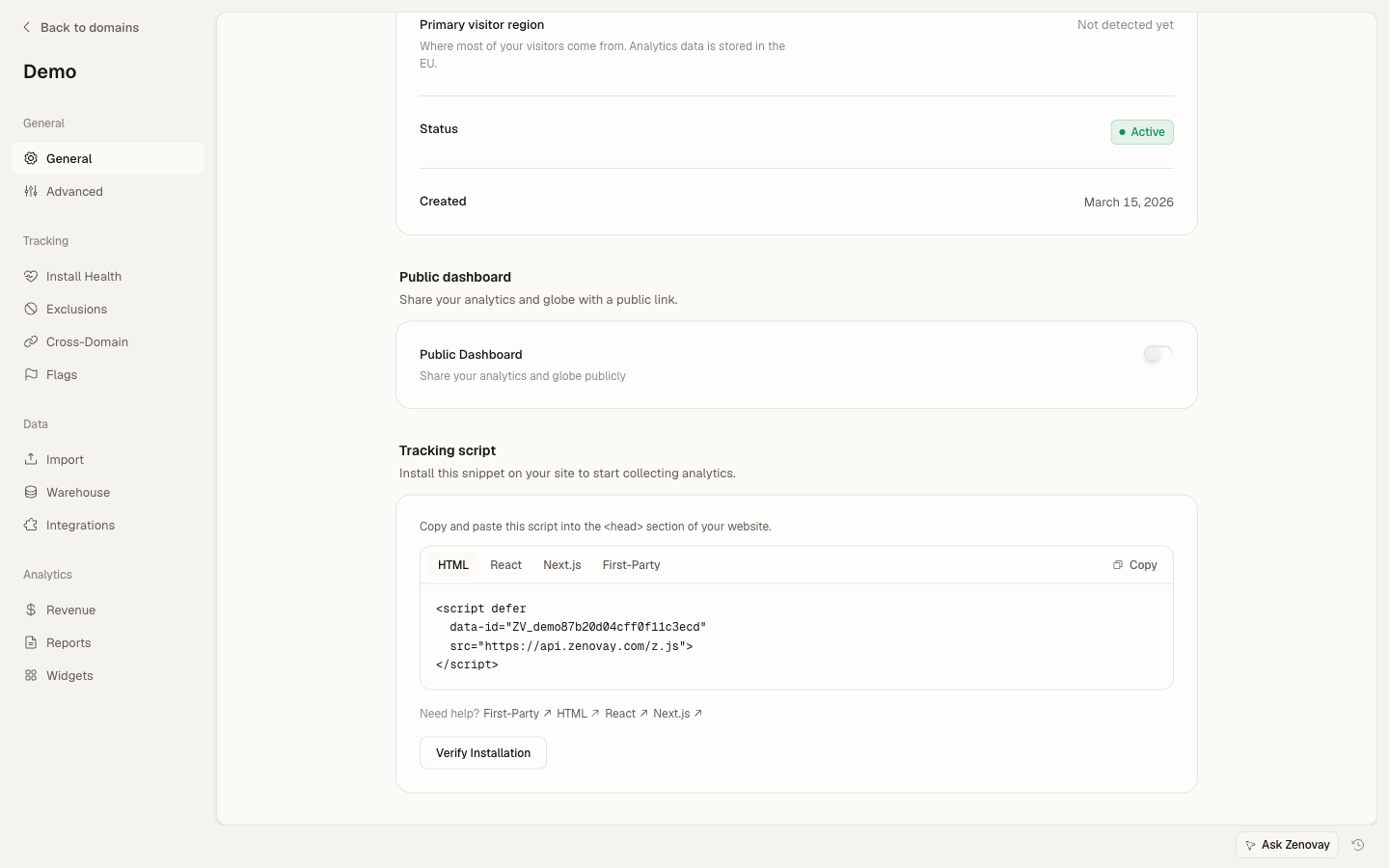
クイックインストール(30秒)
このスクリプトをコピーして、ウェブサイトの <head> セクションに貼り付けます:
<!-- Zenovay Analytics v2.0.6 -->
<script defer
data-tracking-code="YOUR_TRACKING_CODE"
src="https://api.zenovay.com/z.js">
</script>
YOUR_TRACKING_CODE を Zenovay ダッシュボード から取得したトラッキングコードに置き換えてください。形式は ZV_ABC123XYZ のようなものです。
以上です! スクリプトは自動的に以下を追跡します:
- ページビュー
- 訪問者セッション
- 地理的位置
- デバイスとブラウザ情報
- リファラルソース
- UTMパラメータ
フレームワーク別のインストール
HTML / 静的サイト
閉じるタグ </head> の直前に追加します:
<!DOCTYPE html>
<html>
<head>
<title>My Website</title>
<!-- Zenovay Analytics v2.0.6 -->
<script defer
  data-tracking-code="YOUR_TRACKING_CODE"
  src="https://api.zenovay.com/z.js">
</script>
</head>
<body>
<!-- Your content -->
</body>
</html>
React
ルートコンポーネントの useEffect でスクリプトを追加します:
import { useEffect } from 'react';

function App() {
useEffect(() => {
  const script = document.createElement('script');
  script.src = 'https://api.zenovay.com/z.js';
  script.defer = true;
  script.setAttribute('data-tracking-code', 'YOUR_TRACKING_CODE');
  document.head.appendChild(script);
}, []);

return <div>Your App</div>;
}

export default App;
Next.js (App Router)
ルートレイアウトファイルに追加します:
import Script from 'next/script';

export default function RootLayout({ children }) {
return (
  <html lang="en">
    <head>
      <Script
        src="https://api.zenovay.com/z.js"
        data-tracking-code="YOUR_TRACKING_CODE"
        strategy="afterInteractive"
      />
    </head>
    <body>{children}</body>
  </html>
);
}
Next.js (Pages Router)
_document.tsx に追加します:
import { Html, Head, Main, NextScript } from 'next/document';
import Script from 'next/script';

export default function Document() {
return (
  <Html>
    <Head>
      <Script
        src="https://api.zenovay.com/z.js"
        data-tracking-code="YOUR_TRACKING_CODE"
        strategy="afterInteractive"
      />
    </Head>
    <body>
      <Main />
      <NextScript />
    </body>
  </Html>
);
}
Vue.js
index.html に追加するか、App.vue で使用します:
<!DOCTYPE html>
<html>
<head>
<!-- Zenovay Analytics -->
<script defer
  data-tracking-code="YOUR_TRACKING_CODE"
  src="https://api.zenovay.com/z.js">
</script>
</head>
<body>
<div id="app"></div>
</body>
</html>
WordPress
オプション1:プラグインを使用(推奨)
- Insert Headers and Footers プラグインをインストールします
- 設定 → Insert Headers and Footers に移動します
- 「Scripts in Header」に以下を貼り付けます:
<!-- Zenovay Analytics -->
<script defer
data-tracking-code="YOUR_TRACKING_CODE"
src="https://api.zenovay.com/z.js">
</script>
オプション2:テーマを編集
header.php に </head> の前に追加します:
<!-- Zenovay Analytics -->
<script defer
data-tracking-code="YOUR_TRACKING_CODE"
src="https://api.zenovay.com/z.js">
</script>
</head>
Shopify
- オンラインストア → テーマ に移動します
- その他の操作 → コードを編集 をクリックします
theme.liquidを開きます</head>の前に追加します:
<!-- Zenovay Analytics -->
<script defer
data-tracking-code="YOUR_TRACKING_CODE"
src="https://api.zenovay.com/z.js">
</script>
</head>
Webflow
- プロジェクト設定 → カスタムコード に移動します
- ヘッドコード セクションに貼り付けます:
<!-- Zenovay Analytics -->
<script defer
data-tracking-code="YOUR_TRACKING_CODE"
src="https://api.zenovay.com/z.js">
</script>
Squarespace
- 設定 → 詳細 → コード注入 に移動します
- ヘッダー セクションに貼り付けます
インストールの検証
1. ブラウザコンソールをチェック
ブラウザの開発者ツール(F12)を開いて、以下を探します:
[Zenovay] Script executing... (v2.0.6)
Zenovay Analytics loaded { trackingCode: 'YOUR_TRACKING_CODE', enabled: true }
2. デバッグモードを有効にする
詳細なログを表示するには、ドメインの一般設定(ドメイン → サイトを選択 → 一般)でデバッグモードを有効にするか、デバッグ属性を追加します:
<script defer
data-tracking-code="YOUR_TRACKING_CODE"
data-debug="true"
src="https://api.zenovay.com/z.js">
</script>
トラッカーが送信するすべてのイベント — タイプ、プロパティ、Cookie レス モード、GPC 状態、同意状態 — をページ内でビジュアルに確認するには、ドメイン設定で Debug Overlay を有効にし、URL に ?zenovay_debug=1 を付けて任意のページを読み込んでください。個人情報はマスクされます。
3. リアルタイムダッシュボードをチェック
Zenovay ダッシュボード にアクセスして、リアルタイムビューで訪問がリアルタイムで表示されるかを確認します。
スクリプト属性
データ属性でビヘイビアをカスタマイズします:
| 属性 | タイプ | デフォルト | 説明 |
|---|---|---|---|
data-tracking-code | 文字列 | 必須 | トラッキングコード(例:ZV_ABC123) |
data-debug | ブール | false | コンソールログを表示 |
data-allow-localhost | ブール | false | localhost の訪問を追跡 |
広告ブロッカー保護
広告ブロッカーによって api.zenovay.com がブロックされる可能性があります。100% のトラッキング精度を得るために、ファーストパーティプロキシ を使用してください:
Firefox または Edge でブロックされたリクエストが表示される場合は、ファーストパーティプロキシ を設定して、トラッキングを独自のドメイン経由でルーティングしてください。
<!-- First-Party Proxy (bypasses ad blockers) -->
<!-- Requires proxy setup - see: docs.zenovay.com/guides/first-party-tracking -->
<script defer
data-tracking-code="YOUR_TRACKING_CODE"
src="/api/_z/script.js">
</script>
Content Security Policy (CSP)
サイトで CSP ヘッダーを使用する場合は、Zenovay を追加します:
Content-Security-Policy:
script-src 'self' https://api.zenovay.com;
connect-src 'self' https://api.zenovay.com;
トラブルシューティング
スクリプトが読み込まれない
- トラッキングコードのタイプミスをチェック
- スクリプトが
<head>に含まれていることを確認 (<body>ではなく) - CSP ヘッダーを確認 - api.zenovay.com を許可されたソースに追加
- 広告ブロッカーを一時的に無効化 してテスト
ダッシュボードにイベントが表示されない
- 30秒待機 - イベントはバッチ処理されます
- ブラウザコンソールでエラーを確認
- デバッグモードを有効化 してイベントログを確認
- シークレット/プライベートウィンドウ でテストして拡張機能の影響を除外
広告ブロッカーがスクリプトをブロック
ファーストパーティプロキシ を設定して、トラッキングを独自のドメイン経由でルーティングしてください。
AI を使用してインストール
AI コーディングアシスタント(Cursor、Lovable、Replit)を使用している場合は、AI 統合プロンプト で コピー&ペースト可能なプロンプトを確認してください。
次のステップ
- ファーストパーティプロキシ - 広告ブロッカーをバイパス
- カスタムイベント - 特定のユーザーアクションを追跡
- AI 統合プロンプト - AI コーディングアシスタント向けプロンプト