クイックスタートガイド
Zenovayでウェブサイトアナリティクスを5分以内に開始できます。
ウェブサイトに軽量なJavaScriptスニペットを1つ追加するだけで、Zenovayはページビュー、訪問者、リファラルソース、デバイス情報の追跡を開始します。スクリプトは5KB以下(gzip圧縮)で、非同期に読み込まれ、ページのパフォーマンスに影響を与えません。クッキーレス展開の場合、単一のdata-cookieless="true"属性を使用することで、トラッカーをメモリ内のみモードに切り替え、クッキーやlocalStorageを設定しません。
ステップ1: アカウントを作成する
auth.zenovay.com/signupで無料のZenovayアカウントにサインアップします。
無料プランには以下が含まれます: 1つのウェブサイト、月10,000イベント、1年分のデータ保持
ステップ2: ウェブサイトを追加する
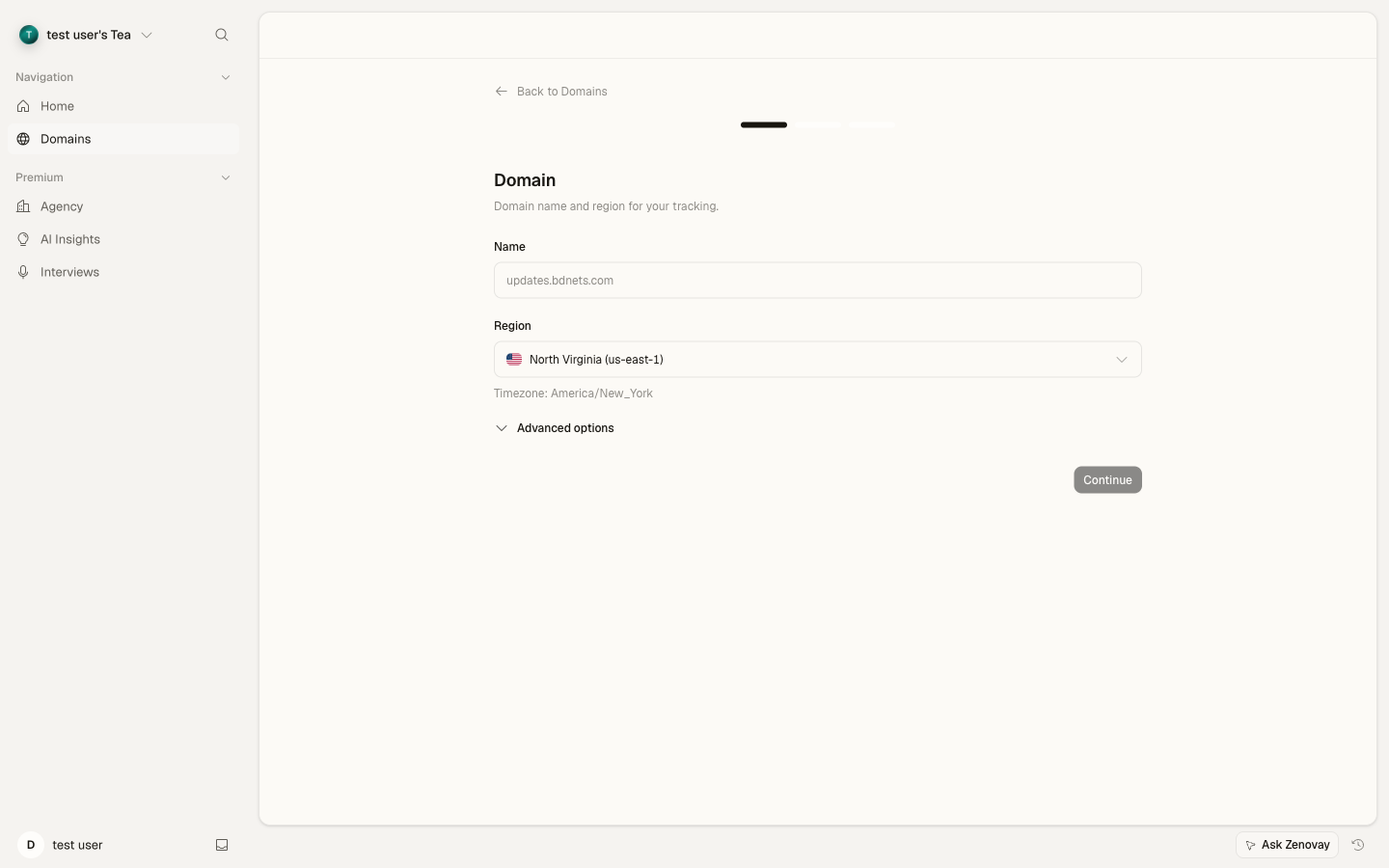
- サイドバーからDomains → Add domainを開きます。
- ドメイン名を入力します(例:
example.com)。 - サイトの名前を指定します。
- Add domainをクリックします。
ステップ3: トラッキングスクリプトをインストールする
Domains → your site → Generalでユニークなトラッキングスニペットを見つけます(トラッキングスクリプトカード)。コピーして、ウェブサイトの<head>セクションに追加します:
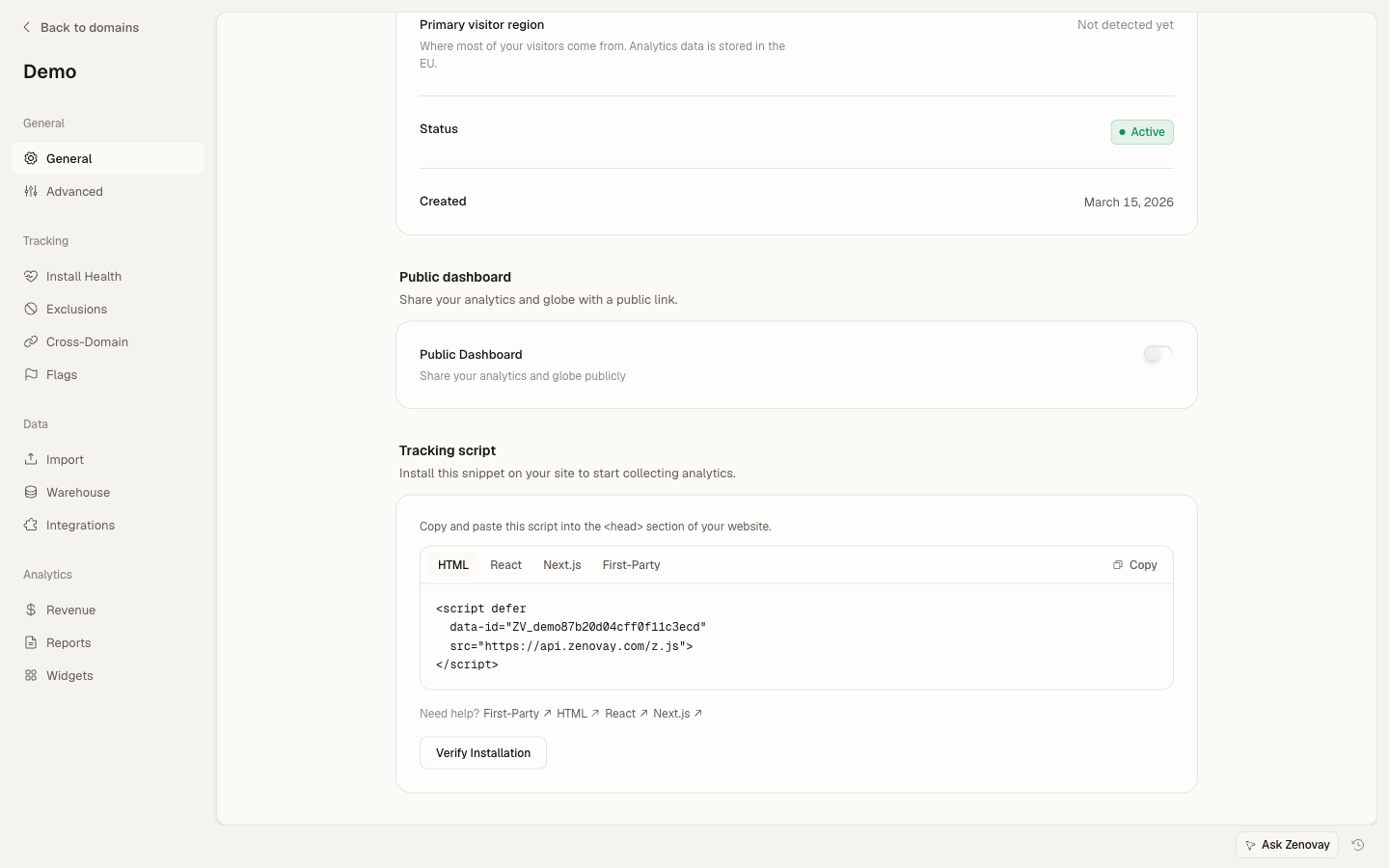
<!-- Zenovay Analytics -->
<script defer
data-tracking-code="YOUR_TRACKING_CODE"
src="https://api.zenovay.com/z.js">
</script>YOUR_TRACKING_CODEをダッシュボードから取得した実際のトラッキングコードに置き換えてください。
ステップ4: インストールを確認する
- 新しいブラウザウィンドウでウェブサイトを訪問します
- Zenovayダッシュボードに戻ります
- 数秒以内に3Dグローブにアクセスが表示されるはずです
スクリプトをインストールすると、新しい訪問者は数秒以内にライブグローブに表示されます。Domains → your site → Live viewを開いてリアルタイムで確認してください。
プラットフォーム別インストール
WordPressのインストール
- WordPressの管理ダッシュボードに移動します
- Appearance > Theme Editorに移動します
- アクティブなテーマを選択します
header.phpファイルを編集します- 閉じ
</head>タグの前にトラッキングスクリプトを追加します
<!-- Zenovay Analytics -->
<script defer
data-tracking-code="<?php echo esc_attr(get_option('zenovay_tracking_code')); ?>"
src="https://api.zenovay.com/z.js">
</script>
<?php wp_head(); ?>
次のステップ
訪問者を追跡しているので、これらの機能を探索してください:
- 訪問者価値スコアリング - どの訪問者が最も価値があるかを確認
- リアルタイムアナリティクス - トラフィックをリアルタイムで監視
- カスタムイベント - 特定のユーザーアクションを追跡
- APIインテグレーション - プログラム的にデータにアクセス
トラブルシューティング
ダッシュボードにデータが表示されていませんか?
- トラッキングコードを確認してください - ダッシュボードからの値と正確に一致していることを確認してください
- スクリプトの読み込みを確認してください - ブラウザの開発者ツールを開き、ネットワークタブを確認してください
- 広告ブロッカーを無効にしてください - 一部の広告ブロッカーがアナリティクススクリプトをブロックする可能性があります
- コンソールエラーを確認してください - ブラウザコンソールでJavaScriptエラーを探してください
- 数分待ってください - データが表示されるまで1~2分かかることがあります
HTTPSサイトでトラッキングコードが機能していませんか?
スクリプトのHTTPSバージョンを使用していることを確認してください:
<script defer data-tracking-code="YOUR_TRACKING_CODE" src="https://api.zenovay.com/z.js"></script>特定のプラットフォームについてサポートが必要ですか?
詳細なインテグレーションガイドを確認するか、[email protected]のサポートチームに連絡してください。
サポートが必要ですか?
- トラブルシューティングガイドをご覧ください
- [email protected]にお問い合わせください
完了しました。 訪問者はリアルタイムで3Dグローブに表示されます。Domains → your siteを開いてアナリティクスタブを確認してください。