Squarespace Integration
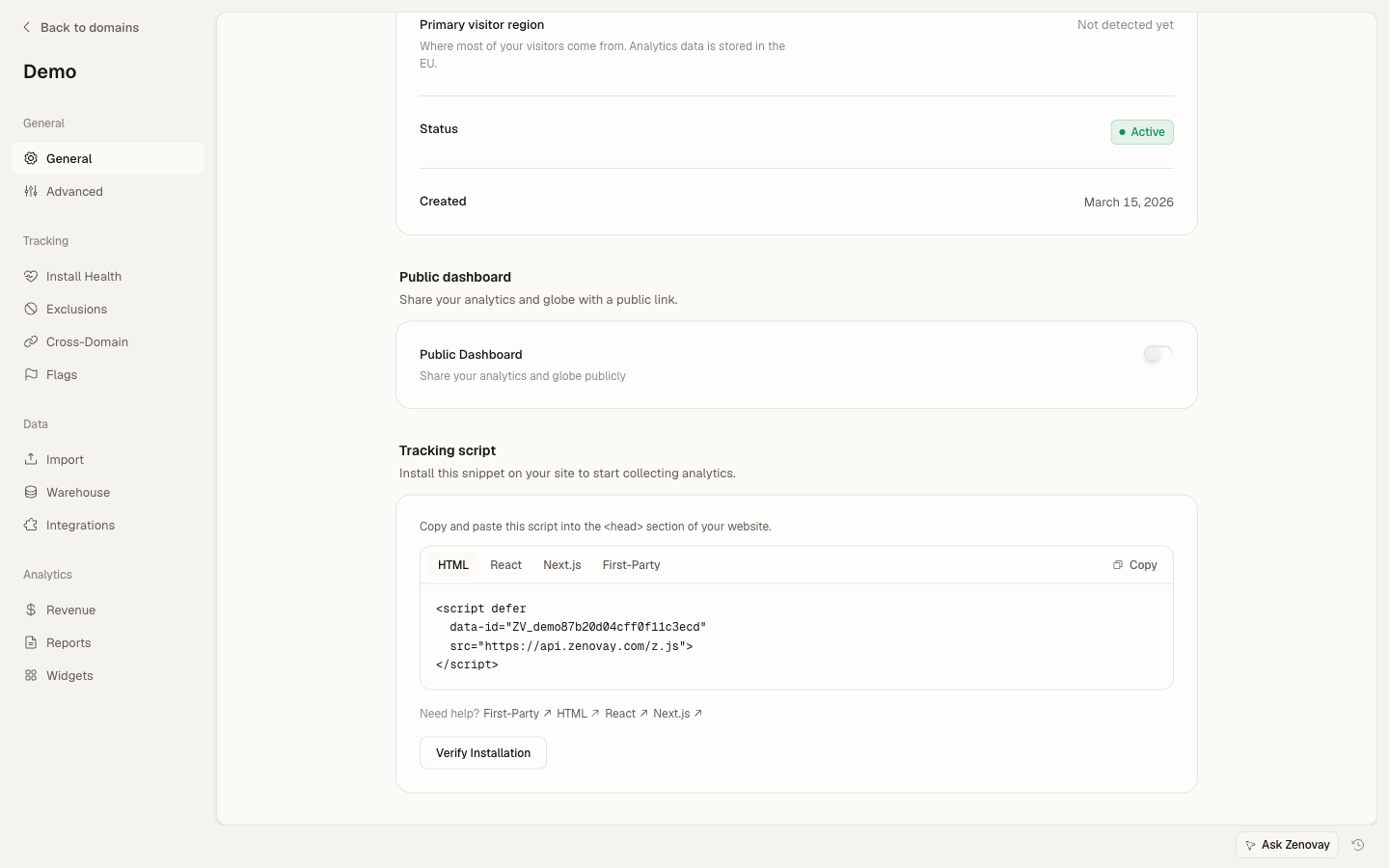
Add Zenovay to your Squarespace site through the Code Injection panel. It works on every Squarespace template and requires no custom code beyond pasting the snippet.
Code Injection requires a Business plan or higher ($23/mo+). Personal plans do not expose Code Injection.
Quick Start
| Step | Where | What you do |
|---|---|---|
| 1 | Zenovay dashboard | Copy your tracking snippet |
| 2 | Squarespace admin → Settings → Advanced → Code Injection | Paste it into Header |
| 3 | Save | Click Save at the top of the panel |
| 4 | Zenovay dashboard | Real-time visitors appear within ~30 seconds |
Method 1: Site-wide Code Injection (Recommended)
Squarespace's Code Injection panel writes raw HTML into the <head> of every page. It's the supported way to add any third-party analytics or pixel.
Step-by-step
- Log in to your Squarespace admin panel.
- From the home menu, click Settings.
- Scroll down and click Advanced.
- Click Code Injection.
- Paste the Zenovay snippet into the Header box:
<script defer data-tracking-code="YOUR_TRACKING_CODE" src="https://api.zenovay.com/z.js"></script>
- Click Save at the top of the panel.
Verify
Open your live site in an incognito window and view source. Look for <script defer data-tracking-code=...> between <head> and </head>. Your visit should appear in the Zenovay real-time view within ~30 seconds.
Method 2: Per-page Code Injection (Premium / Business plans)
If you only want to track specific pages, use per-page injection:
- In the admin, hover over the page in the Pages panel.
- Click the gear icon to open Page Settings.
- Open the Advanced tab.
- Paste the snippet into the Page Header Code Injection box.
- Save.
Per-page injection runs after site-wide injection. Don't paste the tracker in both scopes — you'll double-count.
Tracking custom events
After the tracker loads you can call window.zenovay() from any Code Block on a page.
Track CTA clicks
- In the page editor, add a Code block next to your button.
- Set the language to HTML.
- Paste:
<script>
  document.addEventListener('DOMContentLoaded', () => {
    const cta = document.querySelector('[data-zv-cta="hero"]');
    if (!cta || !window.zenovay) return;
    cta.addEventListener('click', () => {
      window.zenovay('track', 'cta_clicked', { location: 'hero', page: location.pathname });
    });
  });
</script>
- Add a
data-zv-cta="hero"attribute to your button by editing its block settings (some templates require wrapping the button in a Code block to attach raw attributes).
Track form submissions
Squarespace native forms emit a Y.Mojito.SquarespaceFormFront event you can hook into, but the simplest cross-template approach is to listen for the submit event:
<script>
  document.addEventListener('DOMContentLoaded', () => {
    document.querySelectorAll('form[data-form-id]').forEach(form => {
      form.addEventListener('submit', () => {
        if (window.zenovay) {
          window.zenovay('track', 'form_submitted', {
            form_id: form.getAttribute('data-form-id'),
            page: location.pathname,
          });
        }
      });
    });
  });
</script>
Identify logged-in customers (Member Areas)
If you use Squarespace Member Areas you can identify customers after they log in. Add this to Code Injection → Footer (so it runs after Squarespace hydrates the member context):
<script>
  document.addEventListener('DOMContentLoaded', () => {
    const memberId = window.SquarespaceMemberAccountContext?.context?.memberId;
    const email = window.SquarespaceMemberAccountContext?.context?.emailAddress;
    if (memberId && window.zenovay) {
      window.zenovay('identify', { userId: memberId, email });
    }
  });
</script>
The internal Squarespace context surface is best-effort — wrap it in try/catch if you depend on it.
Tracking Squarespace Commerce purchases
For Squarespace Commerce stores, fire a purchase event on the Order Confirmation page:
- Go to Settings → Advanced → Code Injection.
- In the Order Confirmation Page box (not the regular Header box), paste:
<script>
  document.addEventListener('DOMContentLoaded', () => {
    const orderId = document.querySelector('[data-order-id]')?.dataset.orderId
                 || window.location.pathname.split('/').pop();
    const total = document.querySelector('.order-total .price')?.textContent;
    const revenue = parseFloat((total || '').replace(/[^0-9.]/g, ''));
    if (window.zenovay && revenue > 0) {
      window.zenovay('track', 'purchase', {
        transaction_id: orderId,
        revenue,
        currency: 'USD',
      });
    }
  });
</script>
For accurate revenue attribution including refunds and subscriptions, prefer Stripe webhooks on the server side — the client-side fallback above misses orders where buyers close the tab before the confirmation page renders.
Plan requirements
| Plan | Code Injection | Per-page injection | Commerce events |
|---|---|---|---|
| Personal | No | No | No |
| Business | Yes | Yes | Add-on |
| Basic Commerce | Yes | Yes | Yes |
| Advanced Commerce | Yes | Yes | Yes + abandoned-cart |
Common gotchas
Personal plan doesn't have Code Injection. This is the single most common support ticket. You need Business ($23/mo) or higher.
Squarespace 7.1 vs 7.0 templates. Both support Code Injection identically — the menu path is the same. The only difference: some 7.0 templates have a separate "Page Header" option in template-level settings; ignore it and use the standard Settings → Advanced → Code Injection panel.
AMP / Lock screen pages. Squarespace serves an AMP variant of blog posts (/?format=amp). Your tracker won't load on those because AMP strips arbitrary <script> tags. If AMP matters to you, disable AMP delivery in Settings → Marketing → SEO.
SPA-style navigation on some templates. Most Squarespace templates do full-page reloads on link clicks. A few (notably Brine and Native) have AJAX page transitions that don't fire a fresh <head> load. If you see undercounted pageviews on those templates, manually call window.zenovay('trackPageView') from a popstate listener.
Cookie consent banner. If you've enabled Squarespace's built-in cookie banner (Settings → Cookies & Visitor Data), it does not block your custom Code Injection. To block Zenovay until consent, use data-cookieless="true" mode instead, which is consent-banner-free under most jurisdictions.
Troubleshooting
| Symptom | Likely cause | Fix |
|---|---|---|
| No data, Personal plan | Code Injection disabled below Business | Upgrade plan |
| No data | Snippet pasted but not saved | Click Save at the top of the Code Injection panel |
| No data on blog posts | AMP variant being served to your test device | Disable AMP or test the canonical URL |
| Some pages missing | Per-page Code Injection only on a few pages | Move snippet to Site-wide Header |
| Double pageviews | Snippet pasted in both Site-wide Header and per-page Header | Pick one scope |
Privacy & compliance
For cookieless tracking (no cookies, no local storage), add data-cookieless="true":
<script defer
        data-tracking-code="YOUR_TRACKING_CODE"
        data-cookieless="true"
        src="https://api.zenovay.com/z.js"></script>
See Privacy Compliance for the full picture.
Related resources
- Tracking Script reference
- Custom Events
- Revenue Attribution
- Server-Side Tracking
- Squarespace integration help article
Need help? Contact [email protected] or visit our Help Center.