Slack incoming webhook
Get a Slack message every time a Zenovay event fires — traffic spike, goal completion, error spike, or downtime.
This recipe uses Slack's native incoming webhook feature: no Slack app or bot needed.
Outbound webhooks are a Pro+ feature. Upgrade your plan to enable them.
1. Create the Slack incoming webhook
- In Slack, open your workspace → Apps → search "Incoming Webhooks" → Add to Slack.
- Pick the channel that should receive Zenovay alerts (e.g.
#alertsor#growth). - Click Add Incoming Webhooks integration.
- Slack shows a Webhook URL that looks like
https://hooks.slack.com/services/T00000000/B00000000/XXXXXXXXXXXXXXXXXXXXXXXX— copy it.
2. Add the webhook in Zenovay
- In
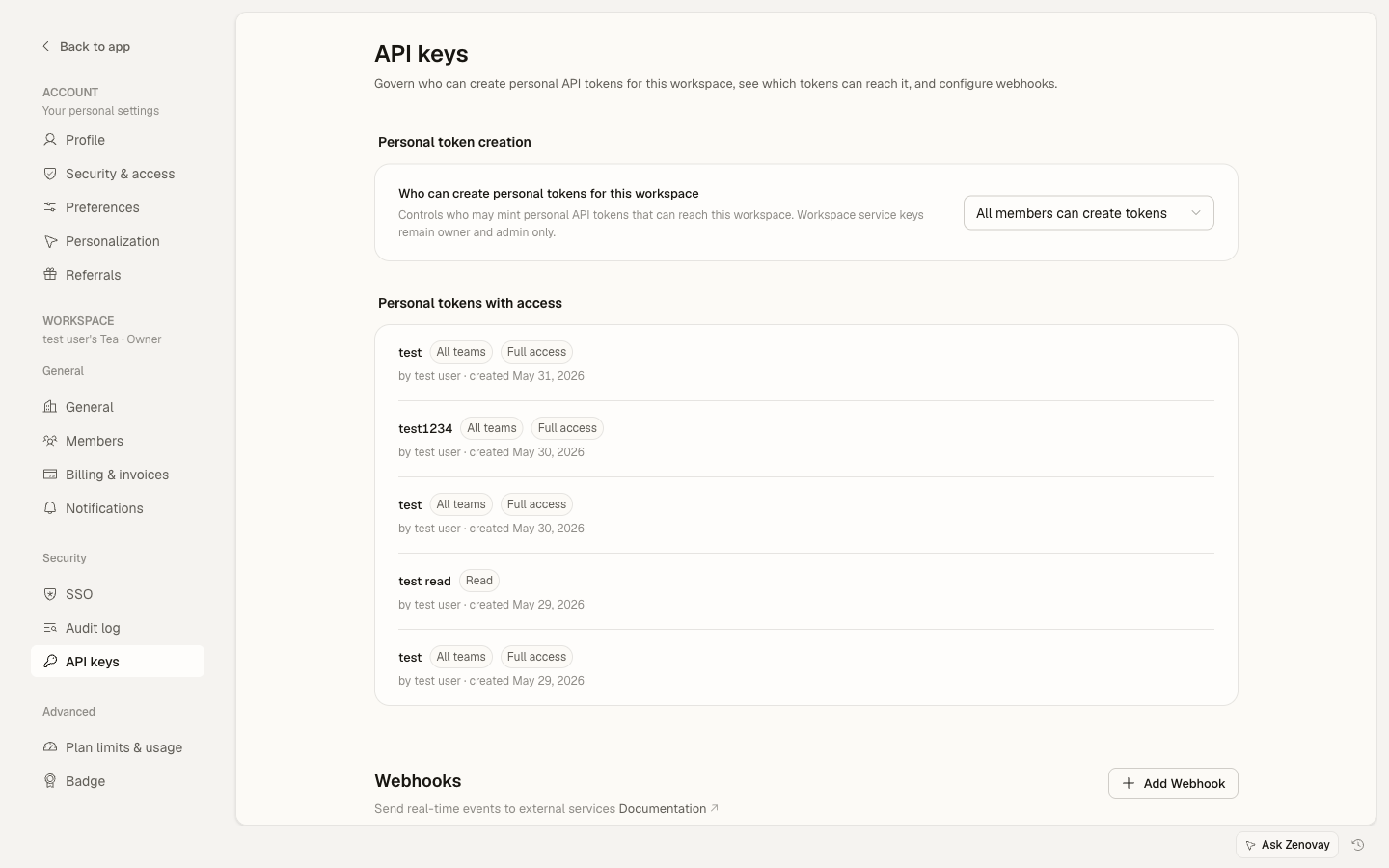
app.zenovay.com, go to Settings → Security → API keys and scroll to the Webhooks section. - Pick the website you want to receive notifications for.
- Click Add webhook.
- Fill in:
- Name:
Slack #alerts(or whatever's meaningful to you) - URL: paste the Slack webhook URL from Step 1
- Events: pick the ones you care about (Traffic spike, Goal completed, Website down, …)
- Name:
- Click Create webhook.
- Click the Send test event (paper-plane icon) on the new card. Within ~5 seconds you should see a Slack message in the channel.
That's it for the basic setup — Slack will accept Zenovay's default JSON payload as a generic text field.
3. (Optional) Pretty-format the Slack message
Slack's incoming webhooks accept a richer payload with blocks, attachments, and Markdown formatting. Zenovay sends a generic JSON event — Slack will render it as a fallback text value.
If you want pretty Slack messages with severity-coloured attachments or block layouts, run a tiny relay between Zenovay and Slack:
// Cloudflare Workers / any Node-style runtime
export default {
  async fetch(req) {
    const event = await req.json();
    const slackPayload = {
      text: `📈 Zenovay event: *${event.event_type}* on ${event.website_id}`,
      attachments: [{
        color: event.event_type === 'website_down' ? '#dc2626' : '#3b82f6',
        fields: [
          { title: 'Event', value: event.event_type, short: true },
          { title: 'Time', value: event.timestamp, short: true },
        ],
      }],
    };
    await fetch(SLACK_WEBHOOK_URL, {
      method: 'POST',
      headers: { 'Content-Type': 'application/json' },
      body: JSON.stringify(slackPayload),
    });
    return new Response('ok');
  },
};
Point Zenovay's webhook URL at your relay instead of Slack directly.
4. Verify Zenovay's signature (recommended for relays)
If you use a relay, verify Zenovay's HMAC-SHA256 signature so Slack only receives genuine Zenovay events:
import { createHmac } from 'crypto';

const signature = req.headers.get('x-zenovay-signature'); // 'sha256=<hex>'
const provided = signature.replace(/^sha256=/, '');
const expected = createHmac('sha256', YOUR_WEBHOOK_SECRET)
  .update(rawBody)
  .digest('hex');

if (provided !== expected) {
  return new Response('invalid signature', { status: 401 });
}
Your webhook secret is shown under Settings → Security → API keys — click the eye icon on the webhook card.
Troubleshooting
- No Slack message arrives: check the webhook card in Zenovay for a "Last fired" timestamp — if it's empty, no event has triggered yet. Click Send test event to force one.
invalid_payloadfrom Slack: Slack's webhook returned a 400 because the JSON shape didn't match. Use a relay (Step 3) to reshape into Slack's expected format.- Spammy alerts: in the webhook config, deselect chatty event types like
traffic_spike. Keep only the high-signal ones.