Localhost Testing
By default, Zenovay blocks tracking on localhost and other local environments to prevent test data from polluting your analytics. You can enable local tracking for development and testing.
Enable Localhost Tracking
Option 1: Dashboard Toggle (Recommended)
- Go to your Zenovay Dashboard
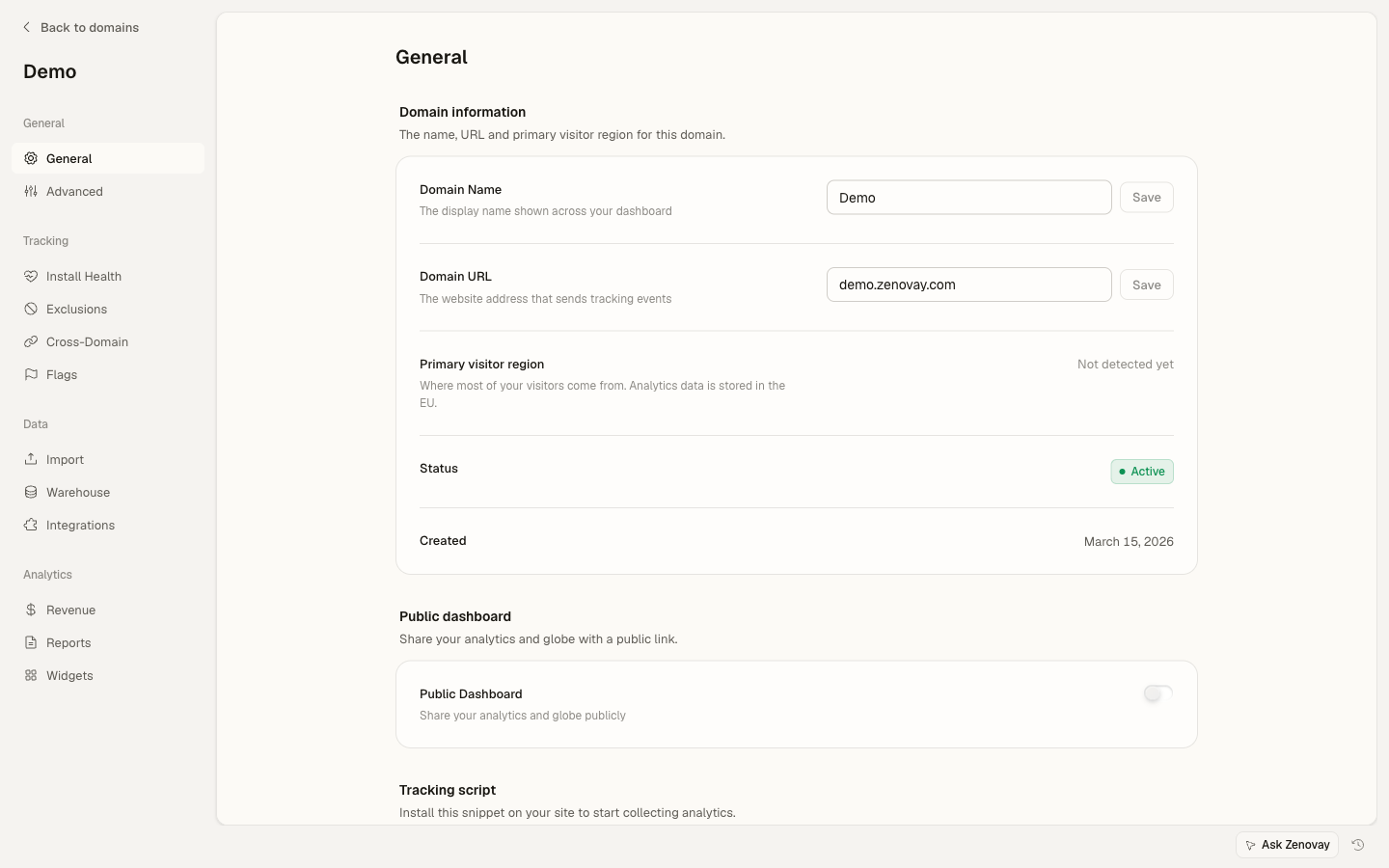
- Open Domains and click your site
- In the domain settings, open the Advanced section
- Enable the "Allow Localhost" toggle
- Click save
Changes take effect within 30 seconds for new page loads. If you had the page open already, do a hard refresh (Ctrl+Shift+R / Cmd+Shift+R).
Option 2: Script Attribute
If you prefer to control this per-environment via your HTML, add data-allow-localhost="true" to the script tag:
<script defer
data-tracking-code="YOUR_TRACKING_CODE"
data-allow-localhost="true"
src="https://api.zenovay.com/z.js">
</script>
Note: the dashboard setting above is the effective control. The server only accepts localhost events when it is enabled, and the tracker's settings fetch takes precedence over this attribute. Keep the attribute for offline development (when the settings fetch cannot complete); it has no effect on production domains.
Option 3: Dynamic Script Loading
For frameworks like React or Next.js where you load the script dynamically:
const script = document.createElement('script');
script.src = 'https://api.zenovay.com/z.js';
script.defer = true;
script.setAttribute('data-tracking-code', 'YOUR_TRACKING_CODE');
script.setAttribute('data-allow-localhost', 'true');
document.head.appendChild(script);
How It Works
Zenovay's tracker detects local environments by checking the hostname:
| Hostname | Detected as Local |
|---|---|
localhost | Yes |
127.0.0.1 | Yes |
::1 | Yes |
*.localhost (e.g. app.localhost) | Yes |
*.local (e.g. mysite.local) | Yes |
127.x.x.x (any loopback) | Yes |
When a local environment is detected, the tracker checks two things (in order):
- Server settings — The tracker fetches your website's configuration from the Zenovay API. If
allow_localhostis enabled in the dashboard, tracking proceeds. - Script attribute — If the API call fails or hasn't completed, the
data-allow-localhost="true"attribute on the script tag acts as a fallback.
If neither is set, tracking is blocked and you'll see this message in the browser console:
[Zenovay] Environment blocked — Localhost blocked (use data-allow-localhost='true' to enable)
Verifying It Works
Browser Console
Open DevTools (F12) → Console tab. With localhost tracking enabled, you should see:
Zenovay Analytics loaded { trackingCode: "ZV_...", reason: "Active" }
If localhost is blocked, you'll see:
[Zenovay] Environment blocked { reason: "Localhost blocked (use data-allow-localhost='true' to enable)" }
To see detailed debug output, also enable Debug Mode in the domain's Advanced settings (open Domains, select your site, then open the Advanced section), or add data-debug="true" to the script tag. This is a separate setting from Allow Localhost.
Network Tab
Open DevTools → Network tab and filter by zenovay or api.zenovay.com:
GET z.js— Script loads (200 OK)GET /api/websites/settings/ZV_...— Settings fetch (200 OK, response includesallow_localhost: true)POST /e/ZV_...— Pageview event tracked (200 OK)
If step 3 returns 403, your domain verification is blocking the request. Make sure allow_localhost is enabled in your dashboard settings.
Dashboard
After a page load on localhost, go to your Zenovay dashboard. Open Domains, select your site, and open the Analytics tab. Under the Hosts breakdown, you should see localhost (or 127.0.0.1) listed as a source.
Debug Mode vs Allow Localhost
These are two separate settings with different purposes:
| Setting | Purpose | Where to Enable |
|---|---|---|
| Allow Localhost | Lets the tracker fire on local environments | Domains, select your site, Advanced section, "Allow Localhost" toggle |
| Debug Mode | Logs detailed tracking events to the browser console | Domains, select your site, Advanced section, "Debug Mode" toggle |
You can enable both during development for maximum visibility, but they work independently.
- Allow Localhost only controls whether tracking runs on localhost
- Debug Mode only controls whether debug output appears in the console
Using with the Load Endpoint
If you use the /load endpoint (recommended for production), localhost settings are automatically injected by the server:
<script defer
data-tracking-code="YOUR_TRACKING_CODE"
src="https://api.zenovay.com/load/YOUR_TRACKING_CODE">
</script>
With the /load endpoint, you only need to enable "Allow Localhost" in the dashboard — no data-allow-localhost attribute required.
First-Party Proxy on Localhost
If your production setup uses a first-party proxy (e.g., /api/_z/script.js), the proxy typically won't work on localhost since it's a server-side route that forwards to api.zenovay.com.
Solutions:
- Use the direct script on localhost: Switch to
https://api.zenovay.com/z.jsin development - Set up a local proxy: Configure your dev server to proxy
/api/_z/tohttps://api.zenovay.com/ - Use environment-based script URL: Load from your proxy in production, direct in development
const isDev = window.location.hostname === 'localhost';
const script = document.createElement('script');
script.src = isDev
? 'https://api.zenovay.com/z.js'
: '/api/_z/script.js';
script.defer = true;
script.setAttribute('data-tracking-code', 'YOUR_TRACKING_CODE');
if (isDev) script.setAttribute('data-allow-localhost', 'true');
document.head.appendChild(script);
Troubleshooting
Tracking not working on localhost
- Check the dashboard setting: Open Domains, select your site, open the Advanced section and verify "Allow Localhost" is enabled
- Hard refresh: Changes take up to 30 seconds. Do Ctrl+Shift+R to clear cached scripts
- Check the console: Open DevTools and look for
[Zenovay]messages - Verify the script loads: Check Network tab for
z.jsreturning 200 - Check for ad blockers: Browser extensions may block analytics even on localhost
Events return 403
The API rejected your tracking request due to domain verification. This means:
allow_localhostis not enabled in your website settings, OR- The setting hasn't propagated yet (wait 30 seconds and retry)
Events fire but data doesn't appear in dashboard
Localhost data appears in your analytics alongside production data. Check:
- Hosts tab in Analytics — look for
localhostentries - Filters — make sure you're not filtering out localhost traffic
- Time range — ensure you're looking at today's data
Remember to disable "Allow Localhost" before going to production if you don't want test data in your analytics. Alternatively, use the data-allow-localhost attribute approach so it's only active in your development environment.